Fix Error 0xc1900223 When Installing Windows 10 Updates

windows update error 0xc1900223 in windows 10

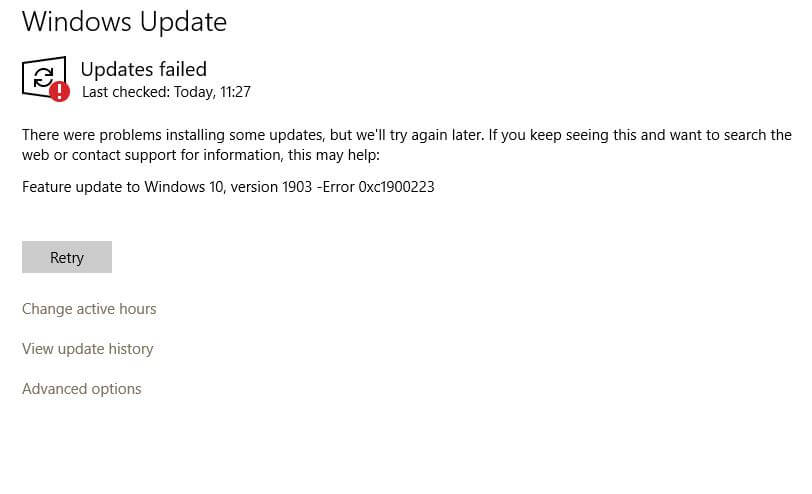
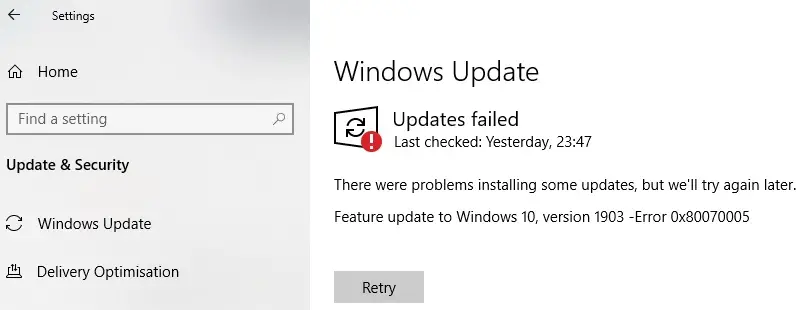
The error 0xc1900223 may appear when you attempt to update your Windows 10 installation, especially when installing a feature update like v1903 or v1909. There is no actionable advice from Microsoft, regarding this error.

windows update error 0xc1900223 in windows 10

However, the error continues to occur even when attempting to install the update every time.

The SetupDiag utility (download) would log this error:

Error: SetupDiag reports abrupt down-level failure.
Last Operation: Finalize
Error: 0xC1900223 - 0x20009
LogEntry: Error MOUPG CSetupManager :: ExecutePreDownloadMode (8491): Result = 0xC1900223

The usual Windows Update troubleshooting methods may not fix this error. This post tells you how to prevent the error 0xc1900223 in Windows 10.Read more

How to Free Up Gigabytes of Disk Space in Windows

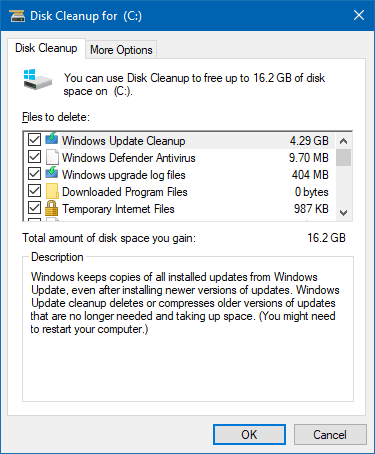
free up disk space in windows 10

Windows 10 updates, especially the feature updates, consume enormous disk space as Windows stores the older copies in case you want to roll back to the previous version. Hard disk drives have become cheaper and affordable nowadays. A 1 TB SATA HDD costs less than $50. But, if you’re using an old, low-capacity hard drive from an old computer and want to free up disk space, this article tells you how to do that.

After installing a feature update, Windows 10 automatically cleans up the previous Windows installation files (Windows.old) after ten days. However, there are some other ways with which you can free up disk space in Windows. Let’s see some of the options.Read more

How to Install Office Picture Manager in Windows 10

Microsoft Office Picture Manager is a graphics viewer and editor introduced in Microsoft Office 2003 and included up to Office 2010. Many people prefer the good old Microsoft Office Picture Manager, perhaps for it’s UI or UX, and want to install it on Windows 10.

However, Microsoft has discontinued the Picture Manager with the release of Office 2013. The equivalent functionality is now provided in the Windows 10’s Photos app, which has the image crop, resize, red-eye removal, video trimming, and other features. Alternatively, you can also enable the classic Windows Photo Viewer using the registry, or install the Windows Live Photo Gallery (which is now unsupported by Microsoft).

If you desperately need the Office Picture Viewer, the good news is that you can still install it on Windows 10. The SharePoint Designer 2010 installer includes the Office Picture Manager as an optional component that can be installed as a standalone application.

This article tells you how to install Office Picture Manager on Windows 10 and earlier, regardless of the version of Office — e.g., Office 2013, Office 2016, Office 365 — installed on the computer. Office Picture Manager is super-fast (like the Windows Photo Viewer) especially if you’re going to use it as an image previewer.Read more
Trigger a Program Upon Connecting to a Specific Network in Windows

trigger launch program when connecting to a specific network connection

Depending upon the network you’re connected to, you may want to run certain tasks. For instance, when you’re connected to a specific network — e.g., home network — you may want to assign a different printer as the default, using command-line or script. This is especially needed in Windows 10 where the “location-aware printing” feature has been removed.

Or, you may need to run a backup task, or set the default save location in your Office apps to local documents instead of OneDrive when connected to a home network. Some users would want to turn on their VPN software upon connecting to a particular network.

Read more

[Fix] Cannot Delete WindowsApps folder on Non-System Drives

cannot delete windowsapps folder

If you have changed the default app save location to an external hard drive or secondary drive, Windows will create three folders, namely, WpSystem, WindowsApps, and WUDownloadCache on the target drive.

You may later change your mind and revert the default save location to C:. But you may be unable to delete the leftover WindowsApps folder on your secondary drive due to tight NTFS permissions assigned to the folder. The other two folders, WpSystem and WUDownloadCache can be deleted easily.

When you access the WindowsApps folder on your secondary drive, you may see the following message:

cannot delete windowsapps folder

You have been denied permission to access this folder.

And the Advanced Security Settings dialog shows the error:

Can't open access control editor. Unable to perform a security operation on an object that has no associated security.

cannot delete windowsapps folder

This article explains how to properly delete the leftover WindowsApps folder on your secondary or external hard disk drive(s).Read more