The Ultimate Performance plan is a preset power scheme introduced in Windows 10 v1803 and higher. This power scheme is enabled by default for Windows for Workstations. But, it can be manually enabled in other Windows 10/11 editions — Home, Pro, etc.
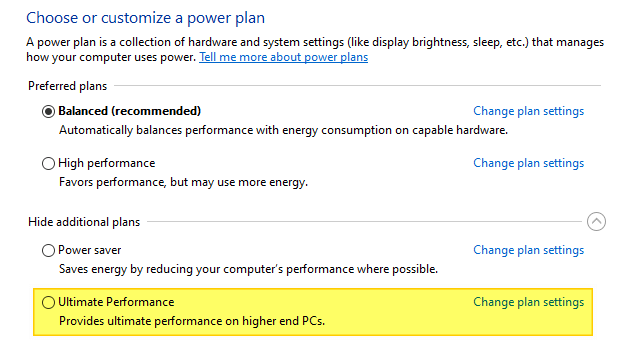
But, what exactly does the Ultimate Performance power scheme do?
What is the Ultimate Performance Power Plan?
The Ultimate Performance plan is a preset power scheme that disables all the power management features that Windows normally has. Let’s say you have a 3.00GHz CPU. In the Balanced power scheme, the Minimum Processor state is set to 10% and the maximum to 90%. This means your processor speed might vary from 0.3GHz (10% of 3.00 GHz) and 2.7GHz (90% of 3.00GHz) P-state, depending upon the usage.
However, a SuperUser participant has an interesting observation:
Also, depending on which P-states are supported, the actual clock speed might differ considerably from what you might expect from the percentage; specifying 50% in Windows power options doesn’t necessarily mean that your processor will run at 50% clock speed. For instance, on my Core 2 Duo T9550 with a nominal clock speed of 2.66 GHz, setting the processor state to 50% doesn’t give a clock speed of 1.33 GHz, as might be expected. Instead, Windows chooses the lowest supported multiplier (FID 6), which results in a clock speed of ~1.6 GHz (FSB 266 MHz × multiplier 6 = 1596 MHz), or 60% of the nominal clock speed…
In the Ultimate Performance plan, the Minimum Processor State is set to 100%. This means your CPU will always be running at 100% power, even if some or all of its cores have nothing to do at the moment. The Turn off hard disk option is set to Never. Your hard disk will always be spinning, regardless of how long the system has been idle.
The Ultimate Performance power scheme, as Microsoft explains:
Demanding workloads on workstations always desire more performance. As part of our effort to provide the absolute maximum performance, we’re introducing a new power policy called Ultimate Performance. Windows has developed key areas where performance and efficiency tradeoffs are made in the OS. Over time, we’ve amassed a collection of settings which allow the OS to quickly tune the behavior based on user preference, policy, underlying hardware or workload.
This new policy builds on the current High-Performance policy, and it goes a step further to eliminate micro-latencies associated with fine-grained power management techniques. The Ultimate Performance Power plan is selectable either by an OEM on new systems or selectable by a user.
As the power scheme is geared towards reducing micro-latencies it may directly impact hardware, and consume more power than the default balanced plan. The Ultimate Performance power policy is currently not available on battery-powered systems.
With the Ultimate Performance scheme, your computer will use more power than it needs. For most users, especially home users, this scheme is not recommended.
Enabling Ultimate Performance Power Plan
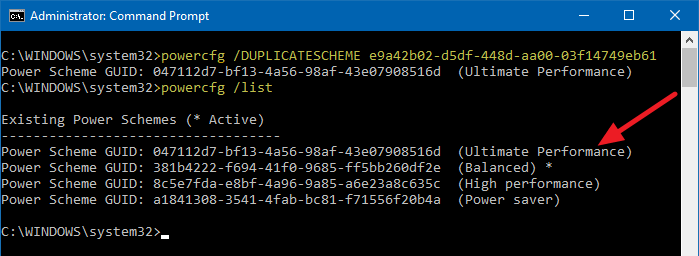
To enable the Ultimate Performance power scheme, open an admin Command Prompt and type:
POWERCFG /DUPLICATESCHEME e9a42b02-d5df-448d-aa00-03f14749eb61
Power Plans Comparison
Here’s a comparison between Balanced Vs. Power saver Vs. High-Performance Vs. Ultimate Performance power schemes (for desktop computers.)
| Power Option Setting | Balanced | Power saver | High Performance | Ultimate Performance |
|---|---|---|---|---|
| Turn off hard disk after | 20 minutes | 20 minutes | 20 minutes | Never |
| IE: Javascript Timer Frequency | Maximum Performance | Maximum Power Savings | Maximum Performance | Maximum Performance |
| Desktop Background Slideshow | Available | Available | Available | Available |
| WiFi adapter: Power saving mode | Maximum Performance | Maximum Performance | Maximum Performance | Maximum Performance |
| Sleep | ||||
| Sleep after | 30 minutes | 15 minutes | Never | Never |
| Hibernate after | Never | Never | Never | Never |
| Allow wake timers | Enable | Enable | Enable | Enable |
| USB settings | ||||
| USB selective suspend | Enabled | Enabled | Enabled | Enabled |
| Power button and lid | ||||
| Power button action | Shut down | Shut down | Shut down | Shut down |
| Sleep button action | Sleep | Sleep | Sleep | Sleep |
| PCI-E Link State Power Management | Moderate power savings | Maximum power savings | Off | Off |
| Processor power management | ||||
| Minimum processor state | 5% | 5% | 100% | 100% |
| System cooling policy | Active | Passive | Active | Active |
| Maximum processor state | 100% | 100% | 100% | 100% |
| Turn off display after | 10 minutes | 5 minutes | 15 minutes | 15 minutes |
| Multimedia settings | ||||
| When sharing media | Prevent idling to sleep | Allow the computer to sleep | Prevent idling to sleep | Prevent idling to sleep |
| Video playback quality bias | Video playback performance bias | Video playback performance bias | Video playback performance bias | Video playback performance bias |
| When playing video | Optimize video quality | Balanced | Optimize video quality | Optimize video quality |
As you can see, the High performance and Ultimate performance power schemes are almost the same, with the exception of the “turn off hard disks” setting. For most desktop users, Balanced is the recommended power setting.
One small request: If you liked this post, please share this?
One "tiny" share from you would seriously help a lot with the growth of this blog. Some great suggestions:- Pin it!
- Share it to your favorite blog + Facebook, Reddit
- Tweet it!

does that mean, if i choose power saving plan and max out all its setting, then it will be same as ultimate power plan??
No, ultimate is still better.