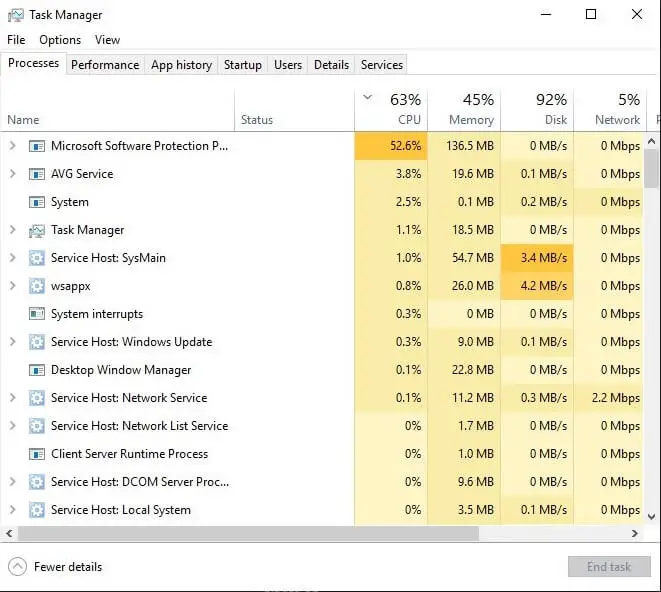
Your system may slow down to a crawl, and when you open Task Manager, you may find the Microsoft Software Protection Platform Service (sppsvc) utilizing very high CPU (ranging anywhere from 30% to 75%) for a considerably long time. You may be wondering why the Software Protection service is consuming enormous resources.
Utilities
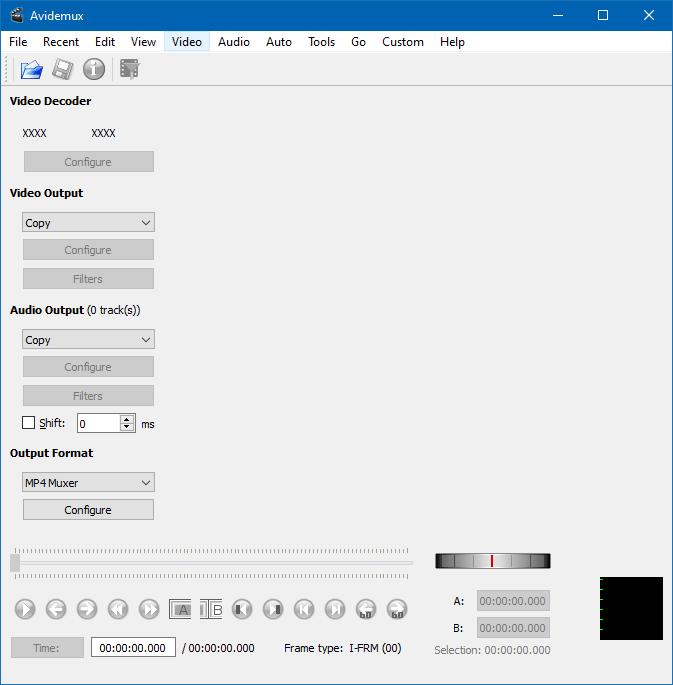
How to Join Multiple Videos in Windows Using Avidemux
Due to file size restrictions or other reasons, sometimes, your friends or co-workers may send videos in multiple parts. This is especially the case when you get the videos from WhatsApp, email, or other social media platforms. Once downloaded, you may want to combine the multiple clips into one single video for easier management.
We’ve seen how to do merge videos using the built-in Photos app. But this post tells you how to combine multiple video clips into one, using 3rd party freeware like Avidemux, FFmpeg, etc.Read more
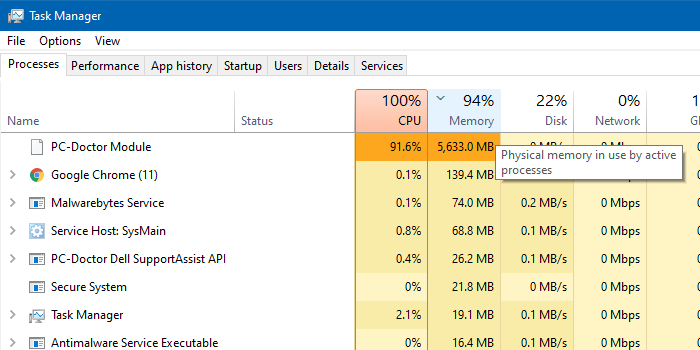
“PC-Doctor Module” High CPU, Memory, Disk Usage and Slowdown
Occasionally, your system may slow down to a crawl due to the PC-Doctor Module process that runs in the background. When this happens, it can take several seconds to open the Task Manager or any program.
The Task Manager may show that a process named PC-Doctor Module is occupying 100% of CPU and a very high amount of RAM. You may be wondering if PC-Doctor Module is a virus, Malware, or a PUA.Read more
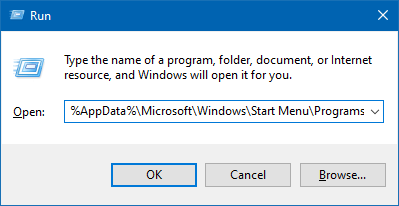
How to Open File or Folder Path from the Clipboard Using Shortcut
Sometimes we may need to copy a file or folder path from your email or chat window to the clipboard, and open the file or folder manually. Most people open the file or folder by launching the Run dialog, pasting the path from the Clipboard, and clicking OK.

If your job involves doing this sort of task repeatedly, manually opening the Run dialog and pasting the path every time can be tedious. You can simplify this using a keyboard shortcut (hotkey) with the help of a small AutoHotKey (AHK) script.
How to Batch Convert Excel Sheets into PDF Files
Microsoft Excel Spreadsheets are commonly used to store financial data and prepare invoices. Often, you may need to convert the .xls or .xlsx files to .pdf format especially if you’re sending out invoices to your clients.
Microsoft Excel has a built-in option using which you can save your workbook, active sheet, or selected cells to a PDF file. This can be accomplished using the Save as… dropdown box.
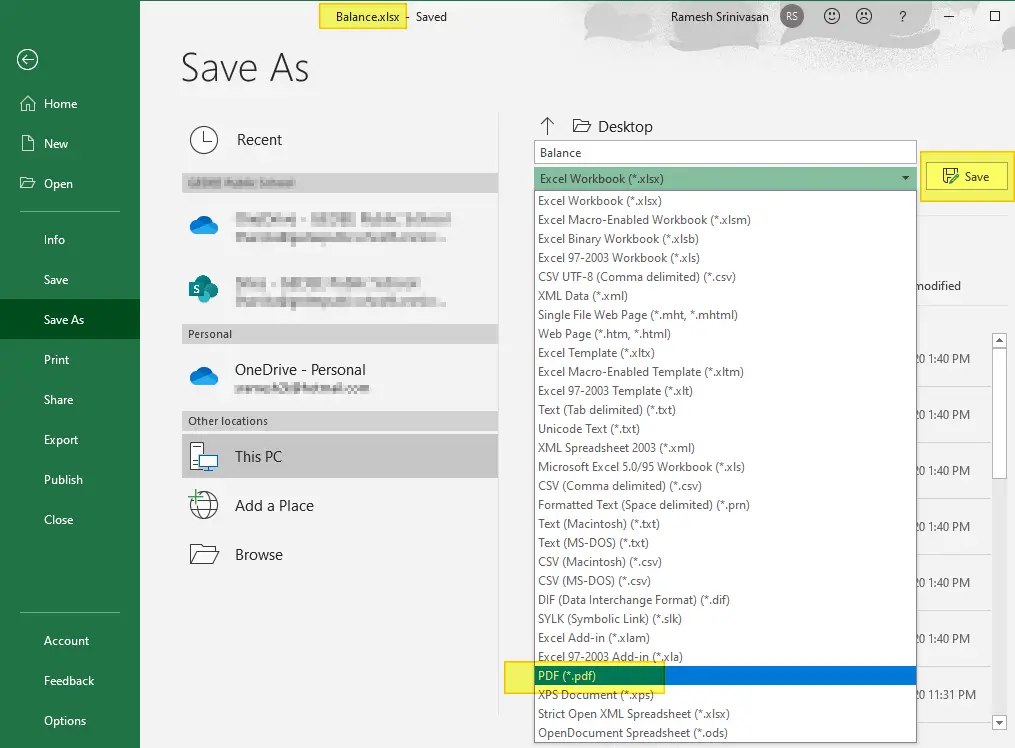
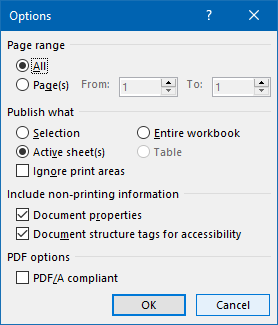
By clicking on the More options… link, you can configure the page range, and the item to export (entire workbook, active sheet, etc) to PDF.
Another option would be to use the Microsoft Print to PDF driver in Windows 10 to output the .xls or .xlsx file to a .pdf document. For this, you’d use the Print option (instead of Save as) to print the document to PDF.
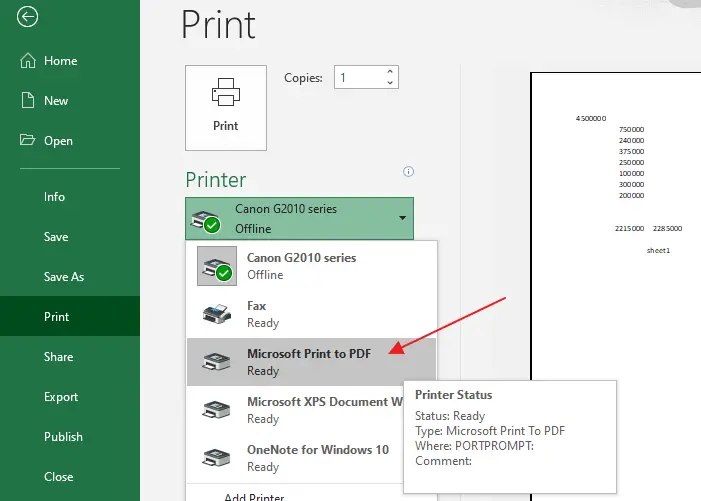
Pre-Windows 10 systems don’t have the Microsoft Print to PDF driver. As an alternative. you can use the free CutePDF Writer or Foxit PDF Printer (part of Foxit PDF Reader software.)
Bulk conversion of Excel sheets to PDF
However, if you have hundreds of invoices (in .xls or .xlsx format) that you need to batch/bulk convert the files into PDF, the above options are not ideal and take a long time.
- There are plenty of online portals that can bulk convert Excel sheets to PDF documents quickly without charging any fee. However, if your Excel sheets are confidential and you don’t want any intermediary portal or service to access them, then you may use the Excel to PDF offline conversion methods discussed in this article.
Fortunately, Microsoft Word and Microsoft Excel lets you automate the above task using scripting. This article tells you how to batch convert multiple Excel sheets into PDF files quickly.Read more
How to Download YouTube, Facebook, Twitter Videos Easily
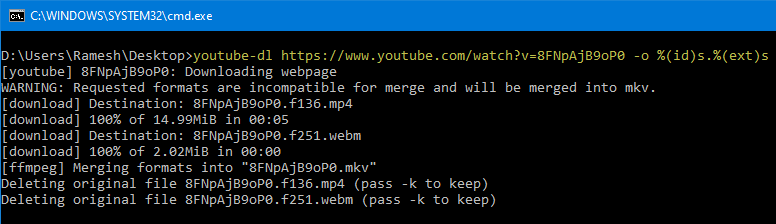
There are plenty of free online portals that help you download YouTube, Facebook, and Twitter embedded videos. These portals process the inputted video URL and make multiple resolutions of the video available for download.
However, if you want to avoid the online video download portals and wish to download YouTube, Facebook, and Twitter videos from your computer directly (without an intermediary), this post is for you.
How to Clear or Flush Google Chrome DNS Cache
Domain Name System (DNS) is the address book of the Internet. Web browsers interact through Internet Protocol (IP) addresses. DNS translates domain names to IP addresses so browsers can load Internet resources.
Windows caches the DNS records for a considerable time. This cache can be cleared by running the command ipconfig /flushdns. Other than this, your web browser like Google Chrome maintains a separate DNS cache mechanism.
Why do you need to clear the browser DNS cache?
- System administrators often find times where they need to redirect the domains by editing the host file, in order to override any DNS records for a domain name. However, every time you want to change a hostname to a different IP, you needed to close the browser before the change will take effect. This can get tedious if you have too many browser tabs or windows open.
- When doing web development or other work that requires changing the web hosting IP in the HOSTS file for testing purposes, you needed to restart the web browser every time for the new host to IP mappings to take effect.
However, with Google Chrome, you can clear the internal DNS cache without closing and reopening the browser. This post tells you how to clear the internal DNS cache of the Google Chrome browser without restarting Google Chrome.