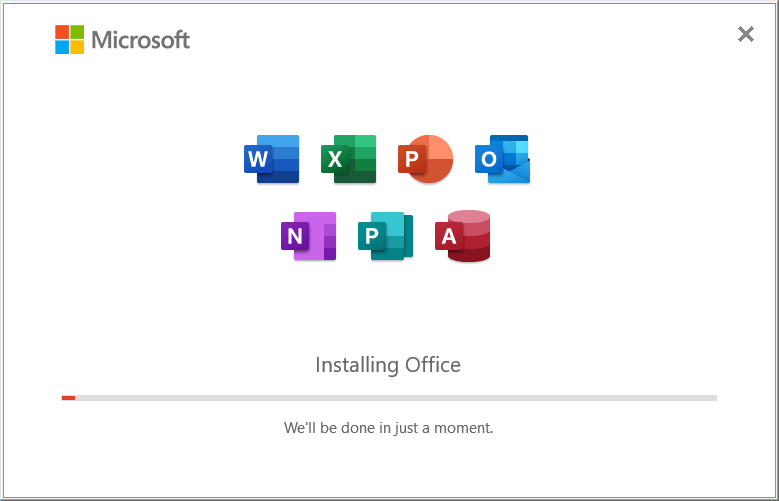
The traditional MSI (Microsoft Installer) based installation allowed you to install or uninstall individual office products (e.g., Word, Excel, or PowerPoint). But the Office click-to-run (CTR) installations don’t allow installation choices. Click-to-Run is the technology used to install Microsoft 365, and most versions of Office 2013 and newer.Read more
Utilities
[Fix] Error “Windows Photo Viewer can’t display this picture”
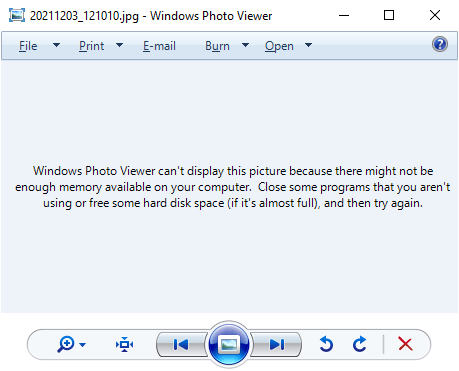
When you try to preview an image file (JPEG/PNG) using Windows Photo Viewer, the preview would be blank and the following error message is displayed:
Windows Photo Viewer can't display this picture because there might not be enough memory available on your computer. Close some programs that you aren't using or free some hard disk space (if it's almost full), and then try again.
It’s a misleading error message, as in most cases, it may not have anything to do with the system memory. The Windows Photo Viewer error is caused due to color profile metadata (ICC_Profile) embedded into the JPG image(s).
(You can reproduce the issue by transferring images from your Android/iOS mobile and previewing the image using Windows Photo Viewer on your computer. Another possibility is that your system has multiple video cards and the issue happens on the secondary graphics card only. Switching over to the primary video card may resolve the error.)
However, other utilities like IrfanView, GIMP, or the built-in/modern Photos app would be able to open the image correctly. This issue is limited to Windows Photo Viewer (and perhaps Windows Live Photo Gallery) only.Read more
How to Recover Deleted Files Using Windows File Recovery (WFR)
Did you accidentally delete an important file? Have you wiped clean your hard drive? Unsure of what to do with corrupted data? Windows File Recovery can help recover your personal data.
Windows File Recovery (WFR) is a command-line app from Microsoft. It can help you recover lost files deleted from your local storage device (including internal drives, external drives, and USB devices) that cannot be restored from the Recycle Bin.Read more
How to Disable Preview for Certain File Types in Explorer Preview Pane
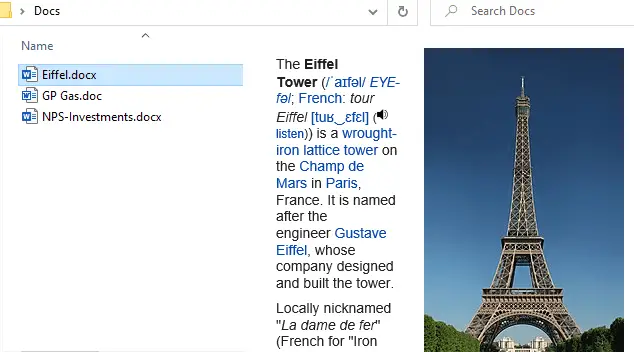
The preview pane in File Explorer shows you the preview for various file types in Windows 10 and Windows 11. Windows comes with a built-in set of preview handlers. In addition, third-party applications add their own handlers that can generate previews for their proprietary file types.
Windows allows you to turn on or off previews by enabling or disabling “Show preview handlers in preview pane” in Folder Options.
You may want to disable preview generation for a specific file type to improve performance. But, there is no built-in setting to disable preview generation (in the preview pane) for chosen file types. However, there is a handy tool that can accomplish the task.
This article tells you how to disable preview for certain file types in the Explorer preview pane.Read more
[Fix] Cannot Install Notepad++ Plugins – Installation Failed
Notepad++ is one of the excellent open-source text editors available. Many users replace the plain old Notepad with Notepad++, as the latter has a lot of features and is also lightweight. You may be knowing that the functionality of Notepad++ can be extended by installing third-party plugins into it using the built-in Plugins Admin feature.
On some computers, you may be unable to install any plugins using the Plugins Admin feature. When trying to install a plugin, it restarts Notepad but does not install the chosen plugin even though you’ve tried both x86 and 64-bit versions. On some versions you may see the following error:
Installation Error: Installation of plugin failed
This issue may persist even if the
We’ll see how to resolve the Notepad++ plugins installation issue.
[Fix] WebP Images Appear Very Dark in Windows Photo Viewer
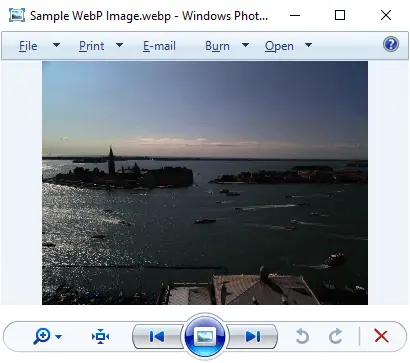
WebP is a modern image format that provides lossless and lossy compression for smaller, richer images on the web. When you preview a WebP (.webp) image using Windows Photo Viewer, the image may appear very dark.
However, the File Explorer preview pane and the thumbnail view show the .webp image correctly. Also, the same WebP image would render correctly in Firefox, Chrome, and Microsoft Edge (Chromium) web browsers.
How to View and Modify Service Permissions in Windows
Summary: This article explains the various methods to view the permissions for any Service in Windows. It also covers the tools and methods to modify the service permissions easily.
Just as file system objects and registry keys have permissions, each service in Windows can have a set of permissions. The permission entries for a service determine who can stop the service, query its status, change the startup type, modify the service configuration, or delete the service.
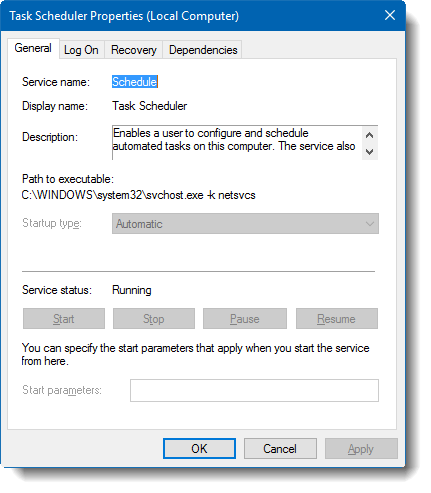
You may have observed that the Start, Stop, and the Startup type controls are grayed out for some services, even when you’re logged in as an administrator.
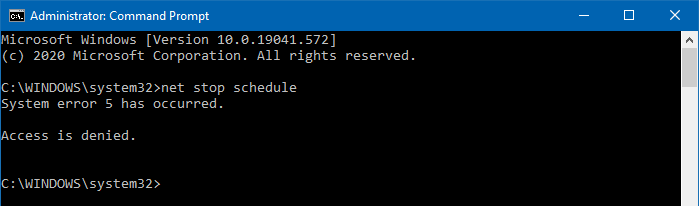
And if you attempt to stop the Task Scheduler service from admin Command Prompt, you’ll get the following error message:
System error 5 has occurred.

Access is denied
This is because the Task Scheduler service permissions are pre-configured such that even the administrators can’t control this particular service.
In this article, we’ll see how to view service permissions and modify them if needed.