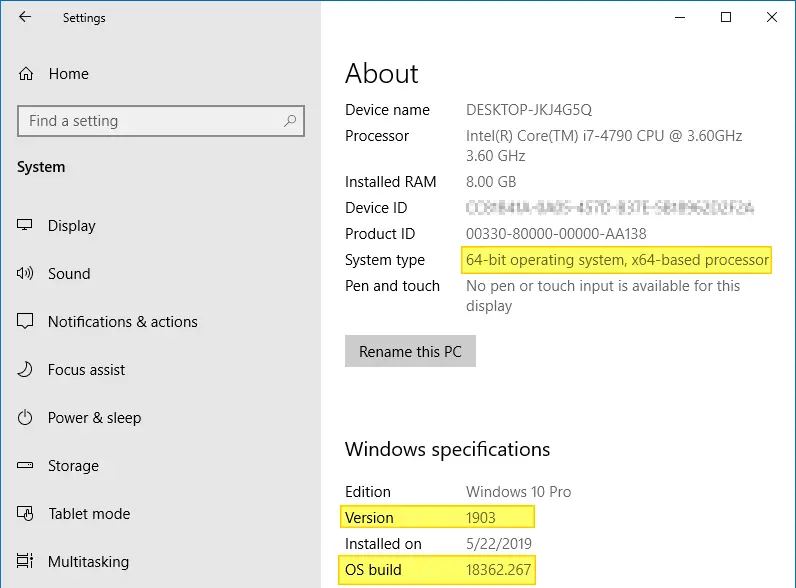
The Build Number, Version, “Bit”ness (32-bit or 64-bit) of your Windows installation can be determined using many ways, and here are some of the methods listed. Screenshots are from a Windows 10 PC, but most of the information applies to all versions of Windows, including Windows 11.Read more
Windows
You’re browsing the “Windows” parent category, which lists articles on every Windows Operating System.
Personalize Settings Says “Some settings are managed by your organization”
If the Personalize settings page show the red text message Some settings are managed by your organization at the top, it means that some of the settings in that particular page are locked down by an administrator in that computer, via Group Policy Editor or through the registry. For classic Control Panel items, you may see the message One or more of the settings on this page has been disabled by the system administrator if one or more Policies are set for that page.Read more
How to Schedule Microsoft Defender Scan in Windows 10/11
Microsoft Defender’s command-line utility MpCmdrun.exe is used for scheduling scans or updating the signatures using the command-line. This post tells you how to set up Microsoft Defender to scan the computer daily at a specified time using Task Scheduler and in Windows 10 or 11.Read more
Fix Cannot Unpin FTP Links from Quick access (Home)
When you access an FTP site using File Explorer and Pin it to the Quick access section, the FTP site shortcut remains stuck and can’t be removed or unpinned. When right-clicking on the Pinned FTP link in the navigation pane the context menu doesn’t contain any options, except for an option named Expand, and that too dimmed out.Read more
How to Show Only Quick Access in the Navigation Pane in Windows 10
We saw how to remove Quick access and other Shell Folders from File Explorer in one of my previous articles. This post something similar. In this, I’ll tell you how to remove all Pinned items in the navigation pane except Quick access.Read more
How to Reinstall Microsoft Print to PDF After Deleting it Accidentally
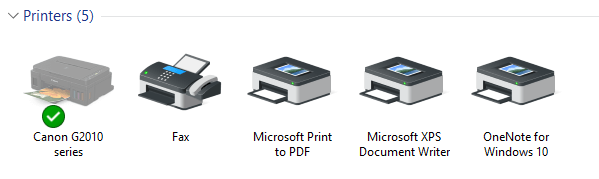
Windows 10 and 11, as you know, includes the Microsoft Print to PDF virtual printer built-in that can print (convert) documents to PDF format from any application.
Microsoft Print to PDF is a handy tool in Windows 10/11. In the previous Windows Operating Systems, users needed to use a third-party tool or virtual printer driver to convert documents or web pages to PDF. Most users, including me, have been relying upon the Cute PDF Writer driver or similar drivers supplied with PDF reader applications — e.g., Adobe Acrobat or Fox It Reader. And don’t forget Microsoft’s own Office Add-in: Microsoft Save as PDF or XPS.
Interestingly, many Windows 10/11 users accidentally delete Microsoft Print to PDF and wonder how to restore it. This post explains how to restore/reinstall the Microsoft Print to PDF printer if you’ve accidentally deleted it.Read more
[Fix] Quick Access Pinned Shortcuts Stuck or Not Working

Quick access (Home) in Windows 10 and 11 provides a convenient way to access folders you frequently use by pinning them. However, in some situations, the pinned shortcuts in Quick access get stuck, and you cannot remove or unpin them.Read more
Homegroup and Libraries Icons on the Desktop – How to Add or Remove?
The Homegroup and Libraries icons aren’t present on the desktop by default in Windows 10. Here is a quick tip on how to add these folders on your desktop if you use these folders frequently. Instructions apply to Windows 7, 8, 10, and 11. Add or Remove Homegroup and Libraries Icons on the Desktop Open … Read more
Remove Camera Roll, Saved Pictures and Screenshots Folders & Libraries
The Camera Roll and Saved Pictures folders are two special folders that show up in the Pictures Library and in the user profile’s Pictures folder. Camera Roll is a folder used by the modern Camera app, and the photos and videos you create using the Camera app are saved in the Camera Roll folder. Likewise, Saved Pictures is used by the Photos app.
Some users who don’t use these folders or features and are looking how to permanently delete the Camera Roll, Saved Pictures, and the Screenshots folders. No matter how many times you delete the Camera Roll and Saved Pictures folders, they simply recreate automatically after some time.
How to Disable Full Row Select and Auto Arrange in Windows 10?
The magical registry edits that I provided several years back to disable auto-arrange and full row select features in Windows 7, also work fine in Windows 10 just as they did in Windows 7. For a detailed explanation about the registry edits (fflags values), check out my earlier posts How to Disable Full Row Select in Explorer in Windows 7? and How to Disable Auto Arrange in Folders in Windows 7?. The registry edit in the latter article is even better, as it disables Auto Arrange in addition.