How to Install Office Picture Manager in Windows 10

Microsoft Office Picture Manager is a graphics viewer and editor introduced in Microsoft Office 2003 and included up to Office 2010. Many people prefer the good old Microsoft Office Picture Manager, perhaps for it’s UI or UX, and want to install it on Windows 10.

However, Microsoft has discontinued the Picture Manager with the release of Office 2013. The equivalent functionality is now provided in the Windows 10’s Photos app, which has the image crop, resize, red-eye removal, video trimming, and other features. Alternatively, you can also enable the classic Windows Photo Viewer using the registry, or install the Windows Live Photo Gallery (which is now unsupported by Microsoft).

If you desperately need the Office Picture Viewer, the good news is that you can still install it on Windows 10. The SharePoint Designer 2010 installer includes the Office Picture Manager as an optional component that can be installed as a standalone application.

This article tells you how to install Office Picture Manager on Windows 10 and earlier, regardless of the version of Office — e.g., Office 2013, Office 2016, Office 365 — installed on the computer. Office Picture Manager is super-fast (like the Windows Photo Viewer) especially if you’re going to use it as an image previewer.Read more
How to Split a Video or Audio (MP3) into Multiple Parts

cut audio or video multiple parts - loselesscut

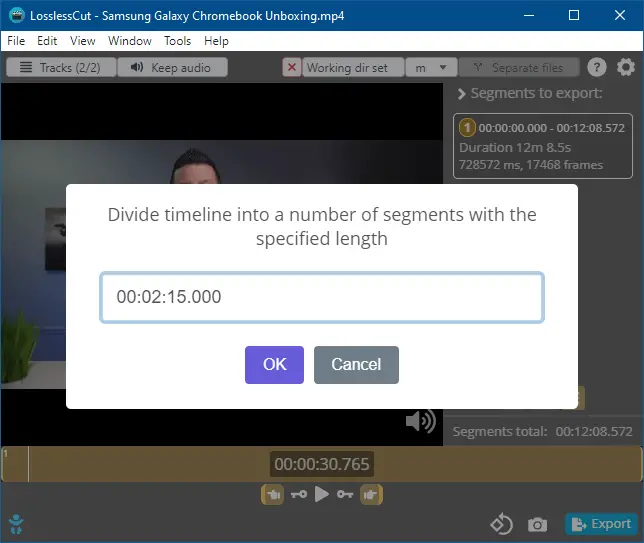
The built-in Photos app can be used to cut a portion of a video file. Sometimes, you may need to split a video or audio into multiple parts with a specific duration. It helps you share them on Twitter or any other social networking site which has a length limitation. For instance, Twitter allows you to upload videos of length not exceeding 140 seconds (2m 20s.)

To split a video into multiple equal parts, you may have to repeat the procedure multiple times if you’re using the Photos app. Instead, you may use a third-party tool to split a video (MP4, MKV, AVI, or MPG) or audio (MP3, WAV, etc.) into multiple equal parts automatically.

In this article, let’s see how to cut a selection of a video or audio and save the selection to a separate file. This article also describes how to split a video or audio into multiple equal parts.

Read more

How to Find the BIOS Version and Check if it is Up to Date

find bios information and update bios

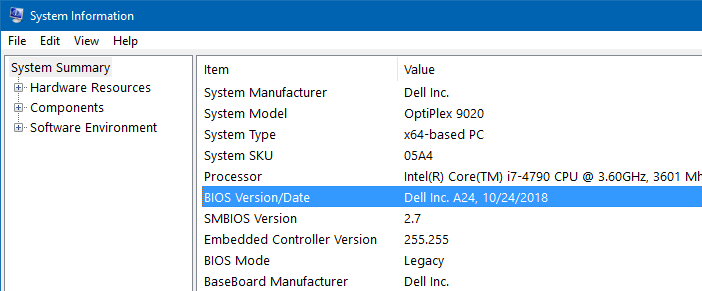
BIOS is a firmware used to perform hardware initialization during the booting process. The BIOS firmware comes pre-installed on a computer’s motherboard (a.k.a. system board), and it is the first software to run when powered on. You can enable or disable onboard devices, set the boot device priority, CPU speed, etc., in the BIOS Setup page.

CPU vulnerabilities (e.g., Meltdown, Spectre) are fixed by installing the appropriate security Microcode update. Microcode updates are nothing but the firmware for CPUs which are usually delivered as BIOS or UEFI firmware update. So, updating the BIOS is essential to mitigate or fix security vulnerabilities in CPUs.

If Intel releases a Microcode update for a CPU or a set of CPU models, they work with OS vendors, and OEMs to develop platform firmware and software updates that can help protect systems.

This post tells you how to check your BIOS version and make sure if your BIOS is up to date.

Read more

Find the Total Execution Time of a Command or Program in Windows

measure total execution time of a command or program

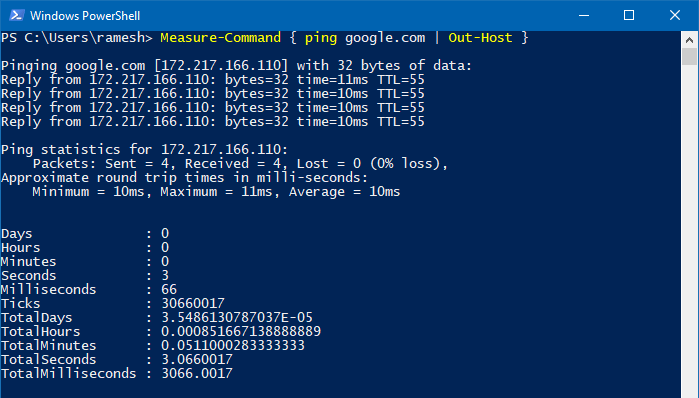
You may sometimes want to to find the total execution time of a command or program you run. To optimize a script or program, it’s essential to know how long does it take for it to complete execution. This helps you compare the total run time of Program A vs. Program B and optimize your code, especially if you’re a professional software developer, analyst, or software tester.

Measuring the total execution time of a script or process is one of the most critical aspects of performance optimization. This article discusses various methods to find the total execution time of a program, script, or command in Windows.

Read more

How to Check if a Program (.EXE or .DLL) is 32-bit or 64-bit

find out if exe is 32-bit or 64-bit

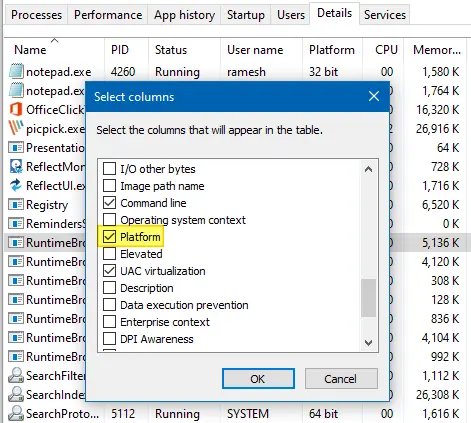
Software developers compile separate executable files (.EXE or .DLL) for 32-bit (x86) and 64-bit (x64) systems. The 64-bit version of the program is usually denoted by suffixing 64 or x64 with the filename — e.g., sigcheck.exe vs. sigcheck64.exe. In some cases, the bitness notation may be missing, and you may be wondering if the executable is 32-bit or 64-bit.

This article discusses various methods to determine if a program or executable file is 32-bit or 64-bit in Windows.

Note that some vendors may combine the 32-bit and 64-bit executables into one 32-bit self-extractor file that would detect the platform, extract, and run the correct EXE for the current platform.Read more

How to Change File Date or Timestamp in Windows

change last modified file date or timestamp using powershell

Windows maintains three different date/timestamps for every file and folder. They are “Date Created,” “Date Modified,” and “Date Accessed.” You may have to change the modified, created, or last accessed timestamp of a file or folder in some situations.

For instance, I had to change the timestamp of some files to test the Robocopy sync method when writing an article on folder compare and synchronization. Other users may need to change the date or time of a file for backup or archiving purposes.

Let’s see some methods to change the created date, modified date, or last accessed date of files in this article.
Read more