How to Remove Easy Clean Mode in CCleaner

disable ccleaner easy clean option

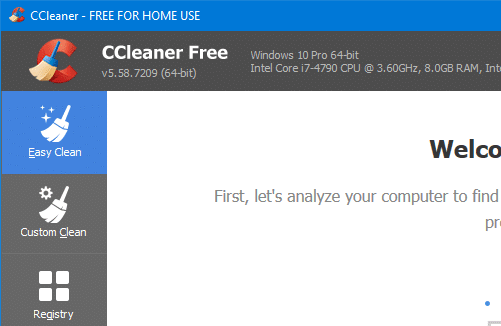
CCleaner 5.57 introduced a cleaning mode named Easy Clean to make the interface simpler and easy to understand for users who are not tech-savvy.

Easy Clean provides a simpler, more intuitive interface and uses everyday language to explain the types of files that can be cleaned. Files are now categorized as either ‘Trackers’ or Junk’ and when a user wishes to customize their clean, the purposes of each file type is explained (for example, Temporary Internet Files are described as ‘Files left behind when you visit websites’).Read more
Disable Folder Thumbnails without Disabling Thumbnail Preview for Files

disable folder content thumbnails

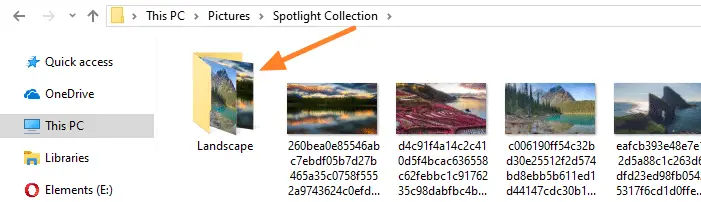
When a folder contains one or more images in it, the contents of the folder are shown as the thumbnail image for that folder.

disable folder content thumbnails

Windows allows you to enable or disable thumbnail previews in File Explorer using the Always show icons, never thumbnails setting in the Folder Options dialog. When you turn off thumbnail previews, icons are shown instead of thumbnails — for both files and folders. The Folder Options dialog doesn’t have an option to disable thumbnail preview selectively for folders or for files only.Read more

Clear all notifications in Action Center using Keyboard or Shortcut

clear all notifications shortcut action center

The Action Center in Windows 10 is a slide-out pane where all system notifications are displayed and it has quick action buttons to various Windows settings. Any notification shown on your taskbar will be added to the Action Center. The unread (new) notifications count is also displayed on the Action Center notification area icon.

The Action Center may accumulate too many messages over time. To clear them simply click on the Clear all notifications link at the bottom of the Action Center slide-out pane. This article tells you how to clear specific notifications using a shortcut.Read more

How to Find and Delete Duplicate Files in Windows

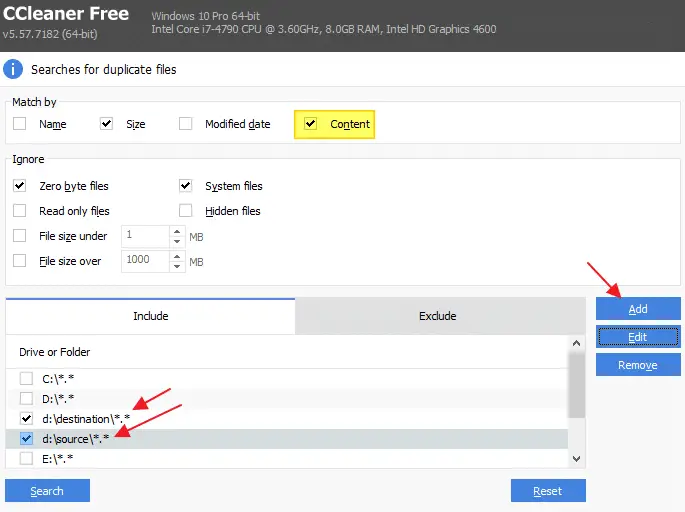
find and delete duplicate files in windows - ccleaner

Over time, you may accumulate duplicate files or imported photos on your hard disk due to mismanagement or accidental copying to another location. In some situations, the duplicate files or photos may have completely different names than the original. How do you find duplicate files or photos on your hard disk and remove them to free up the disk space?Read more

Get File Hash Checksum (MD5, SHA-256) via Right-click Menu

get file hash via the right-click menu

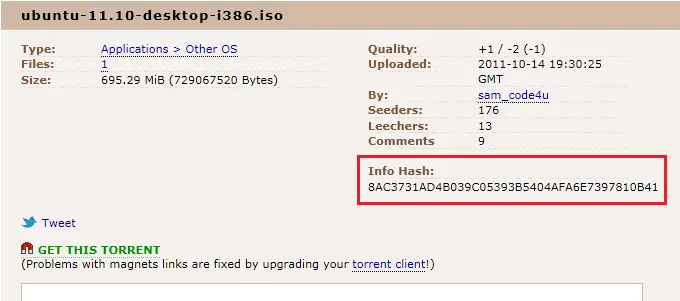
Hashing means taking an input string of any length and giving out an output of a fixed length. Using the cryptographic hashing algorithm — e.g., MD5, SHA-256, SHA-384, you can verify if two files are identical or not. The checksum is a hash value used for performing data integrity checks on files. It’s a kind of signature for a file.

When you download large files from the internet such as the Windows 10 ISO images, there are chances that the file gets corrupt or a few bits lost due to inconsistent connection or other factors. Hash verification is the best way to compare the two hashes – source file on a website or server versus the downloaded copy.Read more

Force Chrome to Always start in Light or Dark mode regardless of Windows 10 app mode setting

Always start Chrome in Light mode regardless of Windows 10 Light or Dark app mode setting

Google Chrome by default follows or respects your Operating System’s (e.g., Windows 10) default app mode (Light or Dark). If you enable Dark app mode in Windows 10 Settings → Personalization → Colors, it also enables dark mode or dark theme in Google Chrome.

Force Chrome to Always start in Light or Dark mode regardless of Windows 10 app mode setting

When you switch to the light mode in the Operating System, Chrome automatically switches to the light theme.

However, regardless of the Windows 10 app mode setting, you can force Google Chrome to always start in light mode or in dark mode. This article tells you how to prevent Google Chrome from respecting or following Windows 10’s app mode (Light vs Dark) setting. This can be done using additional/hidden chrome.exe command-line arguments which can be added to Chrome’s shortcut target field in Properties.Read more