Show Full Path in the Address Bar for Special Folders in Windows 10

show full path in address bar for special folders windows 10

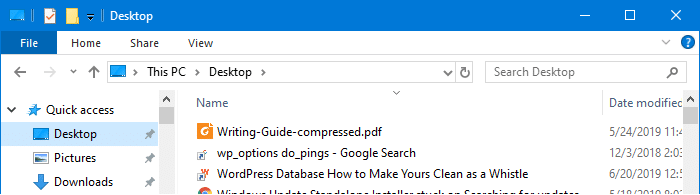
Quick access contains links to Desktop, Documents, Pictures, Music, and Videos folders by default. When you access one of those special folder links via Quick access, the address bar shows the location as This PCDocuments, This PCDesktop etc, instead of the absolute path to the Documents or the Desktop folder.
show full path in address bar for special folders windows 10

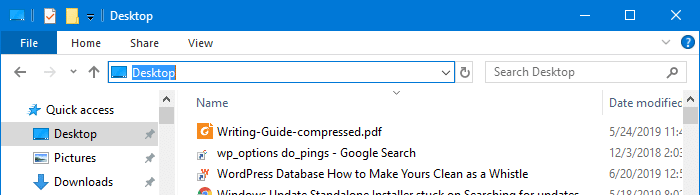
And, when you click on the address bar or press Alt + D, only the folder name – e.g., Desktop appears instead of its absolute path.
show full path in address bar for special folders windows 10

The same happens to other shell folders such as Documents, Pictures, Videos, Music, Downloads, etc.,

You may be wondering how to make Windows 10’s File Explorer show the full path of the shell folders. And, this article tells you how to accomplish that using the Windows Registry.

Read more

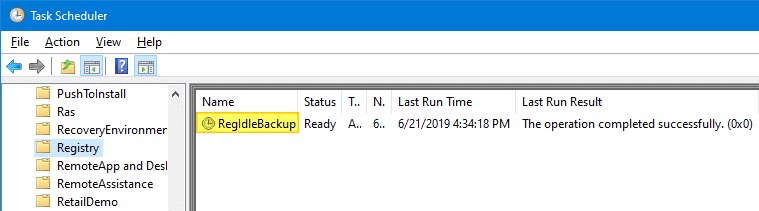
How to Automatically Backup the Entire Registry in Windows

RegIdleBackup - Registry Idle Backup Task - Scheduler Registry Backup

Every System Restore point or shadow copy maintains a complete backup of the registry hives. However, Windows 10/11 doesn’t automatically create System Restore points every day. Restore Points are created only when installing important updates or drivers.

Notwithstanding the System Restore’s excellent capabilities, relying upon System Restore as a file or registry backup method is not sensible. It’s because System Restore points are cleared on a FIFO basis once the space threshold is reached.

The registry files (hives) are located in the Windows\System32\Config folder. The hives are always in use when Windows is running. So, you’ll need a specialized program that uses Windows API or volume shadow to backup the hives.

This article discusses six different methods to completely backup your Windows registry hives.Read more

Notepad++ Tips: Find and Replace, and Text Manipulation Examples

notepad++ icon

notepad++ iconNotepad++ is an excellent light-weight text editor with many useful features. With Notepad++, you can find and replace text in the current file or in multiple files in a folder recursively. You can also find and replace text using regex.

This post has many Notepad++ find & replace examples and other useful Notepad++ tips for different scenarios.Read more

Open Command Prompt in Current Folder Using Keyboard Shortcut

open command prompt in current folder - autohotkey

There are at least a couple of ways to open Command Prompt in the current folder path from a folder window. The two widely used options include running cmd.exe from the File Explorer address bar and using the Open Command window here option from the folder background context menu.

But, no built-in option exists to accomplish this using a keyboard shortcut or hotkey. This post tells you how to open Command Prompt (or admin Command Prompt) in the current directory path using the AutoHotkey automation tool.Read more

Set Landscape for a Single Page in a Word Document

set selected page landscape same word document

To change the Word document orientation, you may have been using Page Setup to change the orientation to landscape or portrait for the entire document. Many users don’t know that Word also allows you to set a different orientation (landscape or portrait) for different pages within the same Word document.

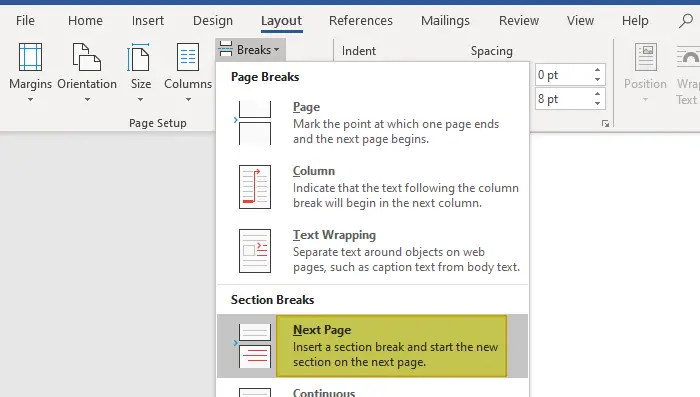
This article tells how to make specific pages in your Word document to landscape and the rest of the pages to portrait orientation, or vice versa.Read more

.Docx/Doc Files Not Showing Word Icon but Only White Plain Icon

word .docx and .doc files show generic white icon

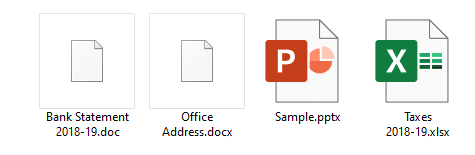
Many users have reported that the Word icons are not showing up for .docx and .doc files on their systems. Instead, they show up with a generic (unknown) or plain white icon even though the files open in Word when double-clicked (i.e., the file association settings are intact.)

word .docx and .doc files show generic white icon

Cause

Blank or missing Word icons on .doc and .docx files may occur due to multiple reasons, such as deleting the Office installer folder (which contains the Office icons) or installing multiple versions of Office on a computer. This may have been caused if you install and later uninstall a Microsoft Office alternative software (e.g., Open Office, WPS Office, etc.)

An incorrect Programmatic Identifier (e.g., docx_auto_file) or wrong file association settings in the Windows registry for Word documents can also cause this issue. Last but not least, a corrupt icon cache can also trigger the problem.

This article tells you how to fix the icons for Word document file types .docx and .doc using different ways.Read more

Insert Date/Time in Any Program Using Keyboard Hotkey

insert date/time in any program - wordpad

When you’re writing content such as technical content, news articles, etc., you may sometimes want to insert the current date or timestamp in a program or editor you’re using. In Notepad, you can add the timestamp by pressing the F5 key.

Microsoft Office Word, OneNote allows the Alt + Shift + D and Alt + Shift + T hotkey combinations to insert the current date and current time respectively.

Similarly, WordPad has the Date and time toolbar button that lets you insert the date or timestamp in your preferred format from the list of 13 choices.

insert date/time in any program - wordpad

But, if you’re using a program which doesn’t have a built-in feature to insert current date and time, you may need a third-party macro or automation tool for that purpose. With automation tools, you also have the advantage of using a single hotkey combination to insert the date or timestamp in any program.Read more