From Windows 2000/XP through Windows 10, you can add custom shell folders as well as hide specific shell folders from appearing in Explorer environment or Desktop using the Registry Editor or with GPOs. There are two new ways to do exactly the same task, in Windows 10.Read more
Windows
You’re browsing the “Windows” parent category, which lists articles on every Windows Operating System.
How to Enable Adware or PUA Protection in Microsoft Security Essentials
You can enable PUA or adware protection in Windows Defender using different methods explained in the article How to Enable PUA, PUP or Adware Protection in Windows Defender. But, if you’re still using Windows 7 and relying on Microsoft Security Essentials (MSE) for real-time antivirus protection, this post has the info on how to enable adware, PUP or PUA protection in MSE.Read more
How to Enable Scanning for PUA/PUP/Adware in Windows Defender
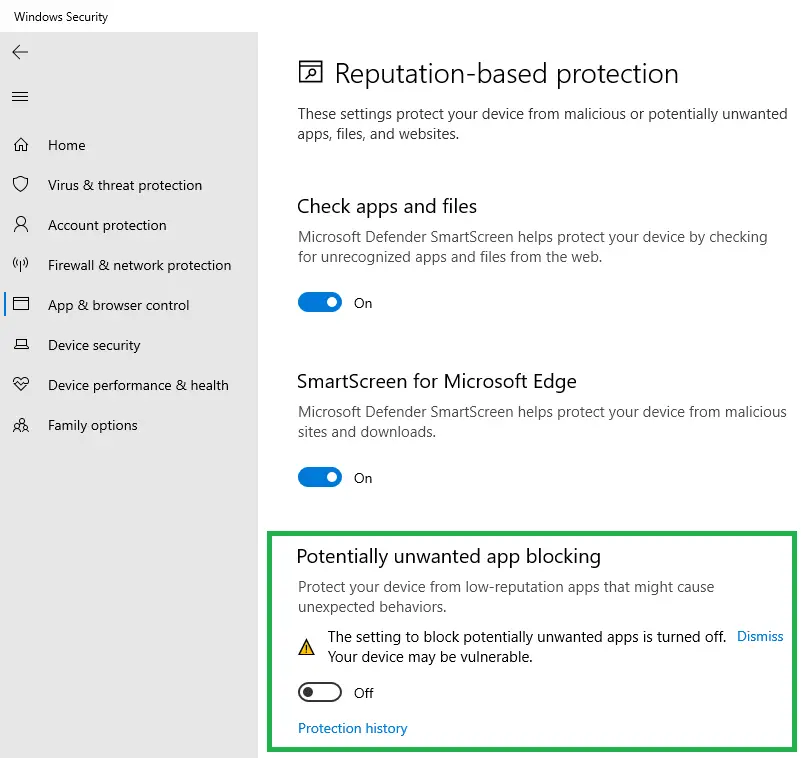
Windows Defender can detect and remove malware and viruses, but it doesn’t catch Potentially Unwanted Programs or crapware by default. However, there is an opt-in feature that you can enable to make Microsoft Defender antivirus scan and eliminate adware, PUAs, or PUPs in real-time.Read more
Scanning your PC using Malicious Software Removal Tool (MSRT) and Microsoft Safety Scanner
Microsoft Malicious Software Removal Tool (MSRT) is a post-infection removal tool which is updated every month and rolled out through the Windows Update channel. Malicious software scanning runs as you install MSRT from Windows Update. You can also initiate scans manually whenever needed by running mrt.exe in the Windows\System32 directory.Read more
How to Change File Explorer Default Start Folder in Windows 10
The Windows 10 File Explorer opens to Quick access by default. Quick access is a section where you can place shortcuts to your favorite folders. It also displays recently viewed files and frequently used folders. If you’re not a fan of the Quick access feature and want File Explorer to default to “This PC”, Downloads or any other custom folder by default, this post tells you how to do it.
Read more
View Resources Usage by Individual Services in Windows 10
With the Windows 10 Creators Update (codenamed “Redstone 2”) Preview Build 14942, the way in which services are hosted has changed. In Windows 10 v1703 systems with more than 3.5 GB of RAM, each service would get its own service host (svchost.exe), instead of running under a shared service process. This lets you view the resources usage by each individual service. Resources here mean network, memory, disk and CPU usage.Read more
How to Reset Windows Firewall Settings to Defaults
You may want to occasionally reset Windows firewall settings or rules to clear any unused entries there in the aftermath of malware attack and removal, or when some of the networking features don’t work due to misconfiguration of the Windows Firewall.Read more
Get Notified When Windows 10 Brings a New Spotlight Image Every time [Lock Screen]
Windows Spotlight brings some amazing wallpapers for the Lock Screen, which you can save and use as your desktop background. By now, I’m pretty sure most users know how to view and store the lock screen images collection from the Assets folder.
Then I made a post on how to find the exact file name of the current lock screen wallpaper image in use, using the Registry Editor or a script to find the image file and save it to your Pictures folder automatically.Read more
Why doesn’t Disk Cleanup Clear the Temp Folder Contents Completely
Disk Cleanup (Cleanmgr.exe) is a built-in tool in Windows that offers some useful cleanup options not available in other 3rd party cleanup tools. It can remove superseded device drivers, Temporary Files, Internet Explorer cache, obsolete Windows Updates, Previous Windows Installation (Windows.old) folder, and much more.Read more
How to Install CAB and MSU Updates from Windows Update Catalog
Installing updates via Windows Update can be problematic sometimes. For example, downloads may stall at a specific stage due to problems with the Windows Update server or the Content Delivery Network (CDN) that hosts the update in your region. It could also be possible that the Windows Update or BITS Services configuration on the local computer is at fault.Read more