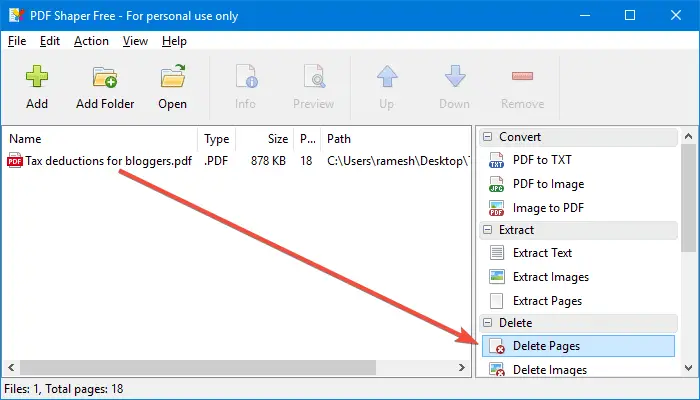
We have numerous freeware PDF document viewers but not many freeware PDF writer tools are available. Sometimes, you may want to remove specific pages from a PDF document or remove images from a particular page in a PDF file completely to keep the file size low. Many online portals provide the PDF editing and merging features you’re looking for. But if you need an offline tool (for privacy concerns) to remove images or delete pages from a PDF document, this article has the info you’re looking for.Read more
Utilities
Change Default Apps and File Association via Command-line
Summary: This post explains how to change the default apps or file associations using the command-line in Windows 10 and 11. This can be accomplished by a command-line tool named SetUserFTA.Read more
Turn Off Monitor Using Shortcut or Command-line in Windows
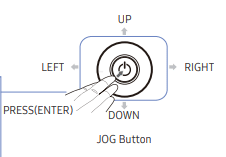
My new Samsung Curved monitor has the power button on the rear end, perhaps for aesthetic purposes. I have been using monitors that have controls on the front or underneath the bezel all these years. Now, with the new monitor, I find it a little bit inconvenient to reach out to the button on the backside every time I need to turn off or turn on the display.Read more
How to Find and Remove Empty Folders in Windows
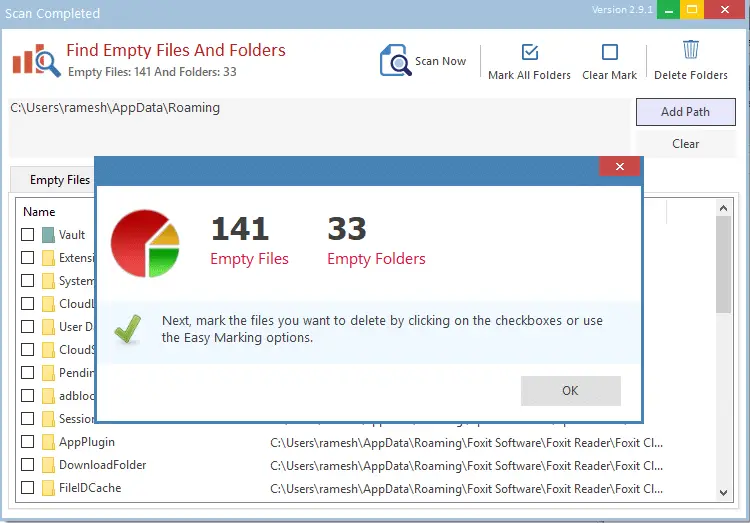
Over time, hundreds of empty folders and junk files may take up your hard disk. While the junk files occupy disk space and can be cleaned up using Disk Cleanup or Storage settings, the empty directories remain.
The empty folders don’t take up disk space, but to organize your data better, you may want to prune them every once in a while.
This article discusses different methods to find and remove empty folders on your computer.Read more
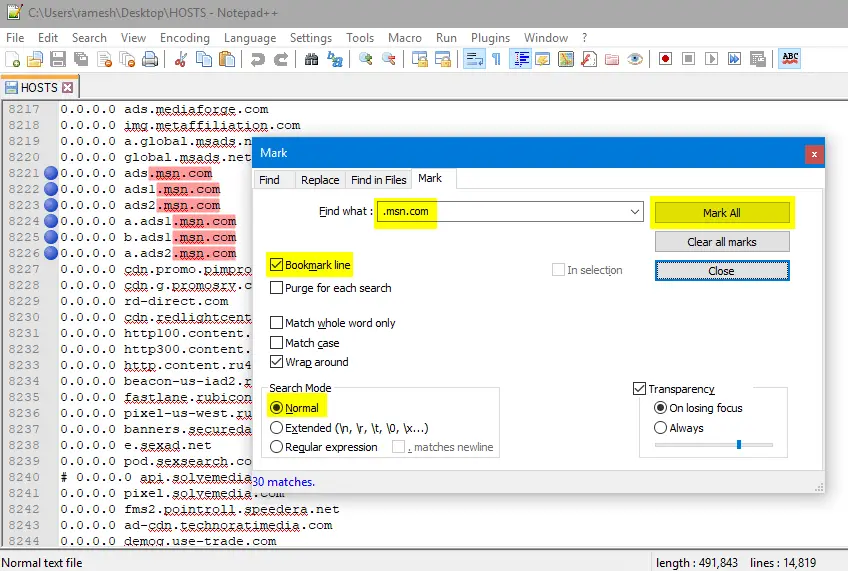
Enable or Disable Windows Defender Using Shortcut or Command-line
Windows Defender, the built-in anti-virus program in Windows, has useful features such as cloud-based protection, offline scanning, limited periodic scanning, tamper protection, controlled folder access, etc.
Almost every aspect of Windows Defender can be managed or automated using the MpCmdrun.exe command-line tool and PowerShell cmdlets. There are times when you need to temporarily disable your Windows Defender real-time protection on your test (non-production) systems and switch it back on after a few minutes.
You may prefer a single-click shortcut or script solution because of the following reasons:
- It takes several mouse clicks to turn off/on the Windows Defender real-time protection through the user interface.
- The Turn off Microsoft Defender Antivirus Group Policy setting or its equivalent registry setting
DisableAntiSpyware = 1would require rebooting the computer. - Microsoft has discontinued the
DisableAntiSpywarepolicy/registry setting in Microsoft Defender Antimalware platform versions 4.18.2007.8 and higher.DisableAntiSpywareno longer works!
 This post explains how to enable or disable Windows Defender in a single click using desktop shortcuts or command-line without requiring a restart.
Contents
How to Clean Up the Windows Installer Cache Folder
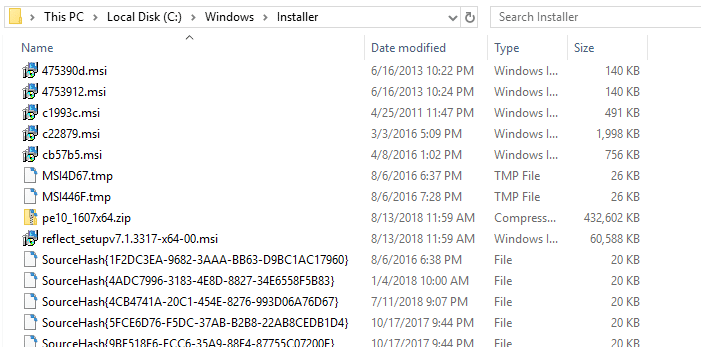
When you install a program in Windows, the program’s .msi or .msu setup package gets copied to the C:\Windows\Installer folder. The Installer folder is a protected folder with System & Hidden attributes and is found under your Windows folder.
What is the Windows Installer folder?
The Installer directory is intended to serve as a cache for installer data files for various applications installed on the computer.Read more
[Fix] Cannot Add a Program to Open with List in Windows
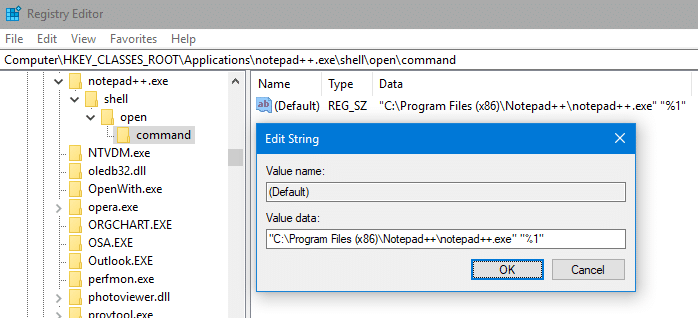
When you right-click on a file, select “Open with”, click “choose another app” and select a program using the Browse dialog, the program may fail to appear in the “Open With” dialog.
It may appear as if nothing happened after you selected the program in the browse dialog — i.e., the Open with dialog simply ignores your selection. This is a bug that exists since the Windows XP era (at least) and remains in Windows 10 as well. This article shows how to fix the Open with problem.Read more
[Fix] “Managed by your organization” in Chrome or Microsoft Edge
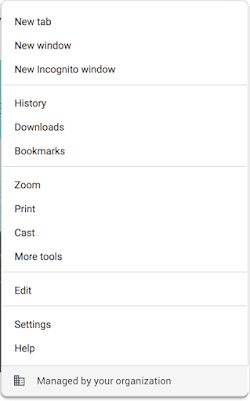
In Microsoft Edge or Google Chrome, some users see the message “Managed by your organization” when they click the “More” menu.
The message indicates that the browser (Microsoft Edge or Chrome) is being managed. If a user clicks on the “Managed by your organization” link, they are directed to chrome://management/ which contains details about Chrome Browser management on Chrome browser, or the edge://management page on Microsoft Edge.
This message is also seen on the Chrome/Microsoft Edge (chromium) Settings page.
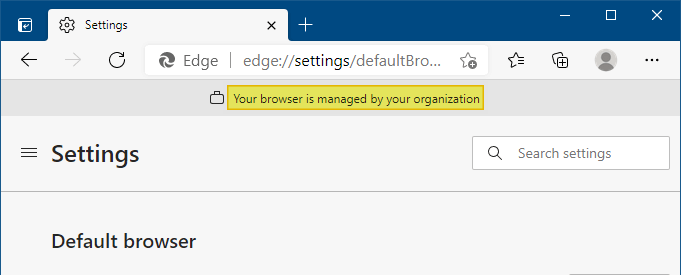
Clicking on the “Managed by your organization” link opens the edge://management page, which displays the following message:
Microsoft Edge is managed by your organization

If you use Microsoft Edge at school or work, it might be managed, or set up and maintained, by your organization. Your organization can set up or restrict certain features, install and block extensions, monitor activity, and control how you use it.

If Microsoft Edge is managed, you can view the policies that are set by your organization on the edge://policy page.
This post tells you how to remove the Managed by your organization notice and also explains how to remove the Microsoft Edge or Chrome policies that cause the notice to be shown.Read more
Disable Rounded Look in Chrome 69 and Restore Classic UI
Chrome 69 includes some new features and enhancements, including the Material Design Refresh user interface. It sports a rounded UI (rounded tabs with a blue background). If you’re not fond of the new rounded design, here is how to restore the appearance of Google Chrome to “Normal” user interface.Read more