Take Ownership of Registry Key & Assign Permissions Using Command-line

take ownership registry command-line - setacl

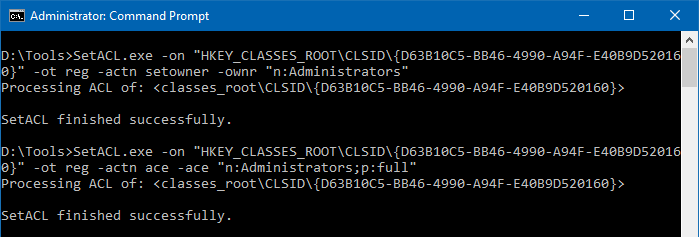
We’ve seen how to use the Registry Editor (regedit.exe) to change ownership of a registry key and subkeys. This article tells you how to change registry key ownership and grant permissions using the command-line.

Windows has the takeown.exe and icacls.exe console utilities to change file/folder ownership and permissions, but there are no such built-in tools for changing the registry key ownership using command-line. You’ll need a third-party tool named SetACL for the task.

Read more

Add registry values with double quotes or expandable variable data using Reg.exe

reg.exe pass double quotes in data and expandable strings

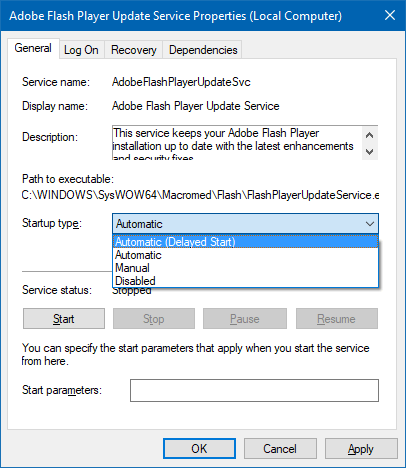
The built-in reg.exe console tool lets you add, delete, export or save (as hive) registry keys and values. When adding registry values using the reg.exe tool, you may be wondering how to pass data with double-quotes or environment variables and add it to the registry literally.

This article tells you how to create registry values passing double-quotes and environment variables (without expanding or resolving the folder path) using the reg.exe console tool.Read more

Windows Update Service Properties Grayed Out in Services MMC

windows update service properties tab grayed out - wuauserv sddl fix

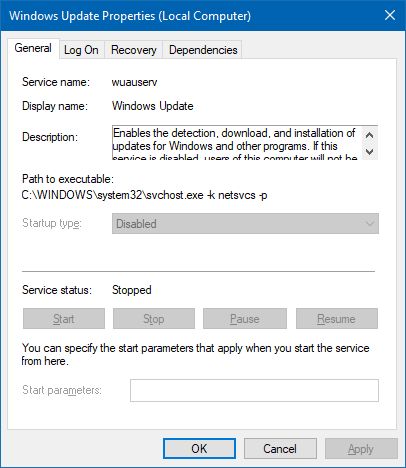
When you open the Services MMC (services.msc) and double-click Windows Update service properties, the Start and Stop buttons are grayed out. Also, you may be unable to change the service Startup type.

windows update service properties tab grayed out - wuauserv sddl fix

As a workaround, you can change the service startup and other settings using the registry or run the SC.exe command-line tool under the SYSTEM account and modify the service settings.

This article tells you how to make the Windows Update service configurable (by administrators) using the Services MMC.Read more

How to Run a Program as SYSTEM (LocalSystem) Account in Windows

Many Windows system files, registry keys, and services are owned by the SYSTEM (a.k.a LocalSystem) account, which has a high privilege level. If you need to modify a registry key owned by the SYSTEM account, there are at least two options.

The first option that comes to your mind is to take ownership of the corresponding registry key, assign yourself Full Control permissions. Once the registry key or the values are updated, revert the permissions and ownership to SYSTEM.

There is, however, an easier option. You can run the program — e.g., the Command Prompt or the Registry Editor under the SYSTEM account directly and update the registry values.

This article lists 7 different methods using which you can run programs under the SYSTEM or LocalSystem account in any version of Windows, including Windows 10. You can also add a Run as SYSTEM right-click menu option for .exe files.

Read more

Error 0x80070422 in Windows Update and Store

windows update error error 0x80070422

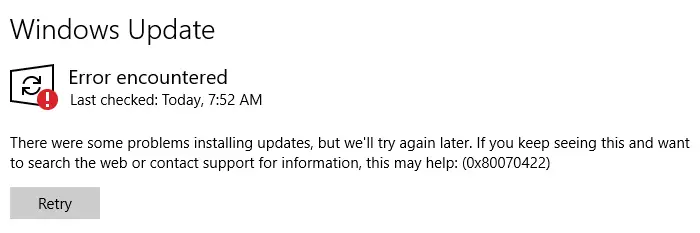
When you open Settings and check for updates on your Windows 10 or 11 computer, the error 0x80070422 appears. Here is the entire error message:

There were some problems installing updates, but we'll try again later. If you keep seeing this and want to search the web or contact support for information, this may help: (0x80070422)

Read more

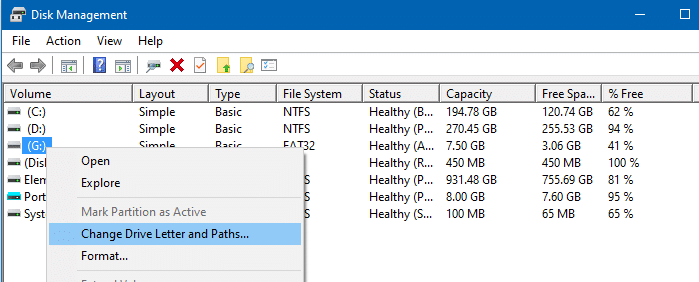
How to Assign the Same Drive Letter for USB Drive in Windows

assign same drive letter for a external drive - windows

When you insert a USB flash drive, external hard disk, or an SD card, Windows allots the first available drive letter. If drives C, D, E are already used, when you insert an external drive, it allocates drive letter F: for the external drive.

If you’re wondering how to assign the same drive letter for an external drive, then this article has the info you need.Read more

Fix: Can’t delete Avast Software Registry Key in Windows

delete avast software registry key

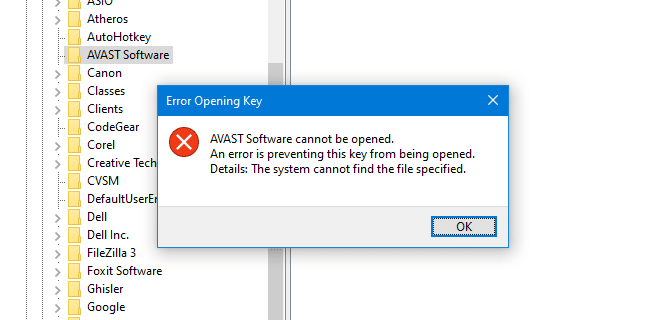
Last week when I installed CCleaner on my system, it also installed Avast antivirus software stealthily, in the background. After I uninstalled Avast, a registry key named AVAST Software still remained in the registry, but it couldn’t be opened. When the AVAST Software branch was selected, it threw the following error:

Error Opening Key
AVAST Software cannot be opened.
An error is preventing this key from being opened.
Details: The system cannot find the file specified.
delete avast software registry key

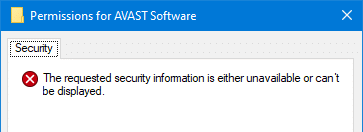
When I opened the Properties of the AVAST Software key, the Security tab was blank, showing the message: The requested security information is either unavailable or can’t be displayed.
delete avast software registry key

I tried running Sysinternals RegDelNull to nuke the keys, but that didn’t help.

The same error can occur for AVG antivirus users.

Error Opening Key
AVG cannot be opened.
An error is preventing this key from being opened.
Details: The system cannot find the file specified.

Registry Reparse Point

Later I realized that the HKEY_LOCAL_MACHINE\Software\AVAST Software is a reparse point or registry link that links to the following key on Windows 64-bit systems:

HKEY_LOCAL_MACHINE\Software\WOW6432Node\AVAST Software

But, since the Avast uninstaller had wiped out the above key, the reparse point still remains but is orphaned.

On Windows 32-bit systems, the reparse point and the target key paths are reversed.

However, once I knew it’s only a reparse point, the fix turned out to be very simple; you don’t need to tinker with the registry key permissions or ownership.Read more

Desktop New Menu Missing Word Document or Excel Worksheet

The New menu that appears when you right-click on your Desktop has options or templates to create documents of a particular type quickly. For example, after you install Microsoft Office, the New menu shows Microsoft Word Document, Microsoft Excel Worksheet, Microsoft Access Database, and entries for other Office products installed in the system.

Sometimes the options Word Document, Excel Worksheet or PowerPoint Presentation may be missing in the New menu after upgrading your Office installation. To restore the entries back, short of repairing Microsoft Office, you can use the registry fix in this article.

Read more

How to Auto Logoff Idle Users in Windows 10

winexit logoff screensaver in windows 10

You may be wondering if Windows 10 can be configured to logoff users (instead of locking the workstation) after inactivity with the help of a screen saver. Screen savers kick in after the user remains idle or inactive for the specified time. When you resume from screen saver, you’re prompted for credentials to get back to your desktop.

The Windows 2003 Resource Kit Tools has a screen saver file winexit.scr, known as Windows Exit Screen saver or Logoff screen saver that does exactly that. However, the WinExit.scr screen saver throws the following error when you try to run it on Windows Vista and higher, including Windows 10.

Error encountered while creating registry section.

How to make a program which was developed 16 years back, work on Windows 10? This article tells you how to use the winexit.scr screen saver to log off a user account after the idle timeout in Windows 10.Read more