[Fix] Error “Windows Photo Viewer can’t display this picture”

windows photo viewer cannot display image - not enough memory - icc profile metadata

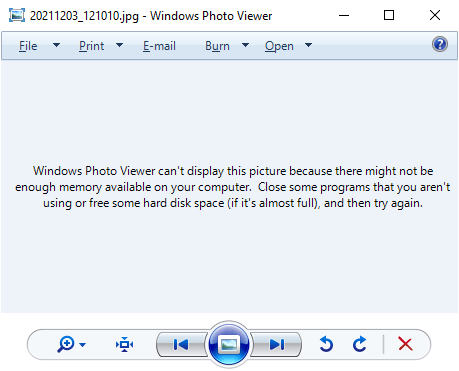
When you try to preview an image file (JPEG/PNG) using Windows Photo Viewer, the preview would be blank and the following error message is displayed:

Windows Photo Viewer can't display this picture because there might not be enough memory available on your computer. Close some programs that you aren't using or free some hard disk space (if it's almost full), and then try again.
windows photo viewer cannot display image - not enough memory - icc profile metadata

It’s a misleading error message, as in most cases, it may not have anything to do with the system memory. The Windows Photo Viewer error is caused due to color profile metadata (ICC_Profile) embedded into the JPG image(s).

(You can reproduce the issue by transferring images from your Android/iOS mobile and previewing the image using Windows Photo Viewer on your computer. Another possibility is that your system has multiple video cards and the issue happens on the secondary graphics card only. Switching over to the primary video card may resolve the error.)

However, other utilities like IrfanView, GIMP, or the built-in/modern Photos app would be able to open the image correctly. This issue is limited to Windows Photo Viewer (and perhaps Windows Live Photo Gallery) only.Read more
“Turn on fast startup” option missing in Windows 11/10

fast startup option missing

Fast Startup is a feature in Windows 8/10/11 that speeds up the boot process significantly. With the Fast Startup feature enabled, when the user shuts down the computer, what happens under the hood is a hybrid shutdown sequence.

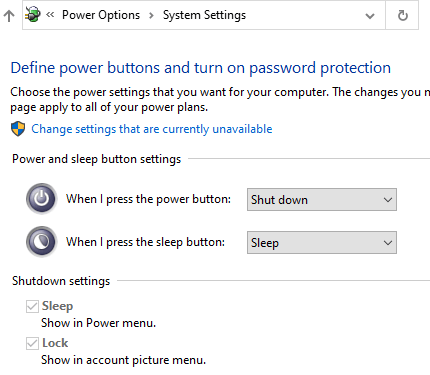
However, on some computers, the Fast Startup and Hibernate features will be missing. When you open Power Options in the classic Control Panel, the “Turn on fast startup (recommended)” option may be missing.Read more

How to Disable Preview for Certain File Types in Explorer Preview Pane

disable preview for selected file type

The preview pane in File Explorer shows you the preview for various file types in Windows 10 and Windows 11. Windows comes with a built-in set of preview handlers. In addition, third-party applications add their own handlers that can generate previews for their proprietary file types.

disable preview for selected file type

Windows allows you to turn on or off previews by enabling or disabling “Show preview handlers in preview pane” in Folder Options.

You may want to disable preview generation for a specific file type to improve performance. But, there is no built-in setting to disable preview generation (in the preview pane) for chosen file types. However, there is a handy tool that can accomplish the task.

This article tells you how to disable preview for certain file types in the Explorer preview pane.Read more

How to Automatically Login to your Account in Windows 11 and Earlier

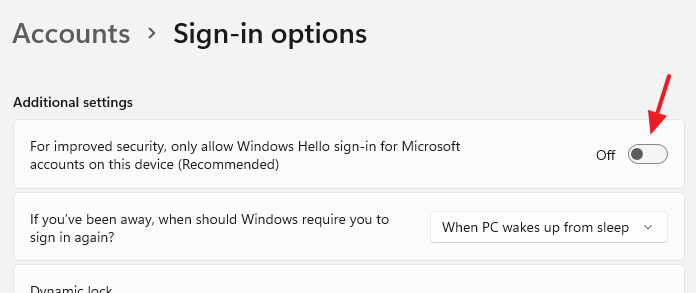
automatic login userpasswords2 netplwiz windows 11 - disable windows hello

Every version of Windows, from Windows 2000 to Windows 11, allows you to automatically log in to your user account without typing the password. This is possible by securely storing the user account credentials using the Netplwiz.exe utility.

However, on Windows 10 and Windows 11, some more steps are necessary to enable automatic sign-in to your user account using stored credentials.Read more

How to Remove “Open in Windows Terminal” Context Menu in Windows 11

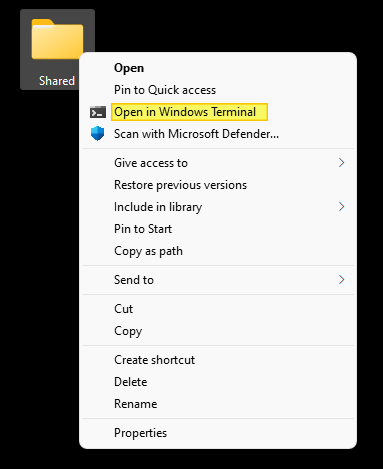
open command window here in windows 11 - windows terminal default

In Windows 11, the Windows Terminal context menu item appears in the right-click menu for folders and the desktop.

open command window here in windows 11 - windows terminal default

Suppose you’re already using the “Open PowerShell window here” or “Open Command window here” option and don’t plan to launch Terminal via the right-click menu. In that case, you can remove the “Open in Windows Terminal” context menu entry to declutter the menu.Read more

How to Add “Open command window here” in Windows 11

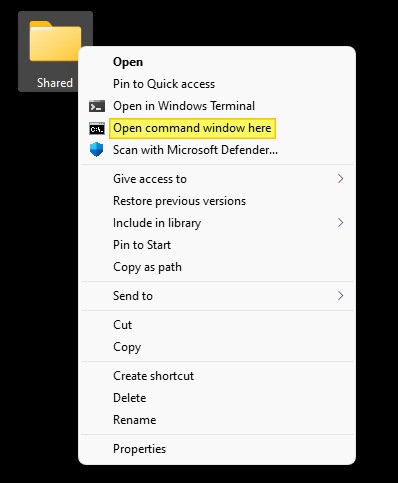
open command window here in windows 11

In Windows 11, the context menu “Open Command window here” doesn’t exist by default. Instead, you’ll see the “Open in Windows Terminal” and “Open PowerShell window here” (when you press Shift + right-click) options in the folder context menu.

This article tells you how to add “Open Command window here” (in Windows 11) to open a Command Prompt window in that directory path.Read more

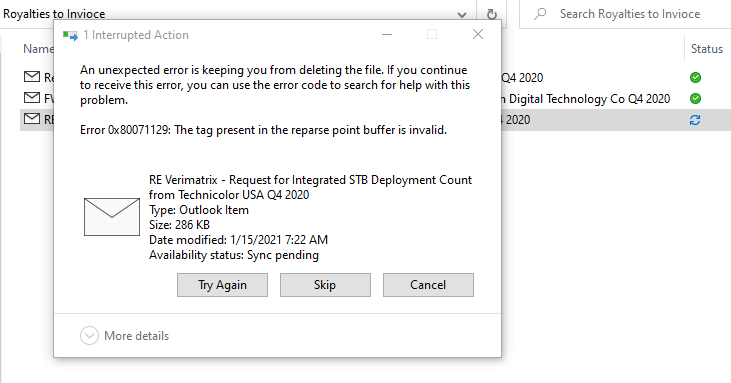
Error 0x80071129: The tag present in the reparse point buffer is invalid

onedrive 0x80071128 0x80071129 reparse point error

When you access or delete files in the OneDrive folder, errors 0x80071129 or 0x80071128 may occur. The detailed error message is below: Error 0x80071129: The tag present in the reparse point buffer is invalid or Error code 1128: The data present in the reparse point buffer is invalid. or Location is not available The tag … Read more

How to Reset Forgotten Windows 10/11 Account Password

Summary: This article tells you how to reset the password(s) for any local user account, including the built-in administrator in Windows 10 if you have forgotten the password.

Occasionally, we may forget the Windows user account password, especially if we have been using the auto-login using stored credentials or PIN sign-in method for a long time. Most users don’t have a second administrator account on their computer. And they would have never activated the built-in Administrator account (keeping it disabled is good for security, anyway).

The local user account password can be reset easily using different methods even if you haven’t created a password reset disk beforehand.

If you’re using a Microsoft Account (MSA), you can reset your forgotten MSA password online. However, this is not within the scope of this article. This post tells you how to reset the local user account password.

Similar problem: Lost administrator rights but not the password?

If the user account has suddenly lost its administrative privileges (but you remember the password) and turned into a guest or standard user account, it’s a different issue and the fix is very simple in that case. Check out the article Lost Administrator Rights? Recover the Account via Windows RE for an easy fix.

Read more