The Quick Access Toolbar (QAT), part of the Ribbon framework, is located in the title bar of File Explorer and Office applications. You can add your frequently used ribbon commands to the Quick Access Toolbar for easy access — so that you don’t need to switch tabs each time to use a particular command.Read more
Windows
You’re browsing the “Windows” parent category, which lists articles on every Windows Operating System.
Get Old Registry Editor in Windows 10 Creators Update
In Windows 10 Creators Update, the Registry Editor status bar has been removed, as it now has an address bar at the top. The status bar doesn’t appear even if you turn off the address bar in Regedit. Another change is that you can modify the default font face, weight and style in the new the Registry Editor.Read more
Snipping Tool Command-line to Capture Screen Region
Windows 10 (Creators Update and higher) and Windows 11 includes the capability to capture a screen region using Win + Shift + S shortcut key, as mentioned in the article Screenshot a Portion of the Screen [Winkey+Shift+S].Read more
Screenshot a Portion of the Screen in Windows 10/11 [Winkey+Shift+S]
Starting with the Windows 10 v1703 (also known as Creators Update), OneNote’s popular screenshot feature has been made an Operating System feature — you can capture a specific region of your screen to the clipboard using the Win + Shift + S shortcut key.Read more
Remove Amazon Drive from Explorer Navigation Pane
The client software provided by cloud storage providers like OneDrive, Dropbox, Google Drive would add or pin their entries in the left pane of Explorer. If you had been using Amazon Drive and later uninstalled it, the “Amazon Drive” entry may still remain in Explorer navigation pane.Read more
Play Chess Titans, FreeCell, Solitaire, Mahjong in Windows 10 [Windows 7 Games]
The Games pack bundled with Windows Vista and Windows 7 included some some nice piece of software like Chess Titans, Mahjong Titans and Purble Place and some card games. Microsoft decided not to include the Games pack in Windows 10, as it now offers Modern or UWP version of some of those games from the Windows Store, which are ads supported.Read more
Microsoft Edge – Prevent Download of Unsafe Files Blocked by SmartScreen Filter
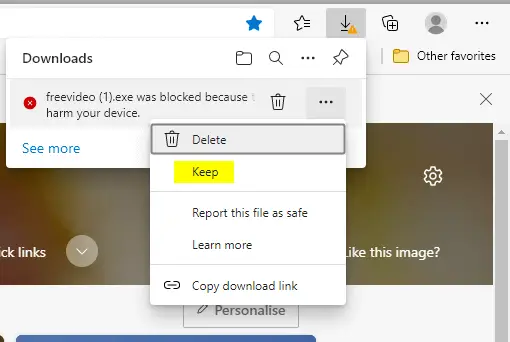
The SmartScreen Filter warns the user when running unrecognized programs or files downloaded from the internet. When you download files using Microsoft Edge, the file download is blocked if the source URL is blacklisted or the downloaded program fails the application reputation check by Microsoft SmartScreen filter.
However, Edge Chromium allows users to download the unsafe file regardless of the warning, by clicking on the “Keep” option in the Downloads flyout.
This article explains how to prevent users from downloading the ‘unsafe’ file on Microsoft Edge Chromium.Read more
How to Disable Automatic Maintenance in Windows 10
Windows automatically runs scheduled maintenance on a daily basis when you’re not using your computer. This feature is called Automatic Maintenance, which takes care of updating Windows Store apps and other software, running Windows Defender scans, system diagnostics, Disk Cleanup, etc.Read more
2 Ways to Set Desktop Background Wallpaper Without Activation
The Personalization options such as Background, Colors, Lock Screen, Themes, Start, and Taskbar are grayed out if Windows is not activated. This post discusses two ways to change the desktop wallpaper in an unactivated Windows installation.Read more
Access the Advanced Security Permissions Page via Right-click Menu in Windows 10
The Advanced Security Settings dialog allows you to configure NTFS special permissions for a file or folder along with the sub-folders (recursively), enable or disable inheritance, change ownership of an object etc. To quickly access the Advanced Security settings dialog, you can add it to the right-click menu for files and folders.Read more