Microsoft Word is a top-notch word processor using which you can save documents in .doc, .docx, and different other formats. When you need to send a document to someone who doesn’t have Office Word installed, you usually convert the document to PDF and send it.
As you may have known, Microsoft Word lets you convert or save a document (.doc or .docx file) as a PDF file using the Save As dialog.
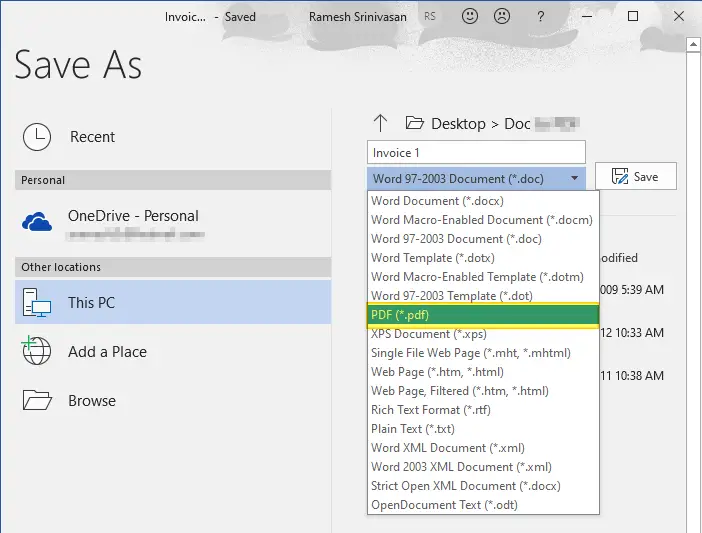
Open the document, and launch the Save as dialog. Select PDF (*.pdf) from the list and save the file.
Another option would be to use the Microsoft Print to PDF driver in Windows 10 to output the .doc or .docx file to a .pdf document. For this, you’d use the Print option (instead of Save as) to print the document to PDF.
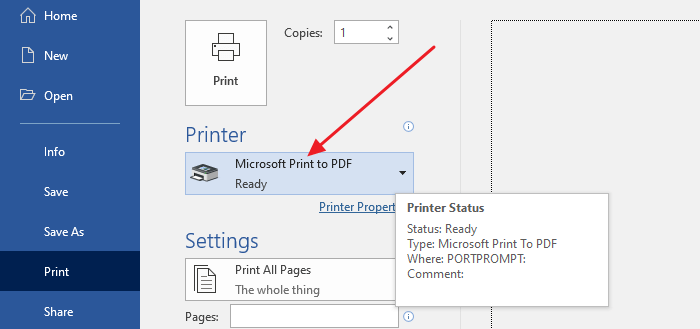
Pre-Windows 10 systems don’t have the Microsoft Print to PDF driver. In those systems. you can use the free CutePDF Writer or Foxit PDF Printer (part of Foxit PDF Reader software.)
But, if you have tens or hundreds of Word documents that you want to convert to PDF, using the GUI option would be a time-consuming and tiring task.
This article tells you how to batch convert multiple .doc or .docx files to PDF files using Windows Script and other methods.
Read more