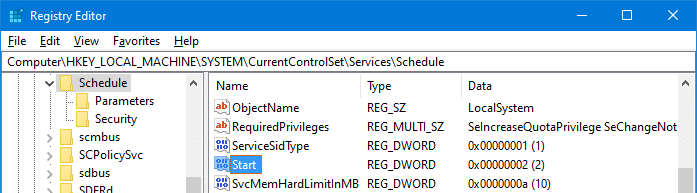
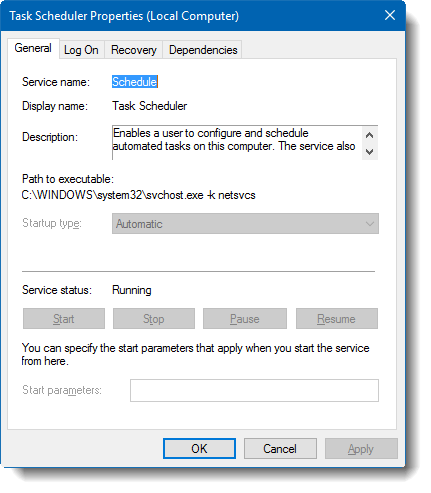
When you open the Services management console (services.msc), the Task Scheduler service may be in a disabled state. In the Task Scheduler properties page, all the options may be grayed out, and the service Startup type cannot be changed.

You’re browsing the “Windows” parent category, which lists articles on every Windows Operating System.
When you open the Services management console (services.msc), the Task Scheduler service may be in a disabled state. In the Task Scheduler properties page, all the options may be grayed out, and the service Startup type cannot be changed.

Out of all the built-in troubleshooting tools in Windows, Task Manager is probably the most useful tool. Almost every end-user knows what to do when an application stalls. They just fire up Task Manager using Ctrl + Shift + Esc and end the nonresponsive task. Also, Task Manager can be an extremely valuable tool to troubleshoot processes, and monitor disk I/O rates or other system performance issues.
Task Manager’s Details tab lists all running processes. By default, it doesn’t display the complete path of the running processes and the command-line arguments used by those processes.
For instance, you may see the script host CScript.exe or WScript.exe in Task Manager but not the script file name (argument) being executed. This article tells you how to enable this critical bit of information in Task Manager.
Reader’s Query: I have a 160GB Western Digital Hard Drive partitioned into a 40GB Operating System partition and the other 120GB for my files. However, when I run Disk Cleanup utility from within Vista Ultimate, it shows multiple 131GB options for me to clean up. After I clicked OK to clean up the selected entries, it erased everything on the 40GB partition. I then had to reinstall Windows Vista, but the problem seems to be recurring.
(Information in this post applies to Windows Vista, 7 & Windows 8 systems.)Read more
Have you come across a situation where uninstalling software leaves its Service or driver entries in the registry, and Windows tries to load them at every boot, fails, and logs the error to the System Event log at every startup?
This article tells you how to delete an orphaned service in Windows 10 (and earlier) using the registry, SC.exe command-line, PowerShell, or Autoruns. Before proceeding further, create a System Restore Point and take a complete Registry backup.
If you find that no dependents exist for a service, you can delete the leftover or unwanted Service in Windows using one of the following methods.
Computer manufacturers usually include their OEM brand info and logo in the System Properties applet when preinstalling Windows. This article tells you how to modify or add OEM information to the System Properties window in all versions of Windows, including Windows 10.
In Windows 10, the OEM information is shown in the modern Settings app (“About your PC” page) as well.Read more
When you try to create a System Restore point in Windows Vista, the following error may occur: Could not create the scheduled task for the following reason: The request is not supported. (0x80070032) This happens if the Windows Event Log and the Task Scheduler services are disabled. Follow these steps to fix the problem. 1. … Read more
Windows keeps a copy of all of your picture, video, and document thumbnails in a cache database so they can be displayed quickly when you open a folder. Sometimes due to thumbnail cache corruption, thumbnail previews may not work for some files, for a particular icon size or for all icons sizes.
![]()
In some cases, the thumbnail for some items will appear in grayscale although the original image is a color image. Sometimes, the thumbnail quality is mediocre that you can barely recognize the item by looking at it.
![]()
Thumbnail preview problems can be resolved by clearing the thumbnail databases and let the system rebuild it as required. To reset the thumbnail cache in Windows Vista, 7, 8 and Windows 10, use one of the methods in this article.Read more
When you start the System Restore utility (rstrui.exe), the message System Restore has been turned off by your system administrator. To turn on System Restore, contact your system administrator.” appears.
Also when you open System Properties and select the System Protection tab, the Create button may be grayed out, and the following message is displayed.Read more
Have you come across the problem where some of the Gadgets that you added to the Sidebar/Desktop are not displayed correctly? For example, the clock gadget may be displayed as a black square containing only the “seconds” hand. Other gadgets may show up as white rectangles with an information (i) icon and a plus sign. … Read more