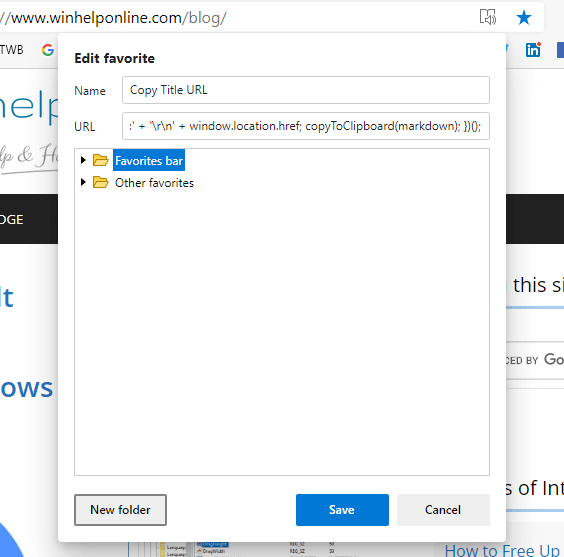
This post tells you how to pin a website to the Taskbar using the Microsoft Edge web browser.
Read more
Pin Website to Taskbar Using Edge in Windows 10
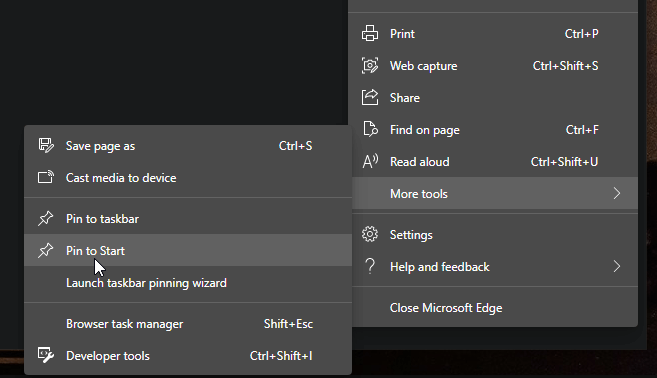
Microsoft Edge is a web browser included in Windows 10 operating systems. You’ll find all articles about Edge (Chromium) in this category.
(To see the articles for Microsoft Edge legacy version, click here.)
This post tells you how to pin a website to the Taskbar using the Microsoft Edge web browser.
Read more

By default, Microsoft Edge doesn’t issue a warning if you close your Microsoft Edge browser window with multiple tabs open. Sometimes we may accidentally close the browser window and wondering how to restore the session back.
You can press Ctrl + Shift + T to reopen the tabs closed during the last browser session.
Additionally, you can force Microsoft Edge to warn you when you attempt to close the browser window accidentally with multiple open tabs. Here’s how to do that.Read more
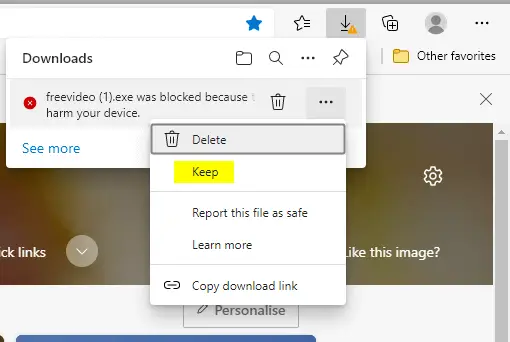
The SmartScreen Filter warns the user when running unrecognized programs or files downloaded from the internet. When you download files using Microsoft Edge, the file download is blocked if the source URL is blacklisted or the downloaded program fails the application reputation check by Microsoft SmartScreen filter.
However, Edge Chromium allows users to download the unsafe file regardless of the warning, by clicking on the “Keep” option in the Downloads flyout.
This article explains how to prevent users from downloading the ‘unsafe’ file on Microsoft Edge Chromium.Read more
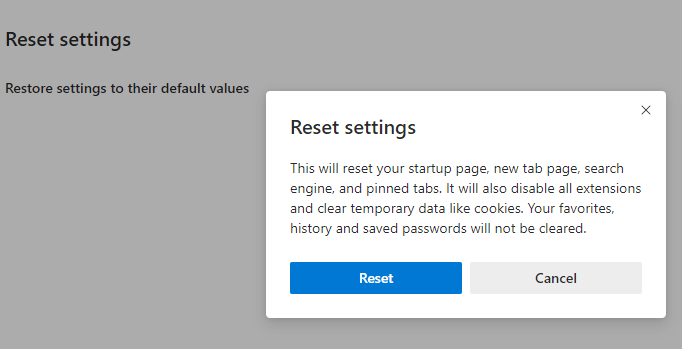
Sometimes, web browsers may need a complete reset — to revert to the default settings especially in the aftermath and removal of a browser-based attack, search hijack, PUA, PUP or Adware infection. We recently saw how to reset Google Chrome and Mozilla Firefox manually. This post tells you how to reset Microsoft Edge completely and start afresh.Read more
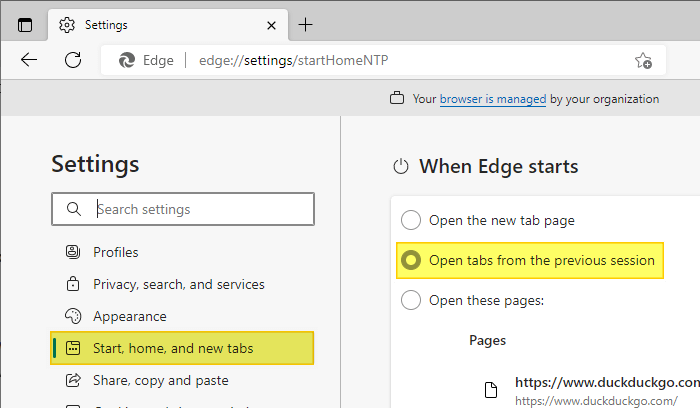
Microsoft Edge (Chromium), like any other major web browser on the market, has the capability to save your tab sessions when you close the browser. You can have Edge open all the tabs from your last browsing session whenever you start it.Read more
If you’ve been using desktop shortcuts to open your favorite websites, you can instead pin those websites to the Windows 10 Start menu to make your desktop clutter-free.
Moreover, pinning websites to the Start screen helps you get to those sites quickly especially when your Windows 10 device is in Tablet mode, where the Start screen occupies the full screen, covering your desktop. You can pin website shortcuts to the Windows 10 Start screen using Internet Explorer, Microsoft Edge, Google Chrome, or Firefox.Read more
Microsoft Edge by default uses Bing search when you search from the address bar. If you want to change the default search engine/provider in Edge, you can do so via Edge’s settings.Read more
This page lists some of the command-line switches for the new Microsoft Edge (chromium) browser.
Read more
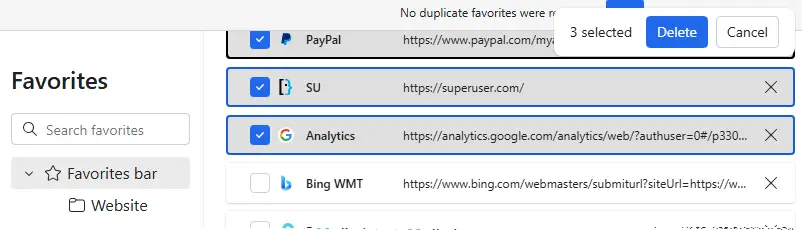
You may have inadvertently imported bookmarks from Chrome or a bookmarks HTML file into Microsoft Edge and wonder how to clear them quickly and efficiently. This post tells you how to delete multiple bookmarks or bookmark folders in a single shot instead of deleting one by one.Read more