Sometimes, web browsers may need a complete reset — to revert to the default settings especially in the aftermath and removal of a browser-based attack, search hijack, PUA, PUP or Adware infection. We recently saw how to reset Google Chrome and Mozilla Firefox manually. This post tells you how to reset Microsoft Edge completely and start afresh.
Reset Microsoft Edge (Chromium)
Using the built-in Reset option
Microsoft Edge profile settings can be reset using the built-in Reset option. To reset your Edge profile, open this link in the browser:
edge://settings/resetProfileSettings
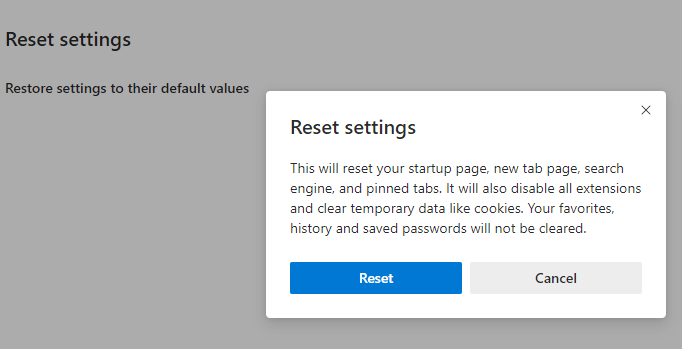
You’ll see the following message:
This will reset your startup page, new tab page, search engine, and pinned tabs. It will also disable all extensions and clear temporary data like cookies. Your favorites, history and saved passwords will not be cleared.
Click on the Reset button.
Note that the above method preserves your saved passwords, bookmarks, and history.
Reset Edge Chromium manually
You can reset your Microsoft Edge (Chromium) browser profile completely using these steps:
Note: The following method completely resets your Edge profile settings, cookies, bookmarks, history, saved forms and passwords, etc.
- Open Microsoft Edge (Chromium) and open the about://version page.
- Note down the Profile Path location. It may look like the following:
C:\Users\ramesh\AppData\Local\Microsoft\Edge\User Data\Default
- Open the profile path location in File Explorer.
- Close all instances of Microsoft Edge. This is important.
- Rename the profile folder (e.g.,
DefaulttoDefault-OLD)
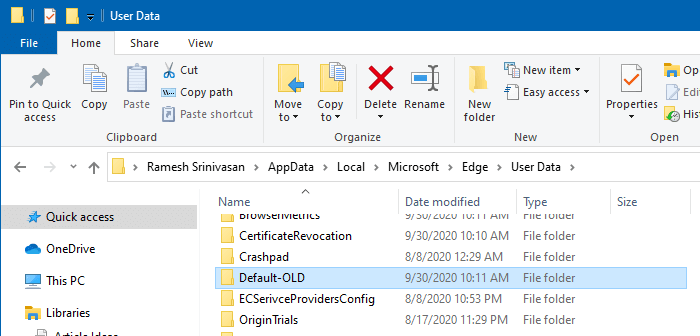
- Start Microsoft Edge Chromium now. You’ll see the 1st start screen.
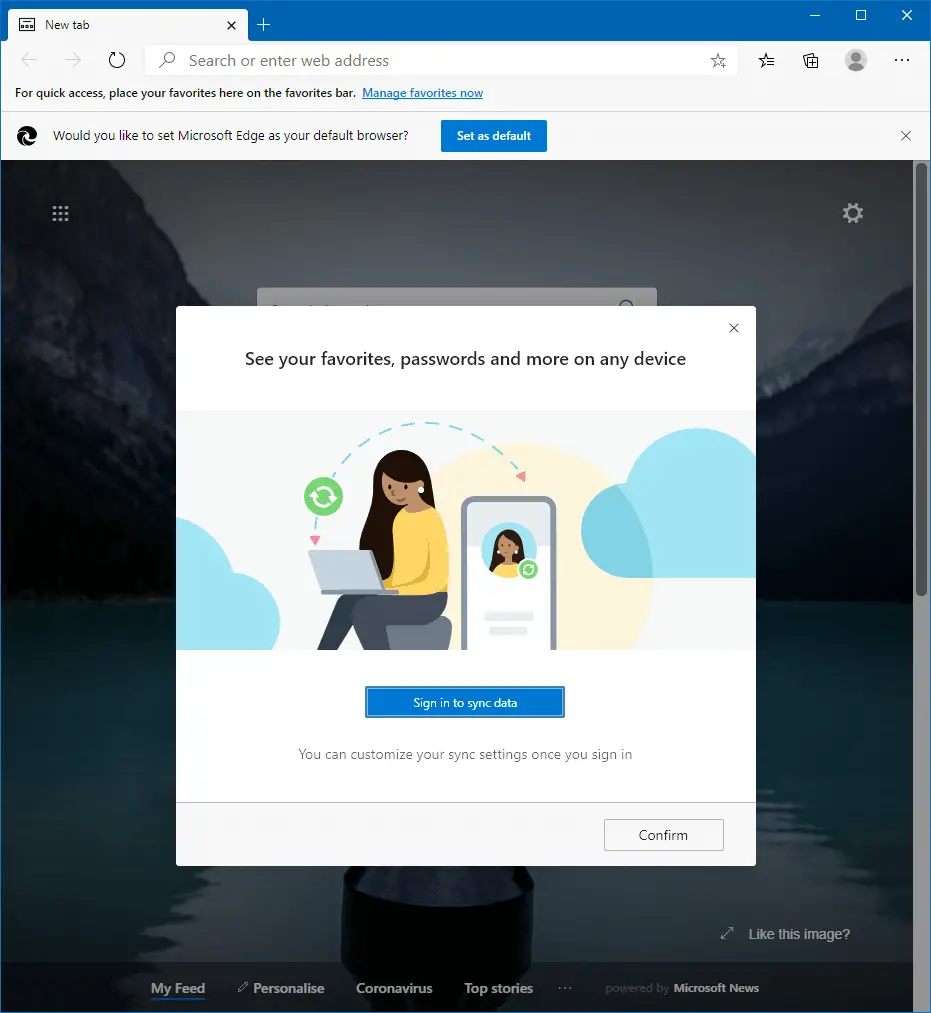
You’ve now reset your Microsoft Edge (Chromium) browser profile completely. The cookies, bookmarks, history, temporary internet files, local storage cache, and everything is now cleared. When you sync your data back, you’ll get back your bookmarks and other data (e.g., Settings, addresses, forms, passwords, extensions, and collections — if you’ve enabled syncing of those items).
One small request: If you liked this post, please share this?
One "tiny" share from you would seriously help a lot with the growth of this blog. Some great suggestions:- Pin it!
- Share it to your favorite blog + Facebook, Reddit
- Tweet it!
