You may have seen a volume named System Reserved when you open the Disk Management (diskmgmt.msc) console and wondering what the partition is. This article explains what the System Reserved partition is and whether you can delete it.
What is the “System Reserved” Partition?
When you perform a clean install of Windows, if a previously created primary NTFS partition wasn’t specified as the destination, Windows Setup creates a new partition named the System Reserved partition that contains the boot files, in addition to the partition where Windows will be installed.
“System Reserved” vs “EFI” Partition: If you have a UEFI/GPT-based system, you’ll see the “EFI” System Partition instead. The “System Reserved” partition is only for older legacy BIOS/MBR systems; it serves the same purpose: storing the boot files that start Windows.
The System Reserved partition doesn’t have a drive letter assigned by default, and you wouldn’t know that it exists unless you open the Disk Management console. In Disk Management, it shows up as System Reserved – NTFS – Healthy (Active, Primary Partition).
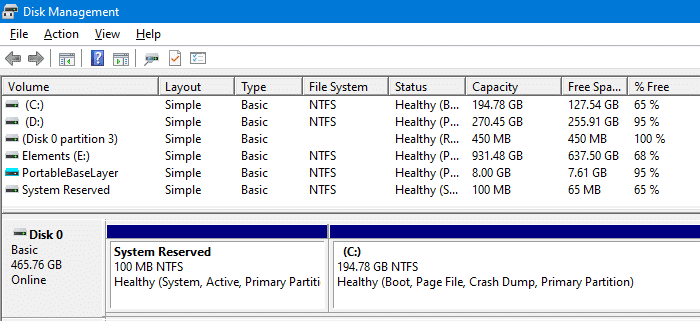
What is the use of the “System Reserved” Partition?
The System Reserved partition stores the boot manager & boot configuration data. This partition is required to enable BitLocker Drive Encryption. With BitLocker drive encryption enabled for the system drive, your system boots to the System Reserved partition (which is unencrypted), uses the BitLocker initialization files to decrypt the system drive, and starts Windows.
If you assign a drive letter for the hidden partition (via Disk Management → Change Drive Letter and Paths…) and check the directory listing, including hidden items, you’ll see these entries:
Boot\ (Directory)
bootmgr
BOOTNXT
BOOTSECT.BAK
Recovery\ (Directory)
Recovery.txt
Can I delete the “System Reserved” Partition?
It’s best to leave the partition as it is, for these three reasons:
- It contains the important files needed for Windows to boot correctly.
- Deleting the partition frees up very little disk space. Also, the boot files need to be accommodated in your System partition for Windows to boot.
- The partition doesn’t have a drive letter and doesn’t appear in File Explorer, so it’s not obtrusive in any way.
However, if you still want to remove the partition, it can be done. But it involves a detailed procedure that may not be worth the time, and the disk space you’ll eventually free up would be in the MB range, which is nothing compared to the hard disk sizes available on the market these days.
To delete the partition anyway, read further ↓
How to remove the System Reserved partition?
To remove the System Reserved partition, you must first relocate the boot files and boot configuration data to the C:\ drive using the BCDBoot.exe console tool. After copying the boot files and BCD, mark the C drive active. This can be done using Disk Management. Only after completing these preliminary steps can you delete the System Reserved partition.
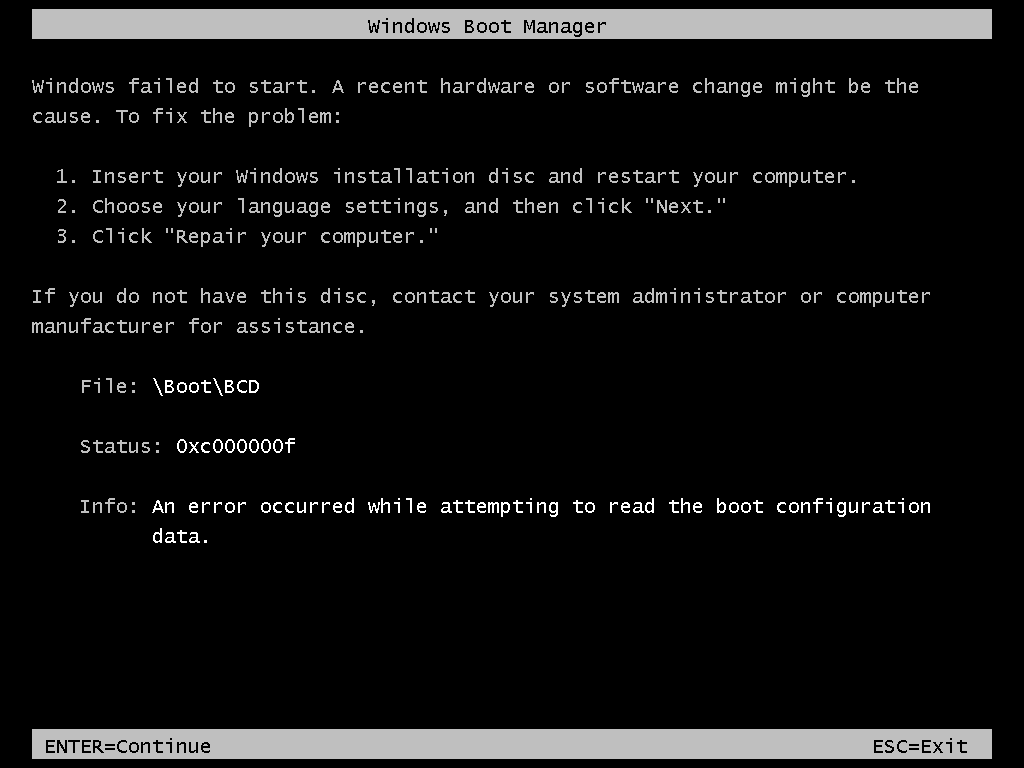
As the partition stores your boot configuration data and the boot manager, it shouldn’t be deleted without properly relocating the boot files to the C drive. Deleting this partition without following the correct procedure would cause the following error or similar:
File: \Boot\BCD
Status: 0xc000000f
Info: An error occurred while attempting to read the boot configuration data.
Prevent the creation of the System Reserved partition during Windows Setup
If you don’t plan to use BitLocker, you can prevent the creation of the System Reserved partition when you perform a clean install of Windows. In an unformatted hard drive, you can use Diskpart, a third-party disk-management utility, or Windows startup disk to manually create a single primary partition utilizing all the unallocated space. Don’t do the partitioning stuff via the Windows Setup GUI. To create a single primary partition using Diskpart on a clean hard disk, follow these steps:
- When Windows Setup starts, before you select the partition to install Windows, press Shift+F10 to open Command Prompt.
- Type
diskpartand press Enter. - Assuming that your system has a single hard drive installed (use the
list diskcommand to verify), typeselect disk 0and press Enter. You’ll see the message “Disk 0 is now the selected disk.“ - Type
list partitionand press Enter. If the hard disk has been used before and you see any partitions on it, you must first delete them. For more info, see diskpart – delete partition - Type
create partition primaryto manually create a new partition. - Type
exitto leave the Diskpart environment. - Then, proceed to Windows 10 Setup and select the newly created partition to install Windows on it.
By doing the above, Windows doesn’t create the System Reserved partition. The boot files are stored in the system drive instead. However, if you enable BitLocker in the future, it automatically creates the System Reserved partition.
Errors 0xc1900104 and 0x800f0922 when Installing Updates
If you receive the error 0xc1900104 or 0x800f0922 updating Windows, it’s likely that the System Reserved Partition (SRP) has become full. The System Reserve Partition is a small partition on your hard drive that stores boot information for Windows. Some third-party anti-virus and security apps write to the SRP, and can fill it up.
- The article “We couldn’t update system reserved partition” error installing Windows 10 explains how to access the SRP by assigning a drive letter to it (using Disk Management or MountVol command for MBR and GPT/UEFI disks, respectively), and then remove the unused font files from that drive to free up space.
- See also Error 0x800F0922 When Installing a Windows Update
What is Microsoft Reserved Partition?
Microsoft Reserved Partition (MSR) is different from the System Reserved partition.
A Microsoft Reserved Partition is only created when a drive formatted in a Globally Unique IDentifier or GUID partition table (GPT) format and when the BIOS is set for Unified Extensible Firmware Interface (UEFI). Drives less than 16 GB will have a 32 MB MSR, where drives larger than 16 GB will have a 128 MB MSR. This partition can be viewed using the diskpart tool, but it is not visible in the Disk Management console.
See thread MSR Partition vs. System Reserved Partition
Here is an explanation of MSR on Wikipedia:
GPT-formatted disks and the UEFI partition specification do not allow hidden sectors. Microsoft reserves a chunk of disk space using this MSR partition type, to provide an alternative data storage space for such software components which previously may have used hidden sectors on MBR formatted disks. Such software components, for example, LDM as mentioned above, can create a small software-component specific partition from a portion of the space reserved in the MSR partition.
One small request: If you liked this post, please share this?
One "tiny" share from you would seriously help a lot with the growth of this blog. Some great suggestions:- Pin it!
- Share it to your favorite blog + Facebook, Reddit
- Tweet it!

Great article. Very well written and easy to understand.
Thank you