If you’ve associated PDF files with Google Chrome or Mozilla Firefox to make use of browser’s built-in PDF viewing capability, the PDF and HTML files would show up with the same Chrome or Firefox icon in File Explorer. This post tells you how to set a custom different icon for PDF files, with Chrome or Firefox as the default PDF viewer.Read more
registry
Pin any file to Windows 10 Start Screen (Registry Tweak)
Windows 10 lets you Pin folders, apps and shortcuts to executable files to the Start screen using the “Pin to Start” context menu. Using a registry tweak discussed in this post, you can pin any file (of any type) to the Start screen in Windows 10.Read more
Change the Default Image Editor Linked to Edit command in Right-click Menu for Image Files
Image file types such as JPG, PNG, BMP and others have an “Edit” command in the right-click menu which when clicked, opens Microsoft Paint by default. If you have a third-party image editor and want to set it as the default editor when invoked from the right-click menu, this post is for you.Read more
Cortana Search Registry Tweaks in Windows 10
In Windows 10 Redstone 2 build and higher, you can move the Cortana search text box to the top, change the text box border color and thickness. Also, you can add a search glyph and submit button near the text box with some registry tweaks.Read more
Change Registry Editor Font Face in Windows 10 Creators Update
Registry Editor in Windows 10 Redstone 2 Preview build 14942 has got an Address bar as we saw earlier. The Redstone 2 Preview build introduces another minor feature addition to the Registry Editor. You can change the default Registry Editor font, without having to change the global font settings – that is, without affecting other areas of the Windows Shell.Read more
Open Cortana Web Search Results in Google and Default Browser
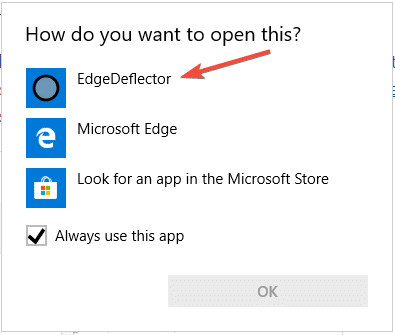
Clicking on a web search result in Cortana would always launch Microsoft Edge regardless of your default browser. However, you can configure Cortana web search links to open with your default web browser. Additionally, you can automatically redirect the search query to Google search instead of Bing.
In April 2018, Microsoft announced that Edge would be the browser that would launch when searching from Cortana, no matter what your default web browser or https protocol association setting is.
While the user interface doesn’t have an option to change the search engine or browser, there is still a way to make Cortana search using Google instead of Bing, using the new microsoft-edge: URL protocol.Read more
How to Show Seconds in Taskbar Clock
You can now configure Windows 10 or 11 to display seconds in the taskbar’s notification area clock without using a third-party program. This is possible using a hidden registry setting in Windows 10, and it’s a built-in GUI option in Windows 11.Read more
[Fix] Search Results defaults to Content View in Windows 10
When you search for files using Windows 10 File Explorer, the search results page may default to “Content” view every time which some users don’t like. Although you can change the view to Details, or any other view setting manually, the change affects only that folder. Sometimes, search results view settings may not stick at all.
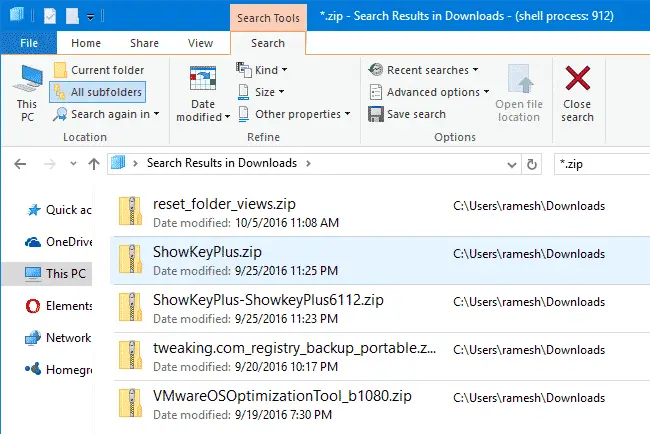
This happens when searching for files in a folder optimized for “General items”. Whereas when you search for files in the Pictures and Videos folders, the search results view defaults to icons view.
This article tells you how to set the Search Results folder default view mode to Details, for all folder types.
How to Print Directory Contents Using Different Methods
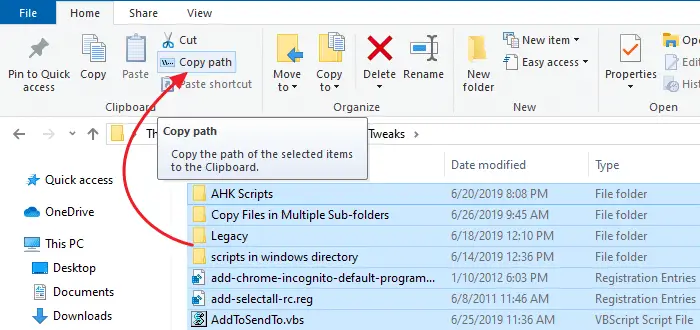
You can copy folder contents by selecting all items in a folder, pressing Shift key and clicking the Copy as Path command in the right-click menu. Then open Notepad or any other text editor and paste the contents from the clipboard.Read more
Show Process ID in File Explorer Title Bar in Windows 10
There is a hidden registry setting in Windows 10, which when enabled shows the explorer.exe Process ID (PID) in File Explorer title bar, and tells if a folder window is running under the shell process, or as a separate process.Read more