There is a hidden registry setting in Windows 10, which when enabled shows the explorer.exe Process ID (PID) in File Explorer title bar, and tells if a folder window is running under the shell process, or as a separate process.
Show Process ID in File Explorer
Start Regedit.exe and go to:
HKEY_LOCAL_MACHINE\SOFTWARE\Microsoft\Windows\CurrentVersion\Explorer
Create a DWORD 32-bit value named ShowPidInTitle
Set the data for ShowPidInTitle to 1
Exit the Registry Editor. Logoff and login back or do a clean restart of the Explorer shell.
Shell process vs separate process
If the folder windows are run under the default Explorer shell, the PID of Explorer shell is displayed – indicated as “shell process: [PID]”
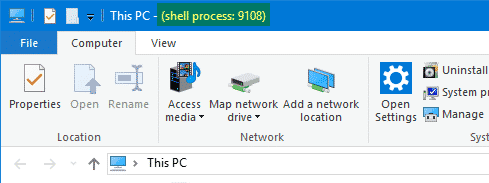
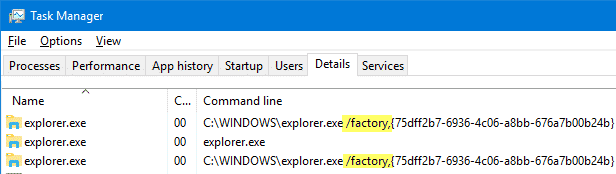
If you’ve enabled Launch folder windows in a separate process option in Folder Options settings, launching folders would create additional explorer.exe instance(s) with a different PID, of course. This also happens if you run explorer.exe [folderpath] directly from Run dialog. In Task Manager the additional instances of explorer.exe appear as shown below, with “/factory” parameter.
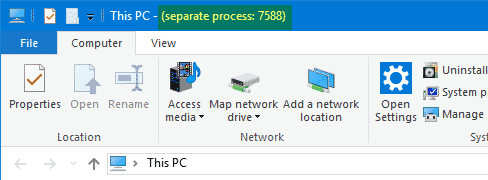
In those cases, the title bar would contain the words “separate process: [PID]”.
Not sure how this feature (in Windows 10 Anniversary Update v1607) would help end-users, but thought I’d write about it anyway.
One small request: If you liked this post, please share this?
One "tiny" share from you would seriously help a lot with the growth of this blog. Some great suggestions:- Pin it!
- Share it to your favorite blog + Facebook, Reddit
- Tweet it!
