Copy Detailed File Info to Clipboard via Right-Click Menu

copy file information, version, product via right-click menu

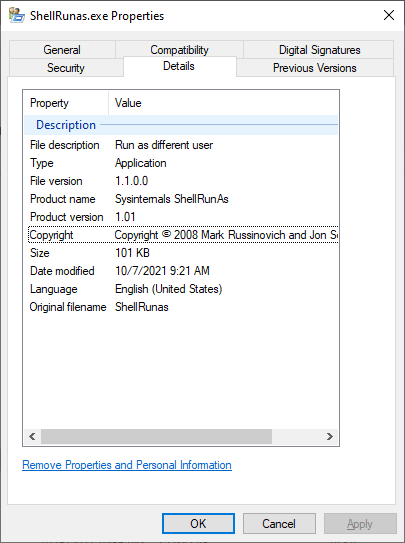
The Details tab in the Properties sheet shows the file version, product name, copyright, and other details. However, Windows doesn’t let you copy the information to the clipboard.

copy file information, version, product via right-click menu

In this article let’s see how to copy the file info to the clipboard using PowerShell. You can also incorporate the command to the right-click menu if desired.Read more

Remove “Edit with Clipchamp” from the Right-click Menu

remove "edit with clipchamp"

Clipchamp is a video creation and editing suite from Microsoft. This software is available via the Microsoft Store. This app will be installed as an inbox app in the upcoming builds of Windows 11. Note that this app is pre-installed in Windows 11 Insider build 22581.1 and higher.

Clipchamp installation would add the “Edit with Clipchamp” item in the context menu of image and video files. Notably, the “Edit with Clipchamp” and “Share with Skype” context menu entries are also shown in the Windows 11 fast context menu.
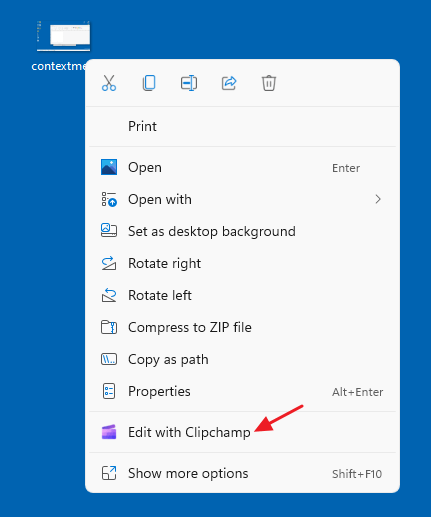
remove "edit with clipchamp"

There are some bugs in the Clipchamp context menu. If you open the classic context menu by clicking “Show more options,” you may see that the “Print” command (or “Set as desktop background”) is the default option. This means that double-clicking on image files will open the Print dialog or set the image file as the desktop background.
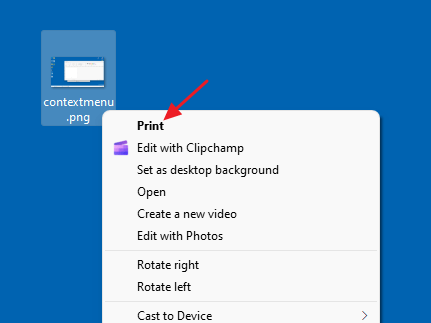
remove "edit with clipchamp"

The above bug could be simulated in the current version (v2.3.0.0) of Clipchamp.

See also: Troubleshoot Shell extension issues in Windows.

Also, the Clipchamp context menu removes the “Enqueue in Winamp” context menu option. A Winamp user reported this:

After installing the latest Beta release build of Windows 11, the Enqueue in Winamp option has disappeared from the right-click menu for media files. In Winamp, I tried unchecking “Show Winamp actions in folder context menus” and then re-enabling it, but I can’t seem to bring it back. I use this feature on a daily basis, so it’d be terrible to lose it. Anyone has any ideas on how I can get it to show back up?

Just figured it out. It replaced “Enqueue in Winamp” with “Edit with Clipchamp”, a new video editing program Microsoft just added in the Beta update. I went to add/remove programs and uninstalled Clipchamp, and my enqueue option returned.

If you wish to remove the “Edit with Clipchamp” context menu entry, you can do it using a simple registry edit.

Read more

Image Appears in Windows Search Box; How to Remove it?

image appears on search box

Microsoft recently introduced the Search Highlights feature in Windows 10 and 11. Search Highlights is designed to help Windows users discover more information and related content. Search highlights present noteworthy, informative, and interesting information about what’s special about each day—like holidays, anniversaries, and other moments in time both globally and in your region.Read more

Fix for Duplicate Desktop Icons in Windows

Every time when you place a file or a shortcut on your Desktop, you may get 2 identical icons. If one icon is deleted, the other icon will also be removed if you refresh the Desktop. The path for both icons would be the same. You may be wondering what causes the display of duplicate desktop icons in Windows.

Cause

This problem is caused by inadvertently dragging the desktop folder about in the person’s profile folder or All Users. Or, the user may have incorrectly changed the “User Shell Folders” registry value.

The Desktop is composed of two folders, one is the current user’s Desktop, and the other is the “All Users” (a.k.a, Public) Desktop. The Desktop is a special folder that displays the icons from both these locations.

Duplicate desktop icons issue occurs if both are set to the same folder. For instance, if the current user “Desktop” and All users’ “Desktop” paths (in the registry) are pointing to the same folder (e.g., %USERPROFILE%\Desktop), the Windows shell enumerates the items twice and displays the same set of icons twice on the desktop.Read more

Windows Search not Finding Text Inside PDFs in Windows 11

fix pdf search content indexing issues

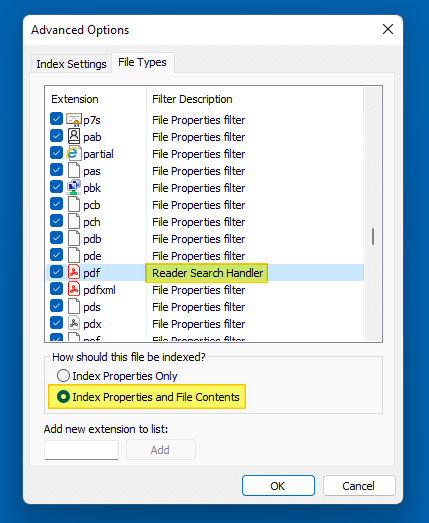
Many Windows 11 users have reported a Windows Search issue wherein the PDF content search in File Explorer does not fetch anything. When you do a search in File Explorer, the results for other documents (e.g., Word, Excel, etc.) are discovered but not PDF files.

Even if you use the content: or contents: search operator (e.g., contents:contoso) in File Explorer to search for file content, the search results may be empty.

This post tells you how to fix PDF search indexing (file content search) issues, especially in Windows 11. The instructions apply to all versions of Windows.Read more

How to Recover PATH Variable After Deleting it Accidentally

path environment variable - system properties

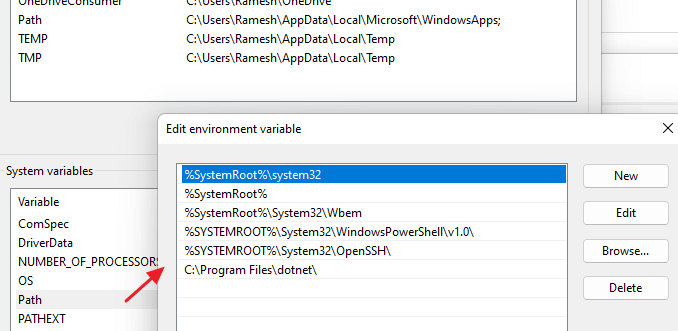
The PATH is a variable that Windows uses to locate needed executables, especially from the command line. Unfortunately, there are situations where users accidentally delete the PATH variable. This can happen when users inadvertently overwrite the PATH data rather than appending them.

There are also cases where some buggy applications or installers have wiped out the entire PATH environment variable data. This article explains the different ways to recover the PATH variable that was accidentally erased.Read more

[Fix] PDF Preview Shows Directory Index or ERR_FILE_NOT_FOUND

pdf preview shows index of or error file not found

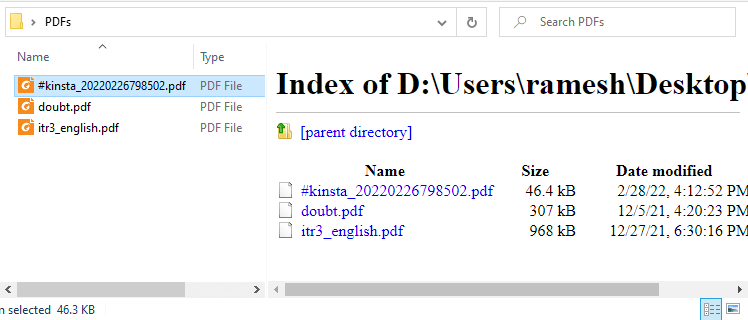
When you preview PDF files in File Explorer or Microsoft Outlook on your Windows 10 or Windows 11 computer, the preview pane may show the directory index of the current folder instead of previewing the PDF file’s contents.

pdf preview shows index of or error file not found

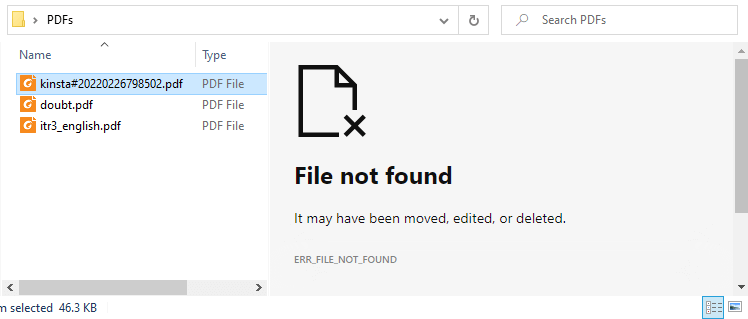
In some cases, it shows the following error:

File not found

It may have been moved, edited, or deleted.
ERR_FILE_NOT_FOUND

pdf preview shows index of or error file not foundRead more

[Fix] Can’t Change File Association via Default Apps in Windows 11

windows 11 jpg/png association fix

After installing third-party software on your Windows 11 computer, the ability to associate file types such as JPG, JPE, JPEG, PNG, MPG, MPEG, and other file types may be hampered. Here are the issues you may encounter when attempting to change the file association for the said file types.

When you right-click on an image file such as .jpg, click Open With, and select Choose another app, the “Always use this app to open .jpg files” checkbox is missing.

windows 11 jpg/png association fix

If you right-click on the image file and click Properties, the “Change…” button is missing:

windows 11 jpg/png association fix

In the Settings → Apps → Default apps dialog, the “Choose a default” button would be grayed out when you type the file extension (e.g., .jpg, .png, etc.) in the text box.

windows 11 jpg/png association fix

As a result, you may be unable to change the file association for image (and some video) file types.Read more