Find the Total Execution Time of a Command or Program in Windows

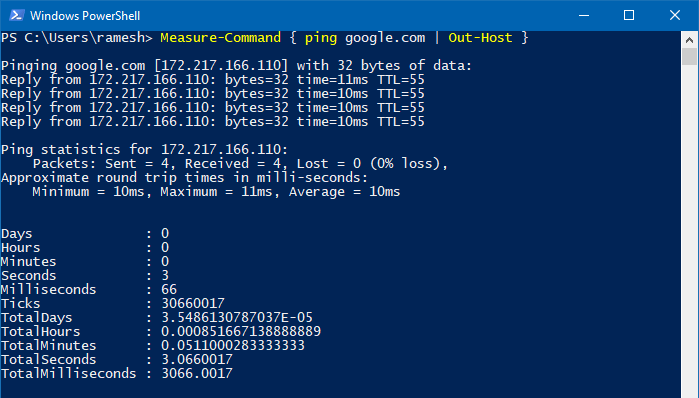
measure total execution time of a command or program

You may sometimes want to to find the total execution time of a command or program you run. To optimize a script or program, it’s essential to know how long does it take for it to complete execution. This helps you compare the total run time of Program A vs. Program B and optimize your code, especially if you’re a professional software developer, analyst, or software tester.

Measuring the total execution time of a script or process is one of the most critical aspects of performance optimization. This article discusses various methods to find the total execution time of a program, script, or command in Windows.
Read more

How to Change File Date or Timestamp in Windows

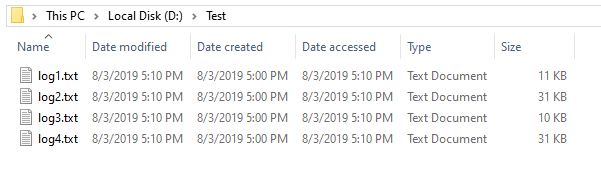
change last modified file date or timestamp using powershell

Windows maintains three different date/timestamps for every file and folder. They are “Date Created,” “Date Modified,” and “Date Accessed.” You may have to change the modified, created, or last accessed timestamp of a file or folder in some situations.

For instance, I had to change the timestamp of some files to test the Robocopy sync method when writing an article on folder compare and synchronization. Other users may need to change the date or time of a file for backup or archiving purposes.

Let’s see some methods to change the created date, modified date, or last accessed date of files in this article.
Read more

[Fix] Cannot Delete WindowsApps folder on Non-System Drives

cannot delete windowsapps folder

If you have changed the default app save location to an external hard drive or secondary drive, Windows will create three folders, namely, WpSystem, WindowsApps, and WUDownloadCache on the target drive.

You may later change your mind and revert the default save location to C:. But you may be unable to delete the leftover WindowsApps folder on your secondary drive due to tight NTFS permissions assigned to the folder. The other two folders, WpSystem and WUDownloadCache can be deleted easily.

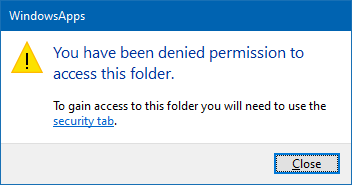
When you access the WindowsApps folder on your secondary drive, you may see the following message:

cannot delete windowsapps folder

You have been denied permission to access this folder.

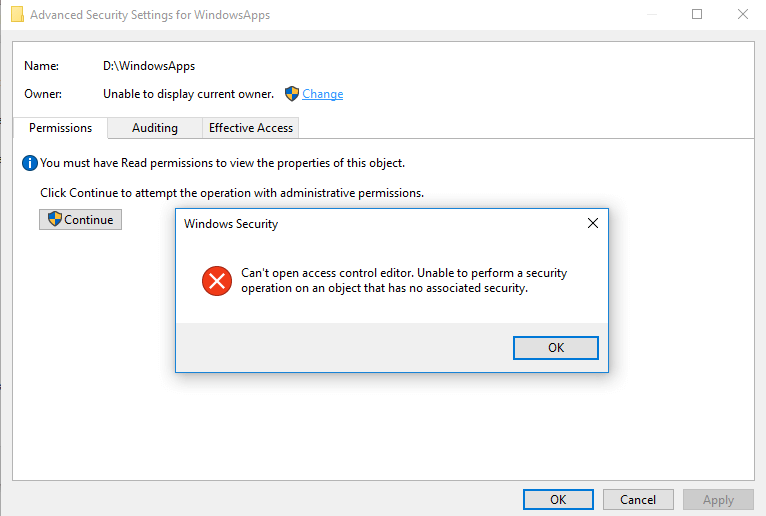
And the Advanced Security Settings dialog shows the error:

Can't open access control editor. Unable to perform a security operation on an object that has no associated security.

cannot delete windowsapps folder

This article explains how to properly delete the leftover WindowsApps folder on your secondary or external hard disk drive(s).Read more

Copy Folder Structure without Copying Files in Windows

copy directory structure without files

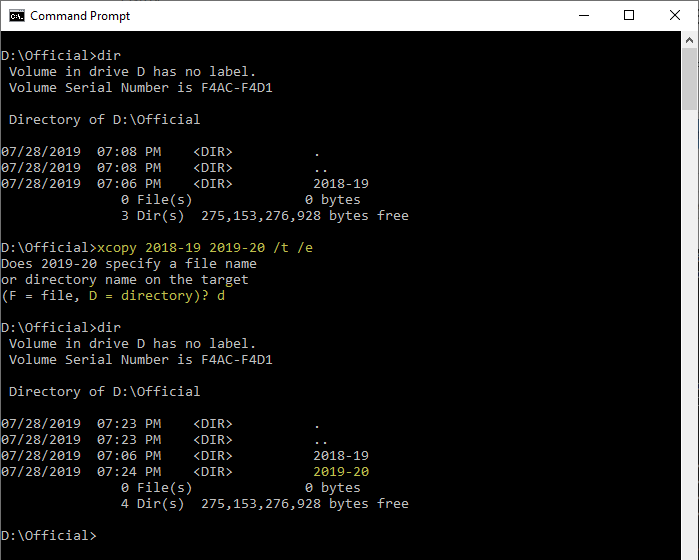
There are situations where you want to copy a folder structure without copying the files in that folder and sub-folders. For instance, you may want to replicate the directory structure of your expenses or accounting folders in order to organize them year-wise.

I have the following directory structure to store the documents pertaining to the financial year 2018-19. For the next financial year, I would want to copy the directory structure (without files) to the parent folder named 2019-20 to maintain uniformity.Read more

Restore “Import pictures and videos” AutoPlay Option in Windows 10/11

import pictures and videos autoplay windows 10

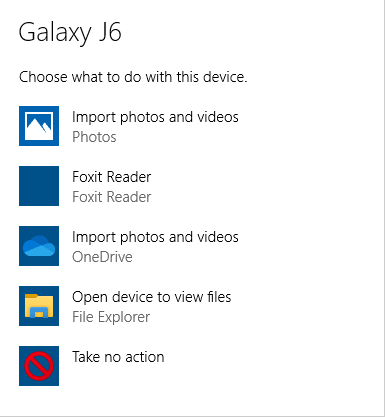
Windows 10 has the Import photos and videos option in the AutoPlay dialog which helps you import photos and videos from your phone, SD card, camera, etc. The option uses the built-in Photos app to import photos and media from the device into your Pictures folder.

import pictures and videos autoplay windows 10

However, many users would like to have the classic “Import pictures and videos” import wizard (powered by the Windows Photo Viewer) instead.Read more

Fix: Command Prompt Tab to Autocomplete not working

autocomplete path characters in command prompt

The Command Prompt has a handy little feature that lets to change directory paths using autocomplete. To change to a directory or type a directory name, you can type the starting letters of the directory and press the TAB key to autocomplete the file or folder path.

(To learn how to use TAB autocomplete in Command Prompt, check out the examples provided at the end of this article.)

File and folder paths autocomplete feature is enabled by default in Windows 10. But if it stops working for some reason, this article tells you how to fix it.Read more

Add registry values with double quotes or expandable variable data using Reg.exe

reg.exe pass double quotes in data and expandable strings

The built-in reg.exe console tool lets you add, delete, export or save (as hive) registry keys and values. When adding registry values using the reg.exe tool, you may be wondering how to pass data with double-quotes or environment variables and add it to the registry literally.

This article tells you how to create registry values passing double-quotes and environment variables (without expanding or resolving the folder path) using the reg.exe console tool.Read more

How to Run a Program as SYSTEM (LocalSystem) Account in Windows

Many Windows system files, registry keys, and services are owned by the SYSTEM (a.k.a LocalSystem) account, which has a high privilege level. If you need to modify a registry key owned by the SYSTEM account, there are at least two options.

The first option that comes to your mind is to take ownership of the corresponding registry key, assign yourself Full Control permissions. Once the registry key or the values are updated, revert the permissions and ownership to SYSTEM.

There is, however, an easier option. You can run the program — e.g., the Command Prompt or the Registry Editor under the SYSTEM account directly and update the registry values.

This article lists 7 different methods using which you can run programs under the SYSTEM or LocalSystem account in any version of Windows, including Windows 10. You can also add a Run as SYSTEM right-click menu option for .exe files.

Read more

Find the IP address of a Mapped Network drive in Windows

find ip address of mapped network drive

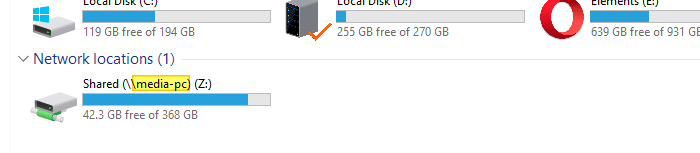
Network shares are accessed using their UNC paths (begin with \\). For frequently accessed network shares, the UNC path can be mapped to a drive letter in Windows. You may be wondering how to find out the IP address of a mapped network drive — i.e., the IP of the network computer that hosts the shared folder. This post tells you how to find it.Read more

How to Automatically Backup the Entire Registry in Windows

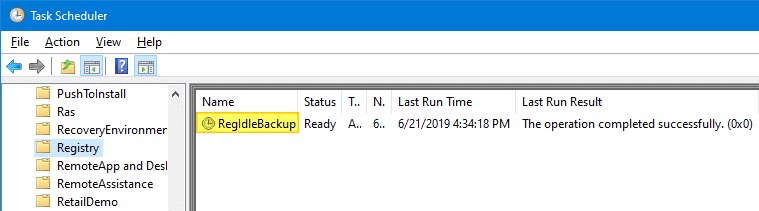
RegIdleBackup - Registry Idle Backup Task - Scheduler Registry Backup

Every System Restore point or shadow copy maintains a complete backup of the registry hives. However, Windows 10/11 doesn’t automatically create System Restore points every day. Restore Points are created only when installing important updates or drivers.

Notwithstanding the System Restore’s excellent capabilities, relying upon System Restore as a file or registry backup method is not sensible. It’s because System Restore points are cleared on a FIFO basis once the space threshold is reached.

The registry files (hives) are located in the Windows\System32\Config folder. The hives are always in use when Windows is running. So, you’ll need a specialized program that uses Windows API or volume shadow to backup the hives.

This article discusses six different methods to completely backup your Windows registry hives.Read more