If you’re unable to install themes shipped as .themepack or .deskthemepack files on your Windows computer, the file association settings may need to be fixed. Broken file association for theme pack file types causes one the following problems.Read more
Windows
You’re browsing the “Windows” parent category, which lists articles on every Windows Operating System.
Extract Wallpapers from DeskThemePack and ThemePack Files
This article shows you different ways of extracting wallpaper images from a theme pack file in Windows.
A theme is a combination of desktop background pictures, window colors, and sounds. Windows themes come in the form of theme packs. Theme packs are essentially CAB files that enclose resources such as wallpapers, sounds, etc., along with the .theme file, which contains the instructions to apply the theme.
Theme packs come in two types: one with a .themepack file extension and the other with a .deskthemepack extension.Read more
How to Customize the Quick Access icon in Windows 10 or 11
Quick access is a Windows 10 feature that shows you the list of frequently accessed folders and recent files. Also, under the Quick access section in the File Explorer navigation pane, you can pin your favorite folders.
This post tells you how to change the Quick Access icon from the default slanted blue star icon (in Windows 10) or yellow star (in Windows 11 v21H2 and earlier) to something else of your choice.Read more
How to Disable Hibernation Without Disabling Fast Startup
Fast Startup is a feature in Windows 8 and 10, which speeds up the boot process significantly. With the Fast Startup feature enabled by default, when the user shuts down the computer, what happens under the hood is a hybrid shutdown sequence.Read more
Add a PIN to your user account in Windows 10
Windows 8 and Windows 10 allow you to set a user account PIN for use in place of passwords. PIN makes it easier to sign in to Windows, apps and services. Setting up a PIN provides many advantages over Password-based login.Read more
Launch Settings Pages using ms-settings URL shortcuts
Windows 10/11 includes the ms-settings: URL protocol which can be used to launch a specific page in Settings using a shortcut of Run dialog. Here is the complete list of ms-settings: commands in Windows 10 and 11.Read more
How to Reset, Repair or Reinstall Edge Web Browser
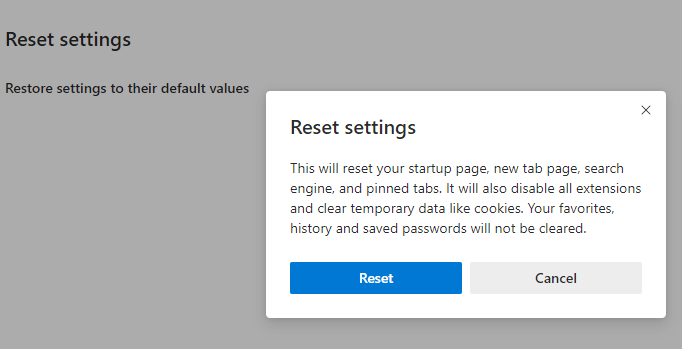
Sometimes, web browsers may need a complete reset — to revert to the default settings especially in the aftermath and removal of a browser-based attack, search hijack, PUA, PUP or Adware infection. We recently saw how to reset Google Chrome and Mozilla Firefox manually. This post tells you how to reset Microsoft Edge completely and start afresh.Read more
Remove Open PowerShell window here from Right-Click Menu in Windows 10
With the Windows 10 Creators Update, the context menu option “Open command window here” is hidden by default, and is replaced by the “Open PowerShell window here” entry.
Not just that. PowerShell replaces Command Prompt in the Win+X (Power User) menu as well. In an earlier post, we saw how to get Command prompt option back in the right-click menu.Read more
Clean Up PC – A New Reset feature in Windows 10 Creators Update
Windows 10 gives you two reset options namely “Keep my files” (“Refresh”) and “Remove everything” (also known as “Reset”).
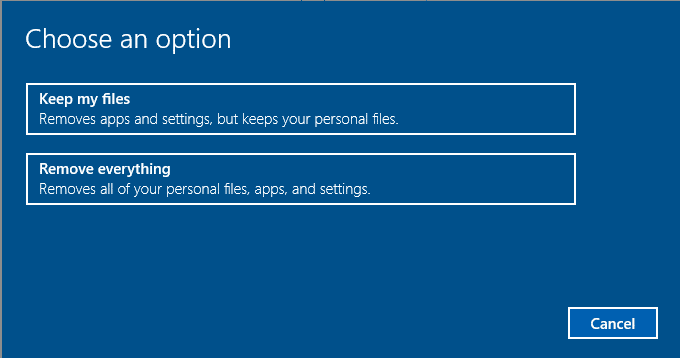
Now, the Windows 10 Creators Update Preview Build 14986 seems to have introduced a third system reset option named “Clean up and update this PC”. And the corresponding GUI option for this feature may be added in the upcoming builds or in the Windows 10 Creators Update (final) which is due for release in March 2017.Read more
Add “Open command window here” to Context Menu in Windows 10
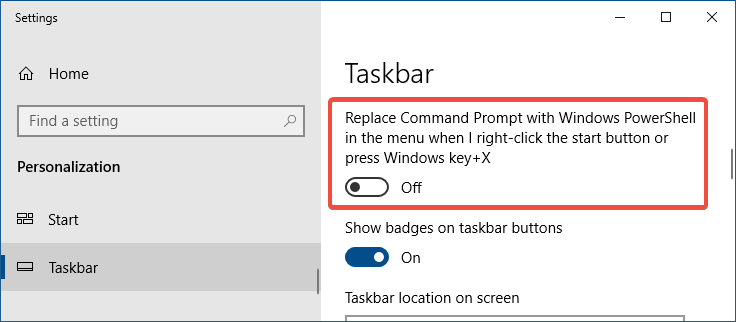
In the recent versions of Windows 10 (Creators Update and higher), the “Open Command Prompt here” context menu entry has been removed and is replaced by “Open PowerShell window here”.
Microsoft, in an effort to bring the best command line experiences to the forefront for all power users, has made PowerShell the de facto command shell.
This article tells you how to add “Open command window here” to right-click menu in Windows 10. Optionally, you can also remove the Open PowerShell window here from the context menu.
You may also be knowing that since the preview build 14971, “Command Prompt” and “Command Prompt (Admin)” entries in the Win+X menu (the menu which appears when you right-click Start) were replaced with PowerShell links.Read more