Show Full Path in the Address Bar for Special Folders in Windows 10

show full path in address bar for special folders windows 10

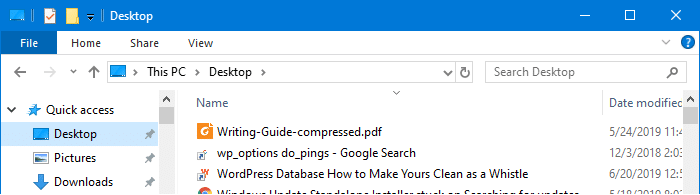
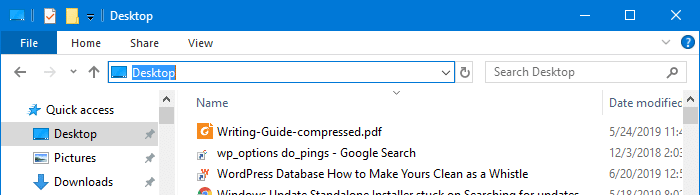
Quick access contains links to Desktop, Documents, Pictures, Music, and Videos folders by default. When you access one of those special folder links via Quick access, the address bar shows the location as This PCDocuments, This PCDesktop etc, instead of the absolute path to the Documents or the Desktop folder.

show full path in address bar for special folders windows 10

And, when you click on the address bar or press Alt + D, only the folder name – e.g., Desktop appears instead of its absolute path.

show full path in address bar for special folders windows 10

The same happens to other shell folders such as Documents, Pictures, Videos, Music, Downloads, etc.,

You may be wondering how to make Windows 10’s File Explorer show the full path of the shell folders. And, this article tells you how to accomplish that using the Windows Registry.

Read more

How to Automatically Backup the Entire Registry in Windows

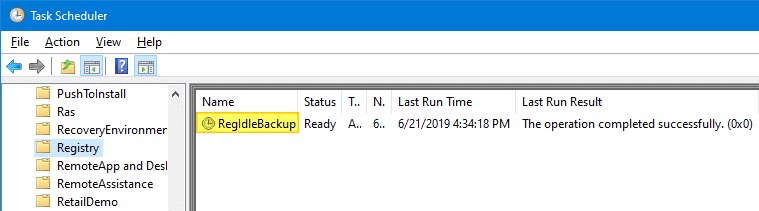
RegIdleBackup - Registry Idle Backup Task - Scheduler Registry Backup

Every System Restore point or shadow copy maintains a complete backup of the registry hives. However, Windows 10/11 doesn’t automatically create System Restore points every day. Restore Points are created only when installing important updates or drivers.

Notwithstanding the System Restore’s excellent capabilities, relying upon System Restore as a file or registry backup method is not sensible. It’s because System Restore points are cleared on a FIFO basis once the space threshold is reached.

The registry files (hives) are located in the Windows\System32\Config folder. The hives are always in use when Windows is running. So, you’ll need a specialized program that uses Windows API or volume shadow to backup the hives.

This article discusses six different methods to completely backup your Windows registry hives.Read more

Open Command Prompt in Current Folder Using Keyboard Shortcut

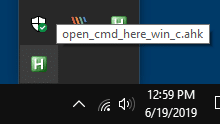
open command prompt in current folder - autohotkey

There are at least a couple of ways to open Command Prompt in the current folder path from a folder window. The two widely used options include running cmd.exe from the File Explorer address bar and using the Open Command window here option from the folder background context menu.

But, no built-in option exists to accomplish this using a keyboard shortcut or hotkey. This post tells you how to open Command Prompt (or admin Command Prompt) in the current directory path using the AutoHotkey automation tool.Read more

Insert Date/Time in Any Program Using Keyboard Hotkey

insert date/time in any program - wordpad

When you’re writing content such as technical content, news articles, etc., you may sometimes want to insert the current date or timestamp in a program or editor you’re using. In Notepad, you can add the timestamp by pressing the F5 key.

Microsoft Office Word, OneNote allows the Alt + Shift + D and Alt + Shift + T hotkey combinations to insert the current date and current time respectively.

Similarly, WordPad has the Date and time toolbar button that lets you insert the date or timestamp in your preferred format from the list of 13 choices.

insert date/time in any program - wordpad

But, if you’re using a program which doesn’t have a built-in feature to insert current date and time, you may need a third-party macro or automation tool for that purpose. With automation tools, you also have the advantage of using a single hotkey combination to insert the date or timestamp in any program.Read more

Disable Folder Thumbnails without Disabling Thumbnail Preview for Files

disable folder content thumbnails

When a folder contains one or more images in it, the contents of the folder are shown as the thumbnail image for that folder.

disable folder content thumbnails

Windows allows you to enable or disable thumbnail previews in File Explorer using the Always show icons, never thumbnails setting in the Folder Options dialog. When you turn off thumbnail previews, icons are shown instead of thumbnails — for both files and folders. The Folder Options dialog doesn’t have an option to disable thumbnail preview selectively for folders or for files only.Read more

Clear all notifications in Action Center using Keyboard or Shortcut

clear all notifications shortcut action center

The Action Center in Windows 10 is a slide-out pane where all system notifications are displayed and it has quick action buttons to various Windows settings. Any notification shown on your taskbar will be added to the Action Center. The unread (new) notifications count is also displayed on the Action Center notification area icon.

The Action Center may accumulate too many messages over time. To clear them simply click on the Clear all notifications link at the bottom of the Action Center slide-out pane. This article tells you how to clear specific notifications using a shortcut.Read more