[Fix] Cannot Delete WindowsApps folder on Non-System Drives

cannot delete windowsapps folder

If you have changed the default app save location to an external hard drive or secondary drive, Windows will create three folders, namely, WpSystem, WindowsApps, and WUDownloadCache on the target drive.

You may later change your mind and revert the default save location to C:. But you may be unable to delete the leftover WindowsApps folder on your secondary drive due to tight NTFS permissions assigned to the folder. The other two folders, WpSystem and WUDownloadCache can be deleted easily.

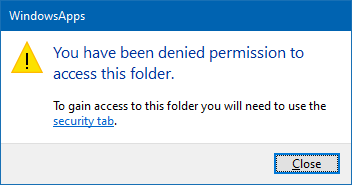
When you access the WindowsApps folder on your secondary drive, you may see the following message:

cannot delete windowsapps folder

You have been denied permission to access this folder.

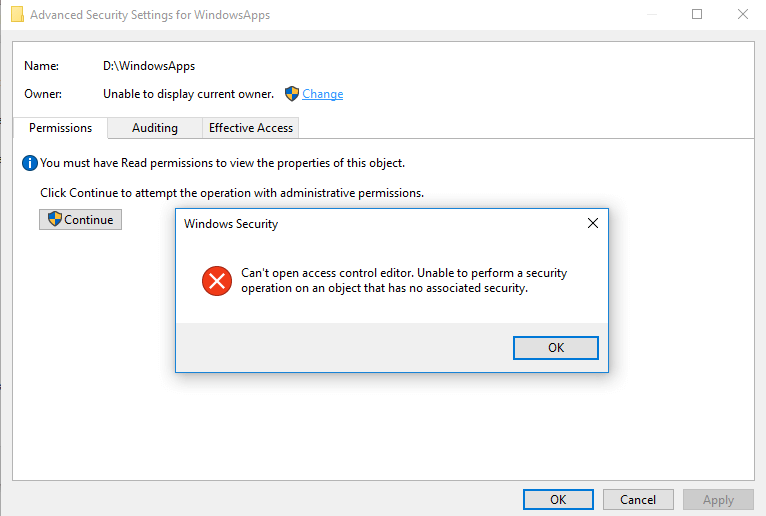
And the Advanced Security Settings dialog shows the error:

Can't open access control editor. Unable to perform a security operation on an object that has no associated security.

cannot delete windowsapps folder

This article explains how to properly delete the leftover WindowsApps folder on your secondary or external hard disk drive(s).Read more

Copy Folder Structure without Copying Files in Windows

copy directory structure without files

There are situations where you want to copy a folder structure without copying the files in that folder and sub-folders. For instance, you may want to replicate the directory structure of your expenses or accounting folders in order to organize them year-wise.

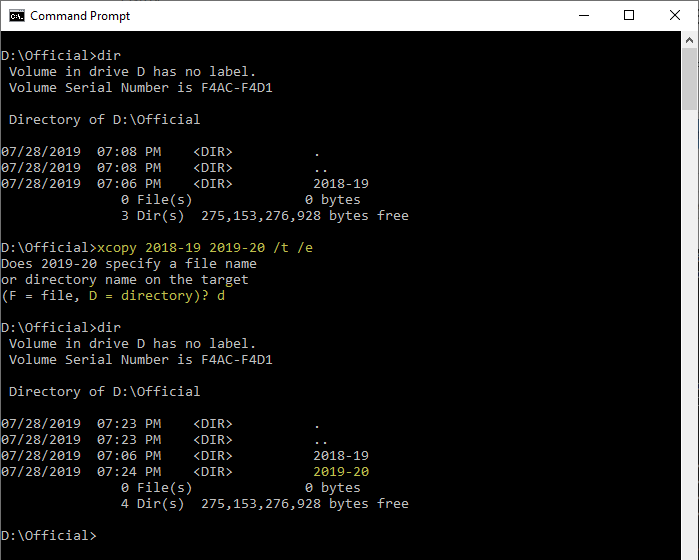
I have the following directory structure to store the documents pertaining to the financial year 2018-19. For the next financial year, I would want to copy the directory structure (without files) to the parent folder named 2019-20 to maintain uniformity.Read more

Bypass SmartScreen even if its Enabled through Group Policy

When you download a file you downloaded from the internet, Windows adds the zone identifier or Mark of the Web as NTFS stream to the file. So, when you run the file, Windows SmartScreen checks if there is a zone identifier alternate data stream attached to the file. If the ZoneId=3 data ADS is present, Windows identifies that the file was downloaded from the internet, and the SmartScreen does a reputation check when you run the file.Read more

Windows Logs Off when Shutdown or Hibernate is used

windows logs off when shutdown or hibernate is used

Over these years, at least since the Windows 7 era, we’ve seen several cases where the system logs you off when clicking on the Shutdown or Hibernate option in the Start menu. The problem may be seen in Windows 8, Windows 10, or 11 systems as well.

What causes Windows to log off the account instead when the shutdown or hibernate option is used?Read more

How to Auto Shutdown after Installing Updates in Windows 10

install updates and shut down windows 10

On patch Tuesdays, you’ll see a bunch of updates such as Adobe Flash Player Security Update, Servicing Stack update, and/or the Cumulative Update showing up in the queue when you open Windows Update settings page. For Asian countries, the updates arrive at night or late night.

Installing a Feature Update or Cumulative Update always requires a restart. Once done, you then have to shut down the device manually if you don’t prefer leaving the computer in sleep or hibernation mode overnight. This means your sleep schedule gets delayed as you’ll have to be awake until the Cumulative Update is fully downloaded and installed.

You may be wondering how to automatically shut down your Windows 10 computer after the updates are installed.Read more

How to Flip or Reverse a Text File Using Different Ways in Windows

reverse lines in a text file windows

When analyzing plain-text log files such as the Web server logs or the Sfc, or DISM log files, you may sometimes prefer the most recent items appearing at the top. However, most of the log files that Windows generates would have the oldest entries listed first — entries listed in chronological order. You may be … Read more

Restore “Import pictures and videos” AutoPlay Option in Windows 10/11

import pictures and videos autoplay windows 10

Windows 10 has the Import photos and videos option in the AutoPlay dialog which helps you import photos and videos from your phone, SD card, camera, etc. The option uses the built-in Photos app to import photos and media from the device into your Pictures folder.

import pictures and videos autoplay windows 10

However, many users would like to have the classic “Import pictures and videos” import wizard (powered by the Windows Photo Viewer) instead.Read more

Fix: Command Prompt Tab to Autocomplete not working

autocomplete path characters in command prompt

The Command Prompt has a handy little feature that lets to change directory paths using autocomplete. To change to a directory or type a directory name, you can type the starting letters of the directory and press the TAB key to autocomplete the file or folder path.

(To learn how to use TAB autocomplete in Command Prompt, check out the examples provided at the end of this article.)

File and folder paths autocomplete feature is enabled by default in Windows 10. But if it stops working for some reason, this article tells you how to fix it.Read more