Open Command Prompt in Current Folder Using Keyboard Shortcut

open command prompt in current folder - autohotkey

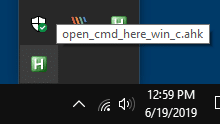
There are at least a couple of ways to open Command Prompt in the current folder path from a folder window. The two widely used options include running cmd.exe from the File Explorer address bar and using the Open Command window here option from the folder background context menu.

But, no built-in option exists to accomplish this using a keyboard shortcut or hotkey. This post tells you how to open Command Prompt (or admin Command Prompt) in the current directory path using the AutoHotkey automation tool.Read more
Set Landscape for a Single Page in a Word Document

set selected page landscape same word document

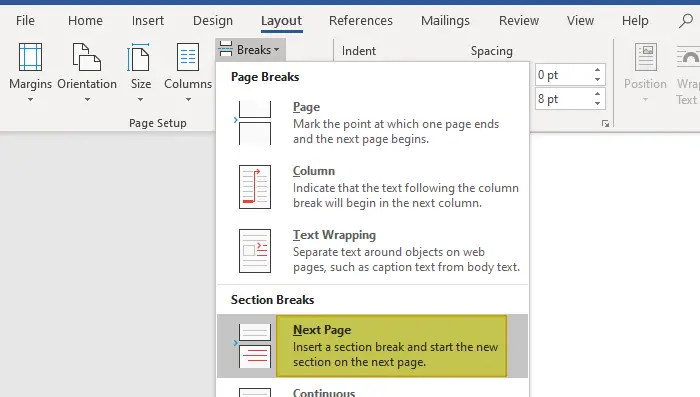
To change the Word document orientation, you may have been using Page Setup to change the orientation to landscape or portrait for the entire document. Many users don’t know that Word also allows you to set a different orientation (landscape or portrait) for different pages within the same Word document.

This article tells how to make specific pages in your Word document to landscape and the rest of the pages to portrait orientation, or vice versa.Read more

.Docx/Doc Files Not Showing Word Icon but Only White Plain Icon

word .docx and .doc files show generic white icon

Many users have reported that the Word icons are not showing up for .docx and .doc files on their systems. Instead, they show up with a generic (unknown) or plain white icon even though the files open in Word when double-clicked (i.e., the file association settings are intact.)

word .docx and .doc files show generic white icon

Cause

Blank or missing Word icons on .doc and .docx files may occur due to multiple reasons, such as deleting the Office installer folder (which contains the Office icons) or installing multiple versions of Office on a computer. This may have been caused if you install and later uninstall a Microsoft Office alternative software (e.g., Open Office, WPS Office, etc.)

An incorrect Programmatic Identifier (e.g., docx_auto_file) or wrong file association settings in the Windows registry for Word documents can also cause this issue. Last but not least, a corrupt icon cache can also trigger the problem.

This article tells you how to fix the icons for Word document file types .docx and .doc using different ways.Read more

Insert Date/Time in Any Program Using Keyboard Hotkey

insert date/time in any program - wordpad

When you’re writing content such as technical content, news articles, etc., you may sometimes want to insert the current date or timestamp in a program or editor you’re using. In Notepad, you can add the timestamp by pressing the F5 key.

Microsoft Office Word, OneNote allows the Alt + Shift + D and Alt + Shift + T hotkey combinations to insert the current date and current time respectively.

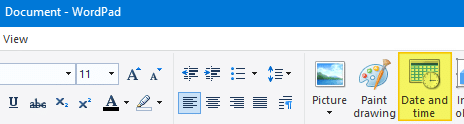
Similarly, WordPad has the Date and time toolbar button that lets you insert the date or timestamp in your preferred format from the list of 13 choices.

insert date/time in any program - wordpad

But, if you’re using a program which doesn’t have a built-in feature to insert current date and time, you may need a third-party macro or automation tool for that purpose. With automation tools, you also have the advantage of using a single hotkey combination to insert the date or timestamp in any program.Read more

Disable Folder Thumbnails without Disabling Thumbnail Preview for Files

disable folder content thumbnails

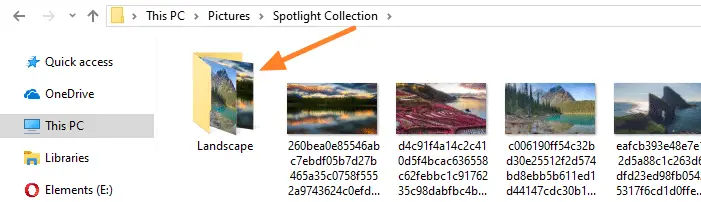
When a folder contains one or more images in it, the contents of the folder are shown as the thumbnail image for that folder.

disable folder content thumbnails

Windows allows you to enable or disable thumbnail previews in File Explorer using the Always show icons, never thumbnails setting in the Folder Options dialog. When you turn off thumbnail previews, icons are shown instead of thumbnails — for both files and folders. The Folder Options dialog doesn’t have an option to disable thumbnail preview selectively for folders or for files only.Read more

Clear all notifications in Action Center using Keyboard or Shortcut

clear all notifications shortcut action center

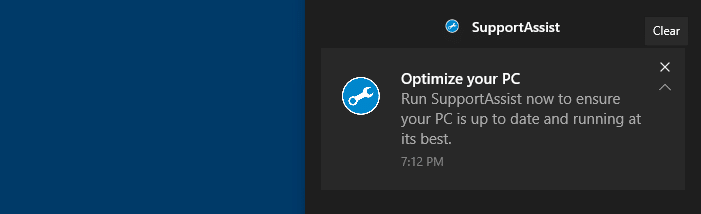
The Action Center in Windows 10 is a slide-out pane where all system notifications are displayed and it has quick action buttons to various Windows settings. Any notification shown on your taskbar will be added to the Action Center. The unread (new) notifications count is also displayed on the Action Center notification area icon.

The Action Center may accumulate too many messages over time. To clear them simply click on the Clear all notifications link at the bottom of the Action Center slide-out pane. This article tells you how to clear specific notifications using a shortcut.Read more