You’re browsing “Microsoft” category, which is the top-most category which contains every thing related to Microsoft. Windows Operating Systems, News, Windows Update news and everything Microsoft!
Did you tweak the Services configuration incorrectly, resulting in a system slowdown or leading to other catastrophe? And you don’t remember the original configuration to revert back? You may find the Windows 7 default Services configuration table below useful.
Note that some of these services may not be found in your system, depending upon the edition of Windows 7 you’ve installed. For example, the BranchCache feature and the corresponding Service are available only in Windows 7 Ultimate and Enterprise Editions.Read more
Error message dialog boxes usually have title bar text containing the application or process name that generated the error. However, you may sometimes encounter a pop-up window with no text in the title bar, making you guess which program has caused the error.Read more
Double-clicking a .URL file in your user profile’s Favorites or Favorites\Links folder may show a “Do you want to open this file?” file download security warning, as shown below, after installing the latest quality updates.Read more
When you install Windows on a new computer, customizing Windows takes a lot of time and effort. One such thing is the taskbar. You may have to redo the procedure of pinning the applications which you frequently use. If you’re planning to move to a new Windows PC or a new user profile on the same computer, and wondering how to transfer the pinned taskbar items, then this article is for you.
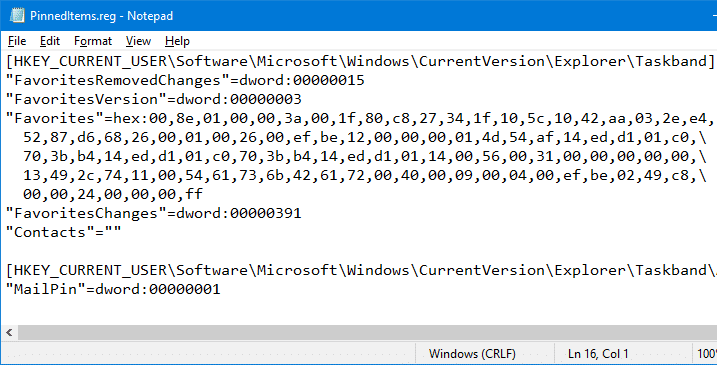
This post explains how to backup and restore the pinned Taskbar items in Windows 10 and earlier.Read more
The Pinned items listing which you see at the top of the Start menu is stored in the registry as a REG_BINARY value, and Windows provides no GUI to backup and restore the Pinned items configuration. In case you want to transfer the Pinned items configuration to another user profile, you need to use the Registry Editor and backup the settings in the source profile.Read more
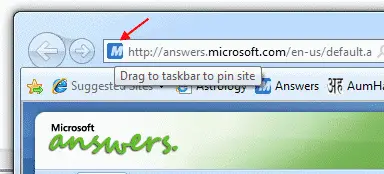
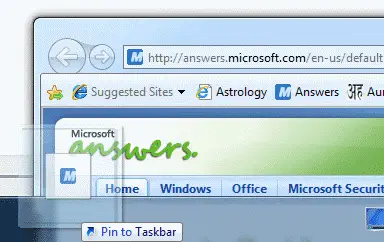
Internet Explorer 9 lets you Pin websites directly to the Taskbar so that you can launch your favorite websites in a single click. To Pin a website to the taskbar, click and drag the Website’s favicon shown in the left of the Address bar onto the Taskbar.
After deleting the IsShortcut registry value to remove the shortcut arrow overlay in shortcuts (.lnk) files, you may notice that the “Pin to Taskbar” and the “Pin to Start Menu” context menu items go missing when you right-click on a shortcut. Also, one or more of the context menu items may appear twice, as in the image below.Read more
Windows 7 doesn’t include an option wherein you can disable auto arrange in folders (icons view). Sometime back I created a magical registry hack (FFlags DWORD 43000001) that disabled the "Full Row Select" functionality in folders in Windows 7. I also posted some interesting observations in article How to Disable Full Row Select in Explorer in Windows 7 about the registry hack, which demonstrates that applying the hack also brings back the missing "Auto arrange" menu option in the View menu of folders when in Icons view.
Automate Using Script
Update: I just converted the registry edits to a Script file that does all the work. Works in Windows 7, 8, 8.1 and Windows 10.
I hereby bring you a slightly tweaked version (sets FFlags to 43000000) of the same registry hack and provide some screenshots in this article. After applying this edit you can enable or disable auto arrange feature on a per-folder basis. Of course, an "Undo" REG file is provided in case you want to revert back to the factory default setting.Read more
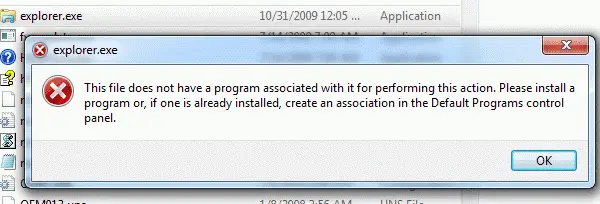
When you click the Windows Explorer or File Explorer shortcut Pinned to the Taskbar, or when running explorer.exe directly, the following error message may be displayed:
This file does not have an app associated with it for performing this action. Please install an app or, if one is already installed, create an association in the Default Apps Settings page.
Windows 10: File Explorer Pinned Taskbar shortcut error.
And the same error occurs when using the Win + E shortcut or running explorer.exe manually.
In earlier Operating Systems (e.g., Windows 8 and below), the following error is displayed:
This file does not have a program associated with it for performing this action. Please install a program or, if one is already installed, create an association in the Default Programs control panel.
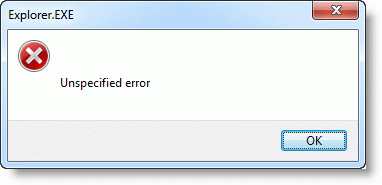
And using the Win + E key sequence causes “Unspecified error”
However, Explorer may launch correctly when including additional switches such as /e or /n with explorer.exe, or double-click the This PC icon. Also, all other shortcuts for other applications Pinned to the Taskbar may work fine, thus implying that this is not a Shortcut (.lnk) file association problem.
Cause
This problem occurs due to missing data in the HKEY_CLASSES_ROOT\Folders registry key. The File Explorer pinned shortcut located at the following path is a special shortcut that references a value under the “Folder” registry key:
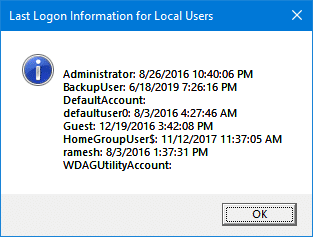
In response to a script request recently from one of our readers, here is an article that tells you how to find the last logged in date and time for all user accounts on the computer.
 Windows 7 doesn’t include an option wherein you can disable auto arrange in folders (icons view). Sometime back I created a