[Fix] Printer Prints Documents in Inverted Colors

printer inverted colors printing

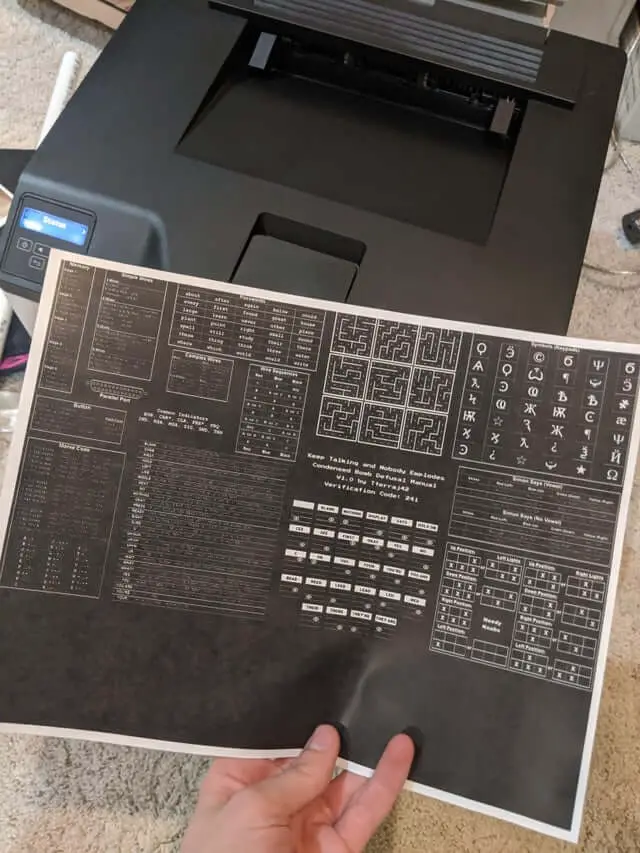
When you try to print a document or image using your printer, it may print the contents in an inverted color scheme (black background with white text). The result is the same when you print a test page via the printer properties, or print from Word, Open Office, Libre Office, or any other program. This issue causes the ink to drain out very quickly.

(Printer prints in inverted or negative color – Src: via Reddit)

However, when you print to the same printer from another computer or tablet device, the output may come up correctly.

This issue is caused due to incorrect or generic drivers installed for the printer. As per my observation, this problem is mostly seen on some Brother laser printer models on Windows 10. This issue could have surfaced after installing a feature update for Windows 10.Read more

How to Restore Missing “Print Management” Console

print management console missing

After installing a Windows 10 Feature update (v2004 or higher) or Windows 11, you may observe that the Print Management MMC console is missing from the system. Print Management is a Microsoft Management Console (MMC) snap-in that lets you install, view, and manage all printers on your local computer or the network. You can add or delete printer driver packages, manage the print queue, and do much more.

This issue can occur in Windows 10/11 Professional or Enterprise edition. Note that the Print Management console is not available on Home editions of Windows. If you’re using Windows Home Edition, this article doesn’t apply to you.

The Print Management shortcut may be missing in the Administrative Tools folder. And, when you attempt to run printmanagement.msc directly, you’ll see the following error:

Windows cannot find 'printmanagement.msc'. Make sure you typed the name correctly, and then try again.

Also, copying the file printmanagement.msc file from another Windows 10 computer and running it would cause the error “couldn’t load the snap-in” since the supporting files are missing from the computer.

Read more

[Fix] Notepad is missing or does not open in Windows 10

notepad does not open - uninstall and reinstall notepad

On a Windows 10 computer, when you attempt to launch Notepad by running Notepad.exe or clicking on the taskbar shortcut, nothing may happen. In some cases, you’ll see one of the following errors:

Windows cannot find 'notepad.exe'. Make sure you typed the name correctly, and then try again.
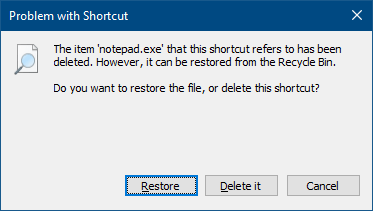
The item 'notepad.exe' that this shortcut refers to has been deleted. However, it can be restored from the Recycle Bin.
Do you want to restore the file, or delete this shortcut?

The above errors indicate that Notepad has been uninstalled from the computer or its supporting files have been deleted. Running the DISM /RestoreHealth and SFC commands also may not help.

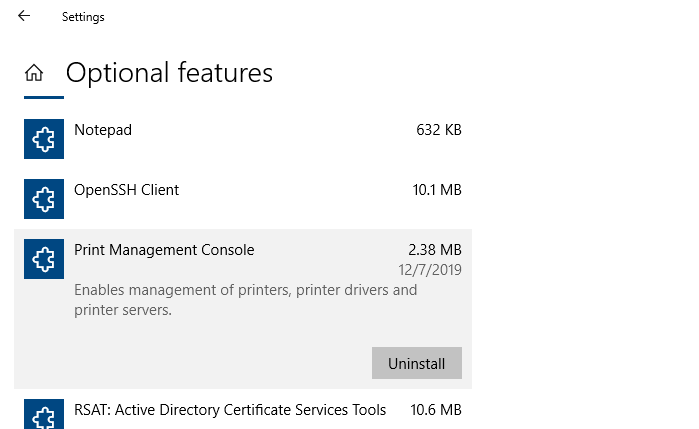
From Windows 10 version 2004, the classic desktop apps, namely, Notepad, WordPad, and Paint, have been made optional features. It means that you can uninstall and reinstall those apps via the Optional Features page in the Windows 10 Settings app.

This article tells you how to repair or reinstall Notepad using Optional features in Windows 10 v2004 and higher.Read more

What is Reading List in Chrome and how to Disable it

what is chrome reading list

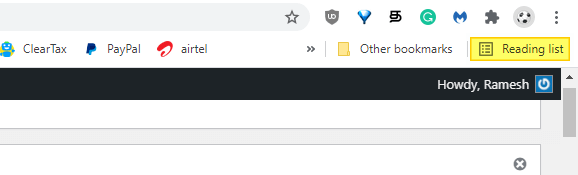
After updating to Chrome browser version 89 or higher, you’ll see a new “Reading List” button on the right-hand side of the bookmarks bar. If you’ve been using the “Other bookmarks” folder, its icon is moved slightly to the left, as the “Reading List” button occupies the right-most slot.

You may be wondering what is the Chrome “Reading List” icon all about, how it is different from the bookmarks feature, or how to remove the Reading List button from the toolbar.Read more

Fix for Error 0x80073CFA when Uninstalling an App in Windows 10

0x80073CFA uninstalling apps error

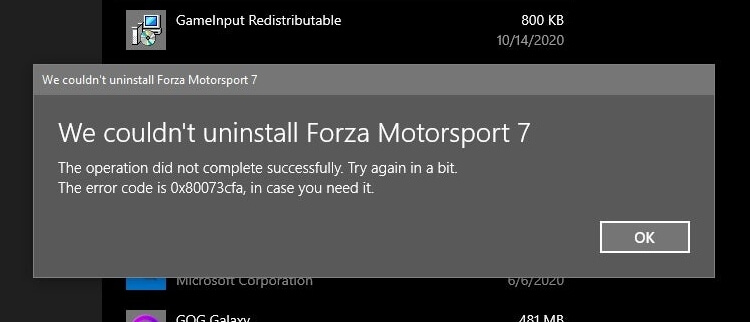
When uninstalling a Store app in Windows 10, you may get the error 0x80073CFA. This happens whether you use the Apps & Features GUI or PowerShell command to remove the app. Many users have indicated that the error happens when uninstalling some game apps like Forza Motorsport, Forza Horizon, Asphalt: Airborne, etc.

We couldn't uninstall app_name

The operation did not complete successfully. Try again in a bit.

The error code is 0x80073CFA, in case you need it.

However, the error 0x80073CFA is not specific to Microsoft gaming apps. It can happen for any app, for that matter.

Attempting to uninstalling the app using PowerShell’s Remove-AppxPackage would result in the same error code:

Remove-AppxPackage : Deployment failed with HRESULT: 0x80073CFA, Removal failed. Please contact your software vendor.
(Exception from HRESULT: 0x80073CFA)

error 0x80070032: AppX Deployment Remove operation on package package_name from:
C:\WINDOWS\SystemApps\package_path failed. This app is part of Windows and
cannot be uninstalled on a per-user basis. An administrator can attempt to remove the app from the computer using Turn
Windows Features on or off. However, it may not be possible to uninstall the app.

(The above error happened when attempting to uninstall the in-box package named Microsoft.Windows.PeopleExperienceHost for the sake of illustration.)

Cause

The 0x80073CFA error (“Removal failed. Please contact your software vendor.”) occurs if you try to uninstall a non-removable inbox app. Inbox apps are official Microsoft apps bundled with Windows 10 and installed during Windows 10 Setup — e.g., Photos, Calendar, Alarma, Camera, Calculator, People app, etc. Some of the inbox apps are “non-removable” and some are removable — e.g., the Photos app.

The StateRepository-Machine.srd database has a field named IsInbox against app which may be set to 1 or  0. If it’s set to 1, it’s a designated inbox app. For non-removable apps, PowerShell’s Get-AppxPackage <PackageName> command will show that the package is NonRemovable.

If you need to trim down Windows by removing unused or unwanted apps, there is a way to forcibly remove them even though they’re marked as non-removable inbox apps. To do so, you need to first set the IsInbox value to 0 by editing the StateRepository-Machine.srd database.Read more
Automatic (Trigger Start) and Manual (Trigger Start) Differences

services manual or automatic trigger start

The Services MMC shows the service names, their current status, and startup type. Most of you know about the Automatic, Automatic (Delayed Start), and Manual startup types.

  • Automatic – Starts the services at system startup.
  • Automatic (Delayed start) – Starts the service after the system has finished booting and after initial demanding operations have completed, so that the system boots up faster.
  • Manual – Starts the service as required (defined by dependencies to other services) or when called from an application using the relevant API.
  • Disabled – Completely disables the service and prevents it and its dependencies from running.

But what are those “Trigger start” services?

And what’s the difference between Automatic (Trigger Start) and Manual (Trigger Start) Differences?

Read more

How to Prevent Auto redirection from IE to Edge for unsupported sites

ie to edge redirect disable

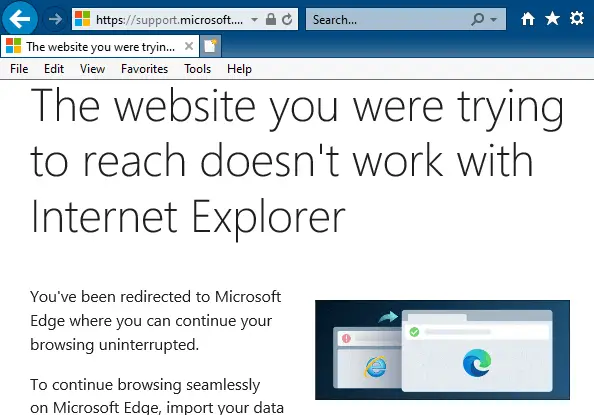
Since Windows 10 version 20H2, Internet Explorer redirects users to Microsoft Edge (Chromium) when they visit websites that don’t support Internet Explorer. Microsoft Edge Chromium version 84 and higher have this feature. Many modern websites have designs that are incompatible with Internet Explorer. When the Internet Explorer user visits an unsupported website (e.g., Facebook, Internet Archive, … Read more

[Fix] Error 0x80070426 in Microsoft Store, Edge or Other Apps

windows store error 0x80070426

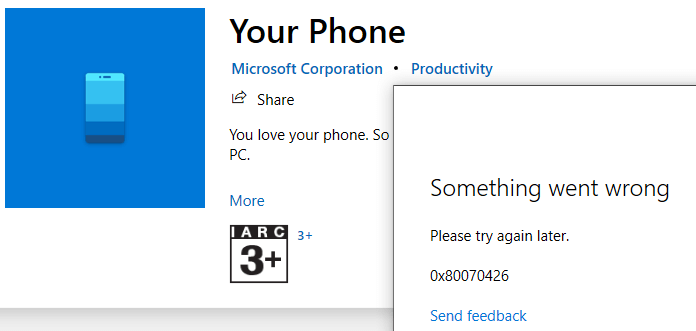
When you attempt to install or update an app via the Microsoft Store app, you may receive the error 0x80070426. The following is the full error message verbatim:

Something went wrong

Please try again later.

0x80070426

Windows Store

In some cases, you may see a gray (sign-in) dialog with nothing visible.

Office 365 apps

In the Office 365 apps, you may see a warning symbol at the top, which when clicked, shows the following error:

Account Error

Sorry, we can't get to your acount right now. To fix this, please sign in again.

If you click on the Fix me button and try to sign-in to your MSA, the error 0x80070426 pops up.

Mail app

The mail app may not connect to your Microsoft Hotmail or Live mail account. It would show the same error 0x80070426.

Switching to MSA

Also, you won’t be able to switch to a Microsoft account (MSA) from a local account. Doing so causes the error "Oops, something went wrong"

Read more