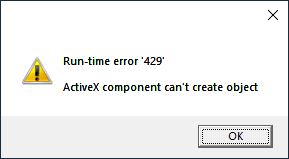
Error message dialog boxes usually have title bar text containing the application or process name that generated the error. However, you may sometimes encounter a pop-up window with no text in the title bar, making you guess which program has caused the error.Read more
Windows
You’re browsing the “Windows” parent category, which lists articles on every Windows Operating System.
[Fix] Favorites File Download Security Warning
Double-clicking a .URL file in your user profile’s Favorites or Favorites\Links folder may show a “Do you want to open this file?” file download security warning, as shown below, after installing the latest quality updates.Read more
How to Backup and Restore Pinned Taskbar Shortcuts in Windows 10
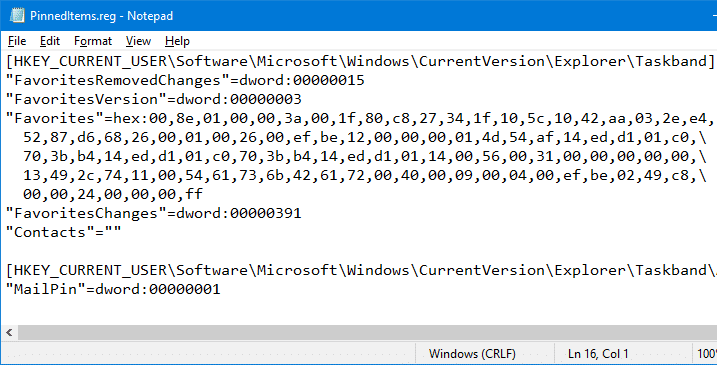
When you install Windows on a new computer, customizing Windows takes a lot of time and effort. One such thing is the taskbar. You may have to redo the procedure of pinning the applications which you frequently use. If you’re planning to move to a new Windows PC or a new user profile on the same computer, and wondering how to transfer the pinned taskbar items, then this article is for you.
This post explains how to backup and restore the pinned Taskbar items in Windows 10 and earlier.Read more
How to Backup the Pinned Start Menu Shortcuts in Windows 7/Vista/XP
The Pinned items listing which you see at the top of the Start menu is stored in the registry as a REG_BINARY value, and Windows provides no GUI to backup and restore the Pinned items configuration. In case you want to transfer the Pinned items configuration to another user profile, you need to use the Registry Editor and backup the settings in the source profile.Read more
“Pin to Taskbar” and “Pin to Start Menu” Missing in Windows 7
After deleting the IsShortcut registry value to remove the shortcut arrow overlay in shortcuts (.lnk) files, you may notice that the “Pin to Taskbar” and the “Pin to Start Menu” context menu items go missing when you right-click on a shortcut. Also, one or more of the context menu items may appear twice, as in the image below.Read more
How to Disable Auto Arrange in Folders in Windows 7?
 Windows 7 doesn’t include an option wherein you can disable auto arrange in folders (icons view). Sometime back I created a magical registry hack (FFlags DWORD 43000001) that disabled the "Full Row Select" functionality in folders in Windows 7. I also posted some interesting observations in article How to Disable Full Row Select in Explorer in Windows 7 about the registry hack, which demonstrates that applying the hack also brings back the missing "Auto arrange" menu option in the View menu of folders when in Icons view.
Automate Using Script
Update: I just converted the registry edits to a Script file that does all the work. Works in Windows 7, 8, 8.1 and Windows 10.
Check out my recent post How to Disable Full Row Select and Auto Arrange in Folders in Windows 10?
To do this Manually
I hereby bring you a slightly tweaked version (sets FFlags to 43000000) of the same registry hack and provide some screenshots in this article. After applying this edit you can enable or disable auto arrange feature on a per-folder basis. Of course, an "Undo" REG file is provided in case you want to revert back to the factory default setting.Read more

How to Find the Last Logon Date/Time for Local User Accounts in Windows
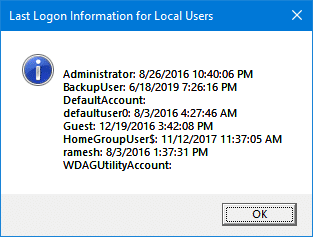
In response to a script request recently from one of our readers, here is an article that tells you how to find the last logged in date and time for all user accounts on the computer.
How to Remove Pin to Taskbar Option For a Particular Application in Windows 7?
If you have a host application that you don’t want to be pinned to the Windows 7 taskbar, you can do so by adding a registry value in the application registration area. By default Windows prevents the following host processes from being pinned to the taskbar.
- RUNDLL32.EXE
- MSHTA.EXE
- DLLHOST.EXE
- APPLAUNCH.EXE
- HH.EXE
- WINHLP32.EXE
- MMC.EXE
… and other file names defined in the following registry key in string values HostApps, AddRemoveApps and AddRemoveNames
HKEY_LOCAL_MACHINE \ SOFTWARE \ Microsoft \ Windows \ CurrentVersion \ Explorer \ FileAssociation
To remove the Pin to Taskbar (and "Pin this program to taskbar") context menu options for a particular application, use these steps:Read more
How to Add a Right-Click Menu Option to Run a Program Elevated
From the Windows Taskbar, you can start a program elevated by holding the Ctrl & Shift keys and then clicking on a pinned shortcut. To launch a program elevated from the right-click menu, you can add custom entries and launch it using a script or using the NirCmd utility. Earlier we wrote about the new elevate command-line argument in NirCmd, which you can implement in the context menu.
This article tells you how to add a right-click menu option to run a program elevated.