Here is a mysterious case of the icon overlap problem, which the screenshot below explains perfectly. You can see the original icon for shortcuts is overlapped by a generic white overlay (shown for unknown file types). An incorrect icon overlay setting is causing the problem.Read more
 Ramesh
Add Run as Administrator Context Menu Item for VBS and JS files
By default, Windows does not include the Run as Administrator option in the context menu for Vbscript (.VBS) and JScript (.JS) files. So, to run a script elevated, you either need to launch the script from elevated Command Prompt window, or use the VBScript self-elevation method as described in article How to Automatically Elevate a Vbscript to Run it as Administrator?
Besides that, you can add the Run as Administrator option to the context menu so that you can run a script elevated from the right-click menu.Read more
Add “Edit HOSTS file” option in the context menu
The HOSTS file, originally introduced to resolve hostnames to IP addresses, is also an effective tool to block Malware. To modify the HOSTS file in Windows, you need to elevate Notepad.exe or any other text editor which you use. Otherwise, you’ll see the following error when trying to save the HOSTS file:
Cannot create the C:\Windows\system32\drivers\etc\hosts file.
Make sure that the path and the file name are correct.
Register and Unregister DLLs Elevated via Right-click Context Menu
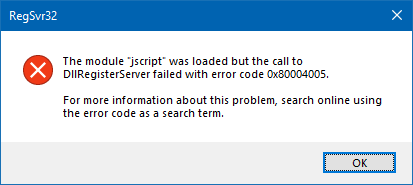
This post tells you how to add register and unregister commands to the right-click menu for DLL and OCX files in Windows Vista, 7, 8 and 10.
To register a DLL or OCX file, you usually need to run regsvr32.exe from an elevated Command Prompt. Registering system DLLs from a non-elevated state may cause an error. For example, try to register the system module JScript.dll from Start, Search box (i.e., without elevating it). You’ll see the error 0x80004005 or 0x80007005 (“ACCESS IS DENIED”) when you do so.
How to Save and Restore Desktop Icon Layout Automatically in Windows
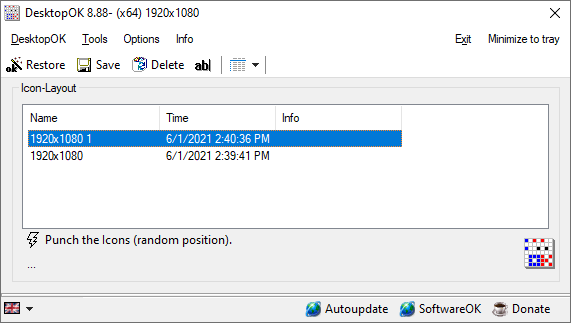
When testing various display resolutions or after completing a remote desktop session, the desktop icons may go out of order. Another case is that when you accidentally use the Ctrl+ Scroll button (mouse) on your desktop, the Desktop icon size changes. But reverting to the original icon size may not restore the custom icon positions on your desktop. You can quickly undo the icon rearrangement by terminating explorer.exe forcefully, but that works only in certain circumstances.
In this article, we’ll see how to automatically save and restore desktop icons layout using different methods in Windows.Read more
How to Remove NVIDIA and Intel Control Panel from Right-click menu?
Installing the graphics driver software for your video card (Intel, NVidia, etc.) adds the respective Control Panel entry in the Desktop right-click menu. If you don’t use the menu option, you can remove it from the registry to speed up right-click menu display on the desktop.Read more
Task Scheduler Service Grayed Out in Services MMC
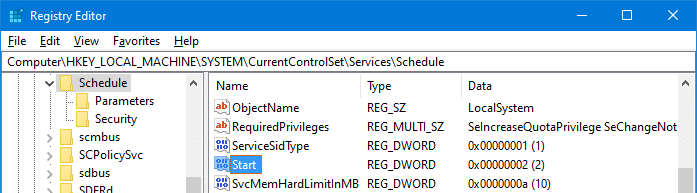
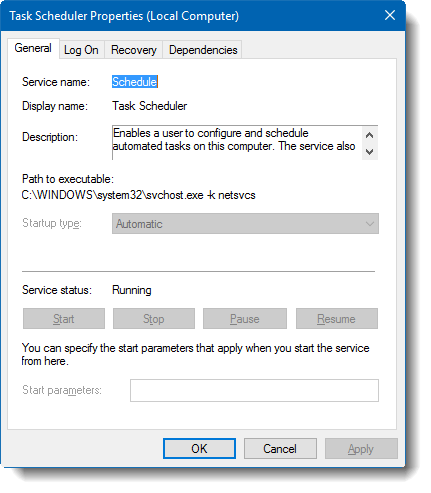
When you open the Services management console (services.msc), the Task Scheduler service may be in a disabled state. In the Task Scheduler properties page, all the options may be grayed out, and the service Startup type cannot be changed.
Task Manager: Show Command-line and Image Path of Running Processes
Out of all the built-in troubleshooting tools in Windows, Task Manager is probably the most useful tool. Almost every end-user knows what to do when an application stalls. They just fire up Task Manager using Ctrl + Shift + Esc and end the nonresponsive task. Also, Task Manager can be an extremely valuable tool to troubleshoot processes, and monitor disk I/O rates or other system performance issues.
Task Manager’s Details tab lists all running processes. By default, it doesn’t display the complete path of the running processes and the command-line arguments used by those processes.
For instance, you may see the script host CScript.exe or WScript.exe in Task Manager but not the script file name (argument) being executed. This article tells you how to enable this critical bit of information in Task Manager.
Serious Disk Cleanup Problem in Windows caused by Broken Registration
Reader’s Query: I have a 160GB Western Digital Hard Drive partitioned into a 40GB Operating System partition and the other 120GB for my files. However, when I run Disk Cleanup utility from within Vista Ultimate, it shows multiple 131GB options for me to clean up. After I clicked OK to clean up the selected entries, it erased everything on the 40GB partition. I then had to reinstall Windows Vista, but the problem seems to be recurring.
(Information in this post applies to Windows Vista, 7 & Windows 8 systems.)Read more