Error “Windows cannot access the specified device, path, or file” When Playing DVD Movies

When you insert a DVD media in the drive, right-click on the drive and choose Play from the context menu, the following error may occur. Windows cannot access the specified device, path, or file. You may not have the appropriate permissions to access the item. However, you may be able to play DVD movies via … Read more

How to Run System File Checker (SFC) Offline in Windows 10/11 & Earlier

The System File Checker (sfc.exe) is a useful tool that lets you scan the integrity of Windows system files and repair corrupt or missing system files. Numerous cases have been resolved by running the sfc.exe /scannow command.

However, there are situations wherein a corrupt or missing system file prevents Windows from booting normally or prevents Command Prompt and console programs like Sfc.exe from being launched. In such cases, Sfc.exe can be run offline via the Windows Recovery Environment (Windows RE) in all versions of Windows, including Windows 11.Read more


How to Use Resource Monitor to Find Which Process Has Locked a File

Many folks use Process Explorer from Windows Sysinternals to gather information about running processes and their open handles. In addition, there is an excellent but less familiar utility in-built with Windows 7 and higher (including Windows 10/11).

The built-in utility is Resource Monitor, which provides complete details of running processes, their associated handles, and associated modules (for example, DLL files).Read more

[Fix] Currency, Stock or Weather Gadgets Not Updating in Windows 7

Did the Currency, Stock, or the Weather Gadget got stuck and stopped updating in your Windows 7/Vista computer all of a sudden? Clearing the Sidebar Gadgets cache using the following steps might help. Clear the Windows Sidebar Cache Folder Press CTRL+SHIFT+ESC to bring up the Task Manager. Exit Sidebar.exe process via Task Manager. Instructions for … Read more

Fix Event Log Service Error 4201 The Instance Name Passed Was Not Recognized

One of our readers faced a problem where the Windows Event Log failed to start, and as a result, a couple of other services failed as well. Attempting to start the Windows Event Log service manually via the Services MMC resulted in error 4201. The complete error message is provided below:

Windows could not start the Windows Event Log service on Local Computer.

Error 4201: The instance name passed was not recognized as valid by a WMI data provider.

Read more

Fix Libraries are Hidden and Showing Up Empty in Windows 7

When you open Windows Explorer on your Windows 7 computer, the Libraries folder may be completely empty. Also, nothing may happen when you right-click the “Libraries” link in the navigation pane, and choose Restore default libraries. This can happen if the library files are hidden inadvertently by the user. To restore/unhide the libraries, you need … Read more

Scan USB Drives Using Microsoft Security Essentials via the AutoPlay Dialog

We’d like to share with you an interesting registry hack that adds a Microsoft Security Essentials AutoPlay handler so that you can thoroughly scan a CD/DVD media or USB flash drive for viruses, via the AutoPlay dialog. See article Scan Your Thumb Drive for Viruses from the AutoPlay Dialog at the How-To Geek website. Thanks … Read more

How to Remove Album Art Images Embedded In MP3 Files?

Have you ever wondered how some of your mp3 files show up with the album art icon instead of the standard mp3 icon when browsing through the mp3 collection on the hard disk? Also, does the cover image appear in the background when playing an mp3 file using Windows Media Player or any other music player?

Thumbnail image of the mp3 files as seen in Windows Explorer.

Read more

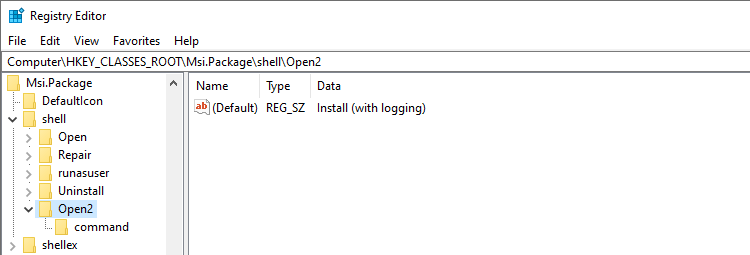
Install MSI Packages With Logging via the Right-Click Menu

.msi with logging context menu - registry

When a software installation that uses the Windows Installer Package fails, you enable Windows Installer logging and re-run the setup to capture the output to a log file for troubleshooting. Logging can be done using the Registry Editor, the Group Policy Editor, or the msiexec.exe command with the required parameters.
The first two methods are documented in the article How to Enable Windows Installer Logging. The third method uses the msiexec.exe command-line parameter. Here is an example:

msiexec /l*v "%temp%\verbose.log" /i "C:\Users\Ramesh\Downloads\7z465-x64.msi"

This starts the 7-Zip .msi installation (7z465-x64.msi) and records all the results, including verbose output, to a log file named verbose.log in the %TEMP% folder.

Do you find it difficult to type the entire command-line every time you need to log application setups? You can implement this in the context menu for .msi files to launch the installation with verbose logging.Read more