[Fix] Error “Windows Photo Viewer can’t display this picture”

windows photo viewer cannot display image - not enough memory - icc profile metadata

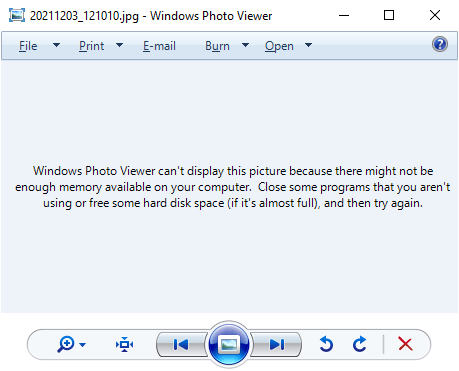
When you try to preview an image file (JPEG/PNG) using Windows Photo Viewer, the preview would be blank and the following error message is displayed:

Windows Photo Viewer can't display this picture because there might not be enough memory available on your computer. Close some programs that you aren't using or free some hard disk space (if it's almost full), and then try again.
windows photo viewer cannot display image - not enough memory - icc profile metadata

It’s a misleading error message, as in most cases, it may not have anything to do with the system memory. The Windows Photo Viewer error is caused due to color profile metadata (ICC_Profile) embedded into the JPG image(s).

(You can reproduce the issue by transferring images from your Android/iOS mobile and previewing the image using Windows Photo Viewer on your computer. Another possibility is that your system has multiple video cards and the issue happens on the secondary graphics card only. Switching over to the primary video card may resolve the error.)

However, other utilities like IrfanView, GIMP, or the built-in/modern Photos app would be able to open the image correctly. This issue is limited to Windows Photo Viewer (and perhaps Windows Live Photo Gallery) only.Read more
How to Recover Deleted Files Using Windows File Recovery (WFR)

windows file recovery - store app from Microsoft

Did you accidentally delete an important file? Have you wiped clean your hard drive? Unsure of what to do with corrupted data? Windows File Recovery can help recover your personal data.

Windows File Recovery (WFR) is a command-line app from Microsoft. It can help you recover lost files deleted from your local storage device (including internal drives, external drives, and USB devices) that cannot be restored from the Recycle Bin.Read more

[Fix] Error FFMPEG.DLL not found when Starting Microsoft Teams or Other Apps

ffmpeg.dll error in microsoft teams

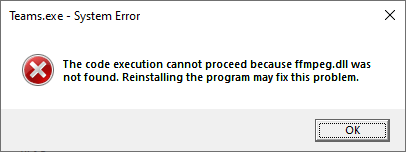
When you start Microsoft Teams, Discord, or other apps on your Windows computer, you may receive the following error message or similar:

Teams.exe - System Error

The code execution cannot proceed because ffmpeg.dll was not found. Reinstalling the program may fix this problem.

ffmpeg.dll error in microsoft teams

Let’s see how to fix the “ffmpeg.dll was not found” error if you’re using Microsoft Teams.

Read more

How to Disable Preview for Certain File Types in Explorer Preview Pane

disable preview for selected file type

The preview pane in File Explorer shows you the preview for various file types in Windows 10 and Windows 11. Windows comes with a built-in set of preview handlers. In addition, third-party applications add their own handlers that can generate previews for their proprietary file types.

disable preview for selected file type

Windows allows you to turn on or off previews by enabling or disabling “Show preview handlers in preview pane” in Folder Options.

You may want to disable preview generation for a specific file type to improve performance. But, there is no built-in setting to disable preview generation (in the preview pane) for chosen file types. However, there is a handy tool that can accomplish the task.

This article tells you how to disable preview for certain file types in the Explorer preview pane.Read more

[Fix] Cannot Install Notepad++ Plugins – Installation Failed

notepad++ plugin cannot install - firewall

Notepad++ is one of the excellent open-source text editors available. Many users replace the plain old Notepad with Notepad++, as the latter has a lot of features and is also lightweight. You may be knowing that the functionality of Notepad++ can be extended by installing third-party plugins into it using the built-in Plugins Admin feature.

On some computers, you may be unable to install any plugins using the Plugins Admin feature. When trying to install a plugin, it restarts Notepad but does not install the chosen plugin even though you’ve tried both x86 and 64-bit versions. On some versions you may see the following error:

Installation Error: Installation of plugin failed

This issue may persist even if the
We’ll see how to resolve the Notepad++ plugins installation issue.

Read more

Fix for Error 0x80073CFA when Uninstalling an App in Windows 10

0x80073CFA uninstalling apps error

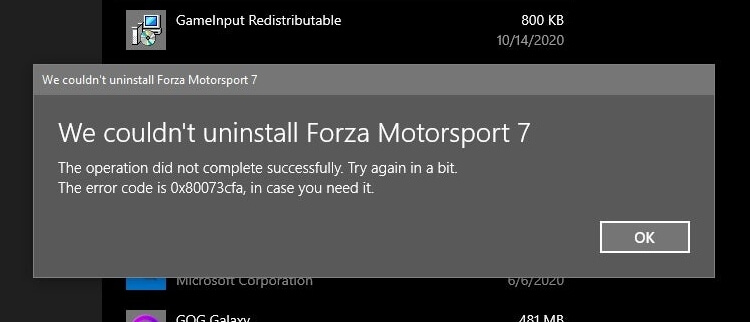
When uninstalling a Store app in Windows 10, you may get the error 0x80073CFA. This happens whether you use the Apps & Features GUI or PowerShell command to remove the app. Many users have indicated that the error happens when uninstalling some game apps like Forza Motorsport, Forza Horizon, Asphalt: Airborne, etc.

0x80073CFA uninstalling apps error

We couldn't uninstall app_name

The operation did not complete successfully. Try again in a bit.

The error code is 0x80073CFA, in case you need it.

However, the error 0x80073CFA is not specific to Microsoft gaming apps. It can happen for any app, for that matter.

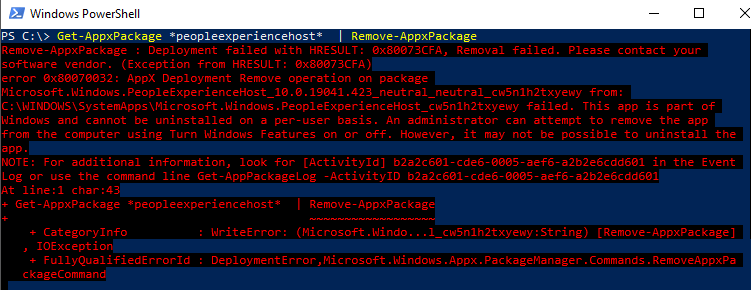
Attempting to uninstalling the app using PowerShell’s Remove-AppxPackage would result in the same error code:

0x80073CFA uninstalling apps error powershell

Remove-AppxPackage : Deployment failed with HRESULT: 0x80073CFA, Removal failed. Please contact your software vendor.
(Exception from HRESULT: 0x80073CFA)

error 0x80070032: AppX Deployment Remove operation on package package_name from:
C:\WINDOWS\SystemApps\package_path failed. This app is part of Windows and
cannot be uninstalled on a per-user basis. An administrator can attempt to remove the app from the computer using Turn
Windows Features on or off. However, it may not be possible to uninstall the app.

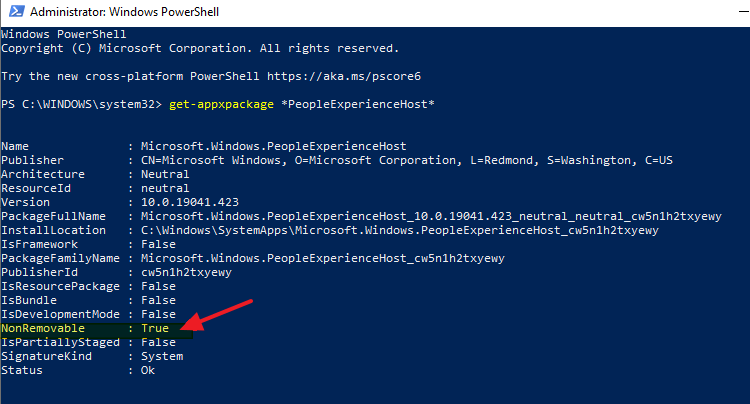
(The above error happened when attempting to uninstall the in-box package named Microsoft.Windows.PeopleExperienceHost for the sake of illustration.)

Cause

The 0x80073CFA error (“Removal failed. Please contact your software vendor.”) occurs if you try to uninstall a non-removable inbox app. Inbox apps are official Microsoft apps bundled with Windows 10 and installed during Windows 10 Setup — e.g., Photos, Calendar, Alarma, Camera, Calculator, People app, etc. Some of the inbox apps are “non-removable” and some are removable — e.g., the Photos app.

The StateRepository-Machine.srd database has a field named IsInbox against app which may be set to 1 or  0. If it’s set to 1, it’s a designated inbox app. For non-removable apps, PowerShell’s Get-AppxPackage <PackageName> command will show that the package is NonRemovable.

get-appxpackage nonremovable

If you need to trim down Windows by removing unused or unwanted apps, there is a way to forcibly remove them even though they’re marked as non-removable inbox apps. To do so, you need to first set the IsInbox value to 0 by editing the StateRepository-Machine.srd database.Read more

[Fix] WebP Images Appear Very Dark in Windows Photo Viewer

webp dark windows photo viewer

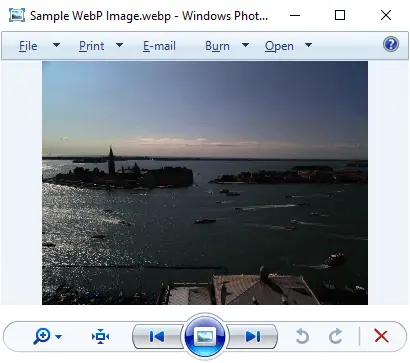
WebP is a modern image format that provides lossless and lossy compression for smaller, richer images on the web. When you preview a WebP (.webp) image using Windows Photo Viewer, the image may appear very dark.

webp dark windows photo viewer
Fig 1: Windows Photo Viewer dark rendering of WebP images

However, the File Explorer preview pane and the thumbnail view show the .webp image correctly. Also, the same WebP image would render correctly in Firefox, Chrome, and Microsoft Edge (Chromium) web browsers.

Read more

How to View and Modify Service Permissions in Windows

service stop error 5 - view and edit service permissions

Summary: This article explains the various methods to view the permissions for any Service in Windows. It also covers the tools and methods to modify the service permissions easily.

Just as file system objects and registry keys have permissions, each service in Windows can have a set of permissions. The permission entries for a service determine who can stop the service, query its status, change the startup type, modify the service configuration, or delete the service.

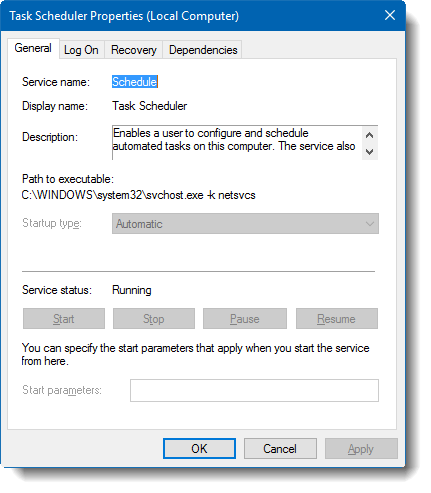
You may have observed that the Start, Stop, and the Startup type controls are grayed out for some services, even when you’re logged in as an administrator.

task scheduler service grayed out options

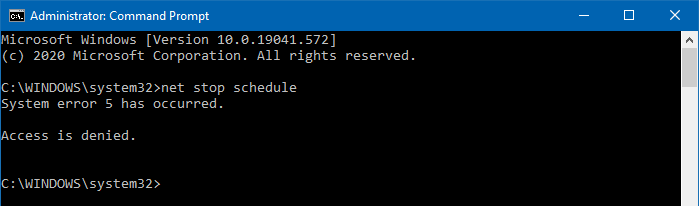
And if you attempt to stop the Task Scheduler service from admin Command Prompt, you’ll get the following error message:

System error 5 has occurred.

Access is denied

service stop error 5 - view and edit service permissions

This is because the Task Scheduler service permissions are pre-configured such that even the administrators can’t control this particular service.

In this article, we’ll see how to view service permissions and modify them if needed.

Read more

Mouse without Borders “Connection timed out” and does not auto-connect at startup

mousewithoutborders connection timed out

Mouse without Borders is a Microsoft Garage product that lets you control up to four computers from a single mouse and keyboard. With Mouse without Borders (MwoB), you can copy text or drag and drop files across computers.

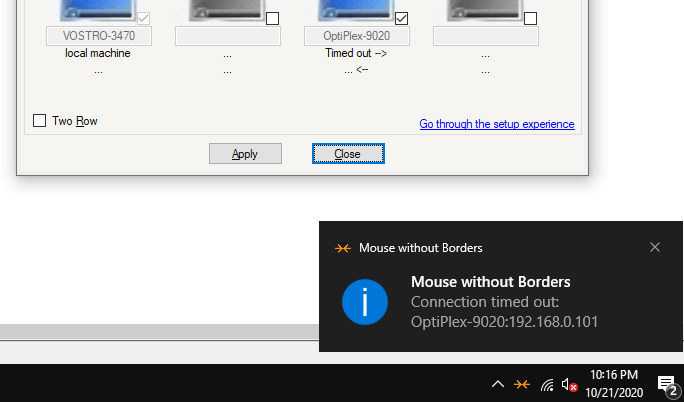
Sometimes, MwoB may not be able to establish a connection with the other computers — causing errors like “Connection timed out,” etc. This happens even though MwoB picks up the correct IP address of the other computer(s), whether or not you use the hostname-to-IP mapping option in that program.

mousewithoutborders connection timed out

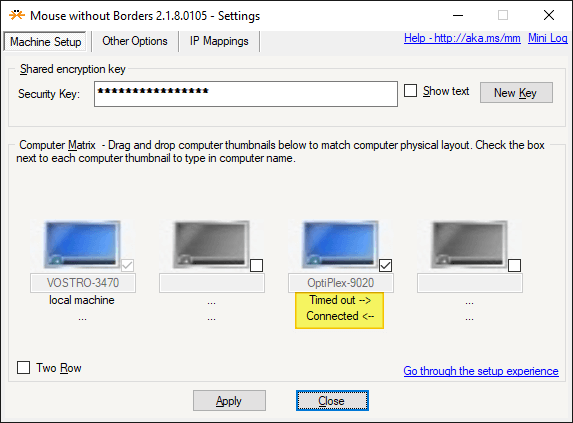
In some cases, only the one-way connection (inbound or outbound) would work.

mousewithoutborders one-way connection only

As you can see in the above screenshot, the inbound connection is allowed, but the outbound connection to the other computer (e.g., OptiPlex 9020) is timed out.

The MwoB log (generated by right-clicking on the MwoB taskbar icon and clicking Generate log) would show these errors or similar:

tcpClient.Connect: 8814: A connection attempt failed because the connected party did not properly respond after a period of time, or established connection failed because connected host has failed to respond [::ffff:192.168.0.101]:15101

tcpClient.Connect: Unable to connect after a timeout: OptiPlex-9020:192.168.0.101 : An operation was attempted on something that is not a socket [::ffff:192.168.0.101]:15101
[251] The clipboard socket could have been closed. Not listening. You must call the Start() method before calling this method.

Due to the “connection timed out” error (one-way connection), Mouse without Border would fail to establish a connection to the other computer(s) automatically after every startup. To work around this issue, many users open the Mouse without Borders dashboard on the other computer (e.g., OptiPlex 9020) and click on the Apply button to establish the connection manually.

Clicking on the Apply button on the affected computers each time is not a viable option. This can be a big nuisance, especially when you have to manage 4 computers with the Mouse without Borders utility.

This article tells you how to fix the connectivity issues when using Mouse without Borders.Read more