Registry Editor in Windows 10 Redstone 2 Preview build 14942 has got an Address bar as we saw earlier. The Redstone 2 Preview build introduces another minor feature addition to the Registry Editor. You can change the default Registry Editor font, without having to change the global font settings – that is, without affecting other areas of the Windows Shell.Read more
Windows
You’re browsing the “Windows” parent category, which lists articles on every Windows Operating System.
Replace Settings with Control Panel in Win+X Menu in Windows 10 Build 14942
Starting with Windows 10 Insider Preview Build 14942, the Win+X menu items (the menu which appears when you right-click on Start) which were pointing to the classic Control Panel applets are now directing to corresponding pages in the modern Settings app. Also, the entry “Control Panel” is now replaced by “Settings” in the Group 2 section of the Win+X menu.Read more
Open Cortana Web Search Results in Google and Default Browser
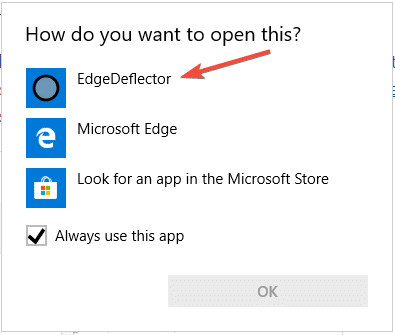
Clicking on a web search result in Cortana would always launch Microsoft Edge regardless of your default browser. However, you can configure Cortana web search links to open with your default web browser. Additionally, you can automatically redirect the search query to Google search instead of Bing.
In April 2018, Microsoft announced that Edge would be the browser that would launch when searching from Cortana, no matter what your default web browser or https protocol association setting is.
While the user interface doesn’t have an option to change the search engine or browser, there is still a way to make Cortana search using Google instead of Bing, using the new microsoft-edge: URL protocol.Read more
How to Show Seconds in Taskbar Clock
You can now configure Windows 10 or 11 to display seconds in the taskbar’s notification area clock without using a third-party program. This is possible using a hidden registry setting in Windows 10, and it’s a built-in GUI option in Windows 11.Read more
Registry Editor Gets the Address Bar Feature in Windows 10
Windows 10 Insider Preview 14942 has a interesting new feature which Microsoft didn’t document. Registry Editor (Regedit.exe) in Insider Preview build 14942 gets the super useful Address Bar feature.Read more
Display has gone Upside Down or Turned 90 Degrees in Windows (with Intel or Nvidia Graphics)
If your display has gone upside down or turned right (awkwardly) by 90 degrees in Windows, you may have accidentally hit a hotkey combo. Here is how to revert the display back to normal.Read more
[Fix] Search Results defaults to Content View in Windows 10
When you search for files using Windows 10 File Explorer, the search results page may default to “Content” view every time which some users don’t like. Although you can change the view to Details, or any other view setting manually, the change affects only that folder. Sometimes, search results view settings may not stick at all.
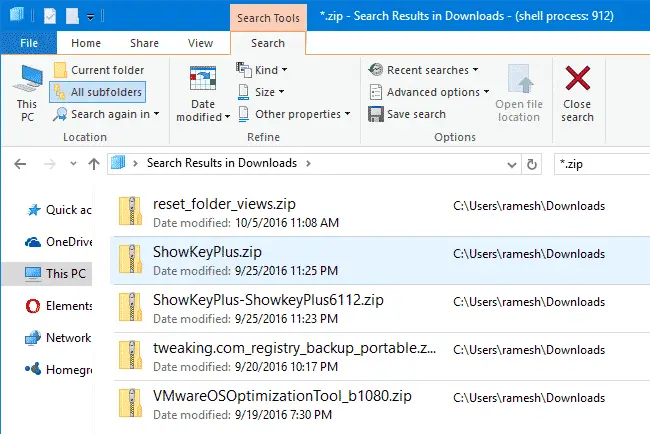
This happens when searching for files in a folder optimized for “General items”. Whereas when you search for files in the Pictures and Videos folders, the search results view defaults to icons view.
This article tells you how to set the Search Results folder default view mode to Details, for all folder types.
How to Print Directory Contents Using Different Methods
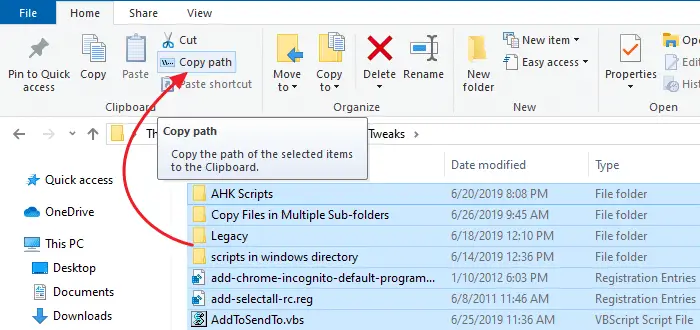
You can copy folder contents by selecting all items in a folder, pressing Shift key and clicking the Copy as Path command in the right-click menu. Then open Notepad or any other text editor and paste the contents from the clipboard.Read more
Show Process ID in File Explorer Title Bar in Windows 10
There is a hidden registry setting in Windows 10, which when enabled shows the explorer.exe Process ID (PID) in File Explorer title bar, and tells if a folder window is running under the shell process, or as a separate process.Read more
Add Windows Backup and Restore Options to Desktop Right-click (Cascading) Menu
Windows Backup and Restore tool supports certain command-line arguments using which you can automate certain backup and restore tasks. You can quickly start a backup (full/create new backup set or create a differential backup in the existing backup set), or open a Windows Backup and Restore user interface window without having to open Control Panel every time.Read more