The title bar color in Windows 10 is plain white by default, both for active windows as well as for inactive windows. Using the Personalize app, one can change the accent/color of the active title bar, but inactive title bar remains white as usual. However there is a registry setting to change inactive title bar color easily.Read more
Microsoft
You’re browsing “Microsoft” category, which is the top-most category which contains every thing related to Microsoft. Windows Operating Systems, News, Windows Update news and everything Microsoft!
Setting the Photos Screensaver As Logon Screensaver in Windows Vista and Windows 7
The Photos screensaver that comes in-built in Windows Vista and higher, can be used as the logon screensaver as well. The logon screensaver kicks off after the specified wait time in the logon screen when no user is logged on. There are instructions all over the web on how to apply the screensaver settings to the logon desktop in Windows 2000 and XP systems. The steps meant for Windows XP don’t work in the latest Operating Systems, and if you apply those steps for Windows Vista/7 and higher, all you get is a blank screen in the logon desktop after the wait time.
For Windows Vista and higher, implementation of the logon screensaver setting is slightly different. This post guides you through the process.Read more
How to Prevent “Shortcut” Suffix Added for New Shortcuts in Windows 7 and Above
Few days back we covered how to change the new folder naming template in Windows 10. Likewise you can change the naming template for shortcuts as well. We’ve written how to do prevent "shortcut" suffix from being added for new shortcuts in Windows Vista few years back. That registry edit for Windows Vista does not work in Windows 7 and higher. Here is a tip that comes courtesy of a poster at SuperUser, to remove the annoying "- Shortcut" suffix for newly created shortcuts in Windows 7/8/10 systems.Read more
Jump to a Registry Key (Stored in Clipboard) Directly Using RegJump
RegJump is a super tool from Windows Sysinternals that exists for a very long time, launches the Registry Editor automatically and jumps to the specified registry path. The registry path needs to be mentioned as a command-line parameter for RegJump.Read more
Delete Confirmation Dialog – Show Detailed Info About the File or Folder You Delete
The delete confirmation dialog that appears when you attempt to delete a file or folder displays the file/folder name and date-created information by default. For files, it also shows the file type and the “date modified” info. Windows allows you to customize this dialog such that you can include additional metadata or property value in that dialog. For example, you can add the property value System.FileOwner so that the owner name of the file or folder you’re trying to delete is shown.Read more
Windows 10 Settings has only 24 Color Choices for Background
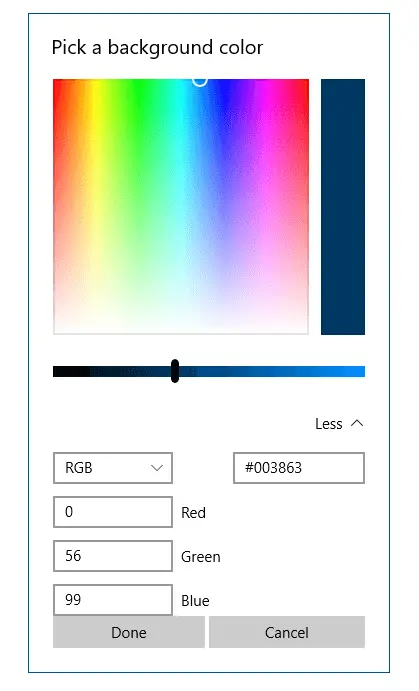
Update 2021: Information in this article is now obsolete because the recent versions of Windows 10 come with a nice-looking color picker dialog. It also lets you input the RGB values manually. If you prefer solid color desktop background instead of desktop wallpaper, note that the new Personalization settings page in Windows 10 displays only … Read more
Windows 10 Default Services Configuration and Permissions
The Windows 10 Services configuration defaults are provided on this page. The settings below are gathered from a Windows 10 Pro PC (clean install, rather than upgrade).
Last updated on April 27, 2024 – Windows 10 Pro v22H2 is the current version as of this revision. The Service permission (SDDL strings) defaults are also included for each service.
How to Restore Windows Photo Viewer in Windows 10 and 11
Windows Photo Viewer is one of the things that gets removed or hidden from access after upgrading to Windows 10. The new Photos app takes charge as the default handler for image files in Windows 10 and Windows 11.
The good news is Windows Photo Viewer application still exists in the same location in Windows 10 and Windows 11. But what is removed is only its registration.
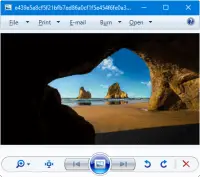
Windows Photo Viewer is a lightweight app similar to the Office Picture Manager and Windows Live Photo Gallery, both of which are discontinued by Microsoft. But, Windows Photo Viewer remains an integral part of Windows 10/11.
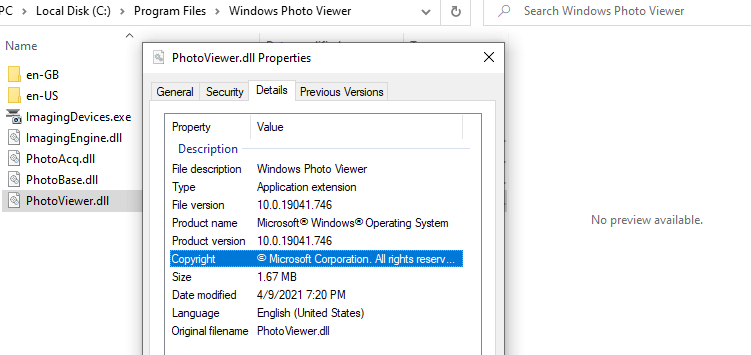
Windows Photo Viewer is powered by a single DLL file named photoviewer.dll located in the C:\Program Files\Windows Photo Viewer directory in Windows 11 and earlier OS.
For example, this command-line will open a file named D:\sample.png using Windows Photo Viewer:
rundll32.exe "%ProgramFiles%\Windows Photo Viewer\PhotoViewer.dll", ImageView_Fullscreen d:\sample.png
Now, all we need to do is add Windows Photo Viewer file association settings to the registry. If you’re not a fan of the new Photos app, you can restore the missing Windows Photo Viewer registration in Windows 10 and 11.
Read more
How to Get Back the Classic Tray Clock in Windows 10
The notification area clock (commonly known as the tray clock) user interface has changed in Windows 10, and old analog clock is gone. If you’re not very fond of the new clock and want the old analog version, you can revert back to the pre-Windows 10 style classic clock by employing a small registry edit.
File Association Fixes for Windows 10 (Defaults)
Here is the list of file association fixes (Windows defaults) for some of the common file types. These registry fixes are applicable for Windows® 10 only. AVI IMG TXT BAT INF URL BMP JPE/JPEG/JPG VBS CHM JS WMA CMD LNK WMV COM MP3 XML EXE PNG ZIP GIF REG Directory HTM/HTML SCR Drive ICO TIF/TIFF … Read more