After doing a fresh install of Windows, disabling unused Windows Services is one of the time-consuming tasks you perform. Once configured, you can back up the service startup state using a Script so that it can be used for subsequent installations or if you need to automate the task on several computers.
Services state backups can also help when you troubleshoot Windows services and want to quickly roll back the changes you made.
Backup Services Configuration (Startup Type) in Windows
Here is a Windows Services startup configuration backup VBScript. The script backs up the startup state of all Services by outputting the services configuration into two file formats — .reg (registration entries) and .bat (Windows Batch file) for you to restore the services configuration later.
https://gist.github.com/winhelponline/1c1acec1bbbc185eae5c23e8340c8966#file-services_startup_config_backup-vbs
'Description: This script backs up the Windows Services startup configuration to Batch & REG files.
'For Windows 10/11, Windows Server 2016
'© 2016-2022  Ramesh Srinivasan
'Website: https://www.winhelponline.com/blog/
'Created: 2016
'Revised: July 30, 2022

Option Explicit
If WScript.Arguments.length = 0 Then
   Dim objShell : Set objShell = CreateObject("Shell.Application")
   objShell.ShellExecute "wscript.exe", Chr(34) & _
   WScript.ScriptFullName & Chr(34) & " uac", "", "runas", 1
Else
   Dim WshShell, objFSO, objFile, sNow, iSvcType, iStartupType, iSvcCnt, iPerUserSvcCnt
   Dim sREGFile, sBATFile, r, b, objWMIService, colListOfServices, objService, sSvcKey
   Dim sStartState, sSvcName, sSkippedSvc
   Set WshShell = CreateObject("Wscript.Shell")
   Set objFSO = Wscript.CreateObject("Scripting.FilesystemObject")
   Set objFile = objFSO.GetFile(WScript.ScriptFullName)

   'Set files names for REG and Batch files
   sNow = Year(Date) & Right("0" & Month(Date), 2) & Right("0" & Day(Date), 2)
   sREGFile = objFSO.GetParentFolderName(objFile) & "\svc_curr_state_" & sNow & ".reg"
   sBATFile = objFSO.GetParentFolderName(objFile) & "\svc_curr_state_" & sNow & ".bat"
   sSvcKey = "HKEY_LOCAL_MACHINE\SYSTEM\CurrentControlSet\Services\"

   Set r = objFSO.CreateTextFile (sREGFile, True)
   r.WriteLine "Windows Registry Editor Version 5.00"
   r.WriteBlankLines 1
   r.WriteLine ";Services Startup Configuration Backup " & Now
   r.WriteBlankLines 1

   Set b = objFSO.CreateTextFile (sBATFile, True)
   b.WriteLine "@echo Restore Service Startup State saved at " & Now
   b.WriteBlankLines 1

   iSvcCnt=0
   iPerUserSvcCnt=0

   Set objWMIService = GetObject("winmgmts:" _
   & "{impersonationLevel=impersonate}!\\" & "." & "\root\cimv2")

   Set colListOfServices = objWMIService.ExecQuery ("Select * from Win32_Service")

   For Each objService In colListOfServices
      iSvcCnt=iSvcCnt + 1
      sStartState = lcase(objService.StartMode)
      sSvcName = objService.Name

      'Check if it's a per-user service. The service type will be "Unknown"
      If objService.ServiceType = "Unknown" Then
         'Get the corresponding Template Service's name from the Per-user service name
         Dim sSvcTemplateName
         sSvcTemplateName = Split(sSvcName, "_")

         On Error Resume Next
         iSvcType = WshShell.RegRead (sSvcKey & sSvcTemplateName(0) & "\Type")
         On Error GoTo 0
         If Err.number = 0 Then
            'Template service will be of type 96 or 80.
            If iSvcType = "96" Or iSvcType = "80" Then
               'It's a Per-user service
               iPerUserSvcCnt = iPerUserSvcCnt + 1
               sSvcName = sSvcTemplateName(0)
            End If
         End If
      End If

      r.WriteLine "[" & sSvcKey & sSvcName & "]"

      'If the service name contains spaces, enclose it in double quotes
      If InStr(sSvcName, " ") > 0  Then
         sSvcName = """" & sSvcName & """"
      End If

      Select Case sStartState
         Case "boot"

         r.WriteLine chr(34) & "Start" & Chr(34) & "=dword:00000000"
         b.WriteLine "sc.exe config " & sSvcName & " start= boot"

         Case "system"
         r.WriteLine chr(34) & "Start" & Chr(34) & "=dword:00000001"
         b.WriteLine "sc.exe config " & sSvcName & " start= system"

         Case "auto"
         'Check if it's Automatic (Delayed start)
         r.WriteLine chr(34) & "Start" & Chr(34) & "=dword:00000002"
         If objService.DelayedAutoStart = True Then
            r.WriteLine chr(34) & "DelayedAutostart" & Chr(34) & "=dword:00000001"
            b.WriteLine "sc.exe config " & sSvcName & " start= delayed-auto"
         Else
            r.WriteLine chr(34) & "DelayedAutostart" & Chr(34) & "=-"
            b.WriteLine "sc.exe config " & sSvcName & " start= auto"
         End If

         Case "manual"

         r.WriteLine chr(34) & "Start" & Chr(34) & "=dword:00000003"
         b.WriteLine "sc.exe config " & sSvcName & " start= demand"

         Case "disabled"

         r.WriteLine chr(34) & "Start" & Chr(34) & "=dword:00000004"
         b.WriteLine "sc.exe config " & sSvcName & " start= disabled"

         Case "unknown" sSkippedSvc = sSkippedSvc & vbcrlf & sSvcName

         'Case Else
      End Select
      r.WriteBlankLines 1
   Next

   If trim(sSkippedSvc) <> "" Then
      WScript.Echo iSvcCnt & "  - Total # of Services." & _
      "(including " & iPerUserSvcCnt & " Per-user Services)" & _
      vbCrLf & vbCrLf & "The following services could not be backed up:" & _
      vbcrlf & vbCrLf & sSkippedSvc
   Else
      WScript.Echo iSvcCnt & " Services found " & _
      "(including " & iPerUserSvcCnt & " Per-user Services)" & _
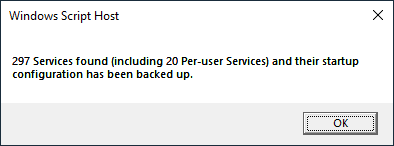
      " and their startup configuration has been backed up."
   End If

   r.Close
   b.WriteLine "@pause"
   b.Close
   'WshShell.Run "notepad.exe " & sREGFile
   'WshShell.Run "notepad.exe " & sBATFile
   Set objFSO = Nothing
   Set WshShell = Nothing
End If
How to Use the VBScript?
- Copy the script code to Notepad
- Save the file with .vbs extension — e.g.,
services_startup_config_backup.vbs. - Double-click to run the script.
The script relaunches itself as administrator (elevated) and queries the list of Windows services and their startup type configuration. The results are written to .reg and .bat files for later restoration. The two files are created in the same folder as the script.
The output files will have the prefix svc_curr_state_ and then followed by the current date in yyyymmdd format — e.g., svc_curr_state_20190706.reg & svc_curr_state_20190706.bat
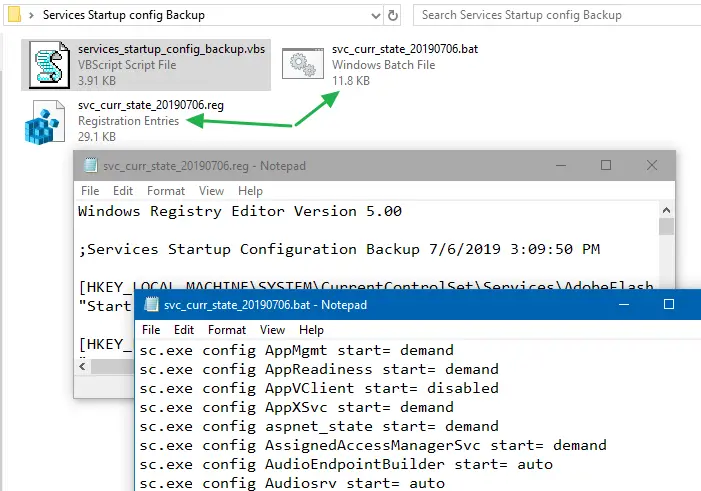
Note: The script also takes into consideration whether a service is configured for a delayed start or not. For services with an Automatic (delayed start) startup type, an additional registry value named DelayedAutoStart is used. If DelayedAutoStart is set to 1 and the Start value is set to 2 (Automatic), then the service will be configured as Automatic (delayed start). And the Batch file will have the delayed-auto as the startup mode for those services.
Restoring the Services Startup type configuration
To restore the services startup type configuration from the backup, choose one of the two formats.
 Please use Windows Safe mode to restore the services startup configuration from .reg or Batch file. Safe mode is highly recommended for this task.
.reg file
If you use the .reg file to restore the service startup preferences, you’ll need to restart Windows after applying the .reg file for the services configuration to refresh. This is the preferred method, though.
.bat file
The Batch file contains SC commands that will change the startup configuration of the services in real time. You don’t require a restart if using the method. Make sure you run the Batch file from an admin Command Prompt window.
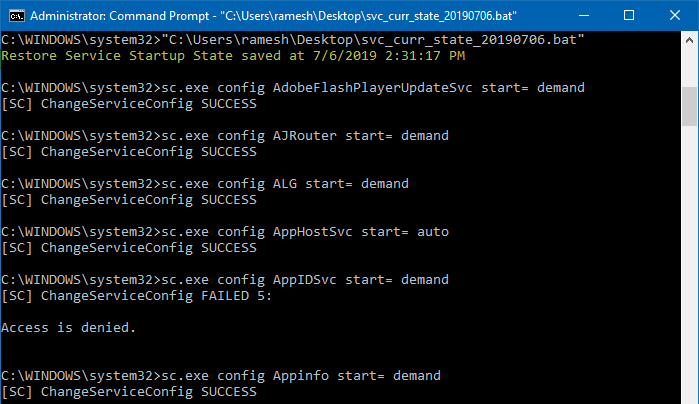
Error 5 when restoring Services configuration from Batch file?
For some services, you may encounter errors like [SC] ChangeServiceConfig FAILED 5: or similar. This can be due to tightened service permissions or security descriptors which lock down services, or your antivirus program may be blocking it. In that case, launch a Command Prompt window under the LOCAL SYSTEM account or TrustedInstaller and run the Batch file.
If your antivirus program is stopping you from modifying certain services, you can attempt to run the file from Safe Mode.
Per-user services
The Services MMC in Windows 10 and 11, shows you many services whose names have an underscore (_) and are followed by some numbers. These numbers (suffixes) represent the login session’s unique identifier (LUID) that doesn’t match with that of other computers. Here are some examples:
- AarSvc_8561415
- BcastDVRUserService_8561415
- BluetoothUserService_8561415
- CaptureService_8561415
- cbdhsvc_8561415
- CDPUserSvc_8561415
- ConsentUxUserSvc_8561415
- CredentialEnrollmentManagerUserSvc_8561415
- DeviceAssociationBrokerSvc_8561415
- DevicePickerUserSvc_8561415
- DevicesFlowUserSvc_8561415
- LxssManagerUser_8561415
- MessagingService_8561415
- OneSyncSvc_8561415
- PimIndexMaintenanceSvc_8561415
- PrintWorkflowUserSvc_8561415
- UnistoreSvc_8561415
- UserDataSvc_8561415
- WpnUserService_8561415
If a user tries to modify the above per-user services configuration using the SC.exe command, it causes the error ChangeServiceConfig FAILED 87: The parameter is incorrect. And, the LUID suffix 8561415 in the above service names won’t be the same on other computers. For more information on Per-user services, see the Microsoft article Per-user services in Windows 10/11 and Windows Server.
The script aptly backs up the service templates instead of the per-user services. For instance, the per-user service “WpnUserService_8561415” borrows the configuration from its template service “WpnUserService“. Similarly, OneSyncSvc_8561415 ‘s template service is OneSyncSvc, and so on. Backing up the template service configuration is the correct way.
For older versions of Windows
For Windows versions earlier than Windows 10 (Windows Vista through Windows 8.1), use the script services_conf_backup.zip. Note that the older script doesn’t support the Automatic (delayed start) start type — because of a WMI limitation. It treats Automatic and Automatic (delayed start) as the same.
One small request: If you liked this post, please share this?
One "tiny" share from you would seriously help a lot with the growth of this blog. Some great suggestions:- Pin it!
- Share it to your favorite blog + Facebook, Reddit
- Tweet it!

Thanks Ramesh! Simple and effective 🙂
Cannot download the Vista to Windows 8.1 service backup script. And see no way to register this nice site. Pls email script services_conf_backup.zip.
Thanks for anything you can do.
@EASTER: I’ve fixed the link. Pls try downloading it now.
Ramesh- Thank You tremendously! It’s working to perfection and is a useful convenience. I appreciate you return reply and now good link. Stay safe and have a useful summer.
EASTER
@EASTER: Glad that info helped and thanks for your feedback.
Thankss it WORK for me
Thanks. Could you make a Task Scheduler tasks configuration export in .reg. or batch aswell?
The posting has disappeared at the top. I have an old version and wanted the Windows 11 version.
Please try https://gist.github.com/winhelponline/1c1acec1bbbc185eae5c23e8340c8966#file-services_startup_config_backup-vbs
It works on Windows 11 as well.
On Win11 it drops a run-time error on line 30, character 4… No idea why. Can you please fix that?
Thanks!