Managing startup entries was possible using the System Configuration Utility (msconfig.exe), in Windows 7 and earlier. This functionality is now provided by the Task Manager in Windows 8, Windows 10, and Windows 11, which features a new “Startup” tab that lists all auto-start entries in the system.
You can enable or disable items listed in the Task Manager Startup tab, but there is no option to delete obsolete entries. Over time, old entries may accumulate in the Startup tab as you uninstall programs you no longer use.
Here is an example in which the OneDrive entry remains in the Startup tab even after uninstalling the OneDrive client.
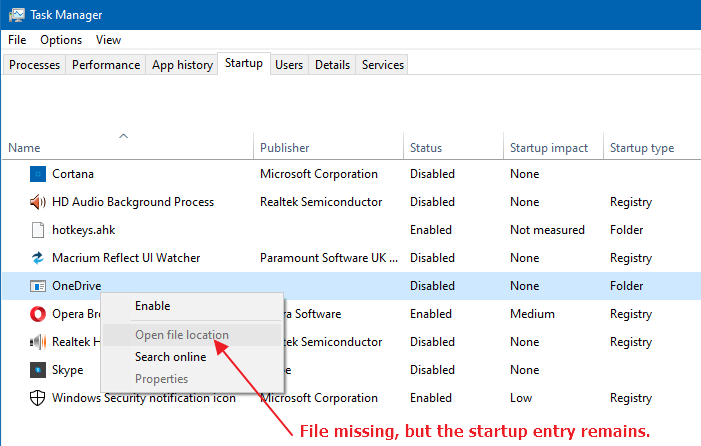
When you right-click it, the Open file location option is grayed out if the executable doesn’t exist at the specified location.
This post explains how to remove leftover or invalid entries from the Task Manager Startup tab. Also, see the note included at the end of the article for Store apps.
Remove invalid entries from Task Manager Startup tab
Invalid startup entries can be removed via the registry or with a specialized program like Autoruns.
Method 1: Using Autoruns
Using Task Manager, you can manage startup entries only from the above auto-start launch points. However, there are many other launch points in obscure registry locations from where programs can run. And to manage most, if not all, of them, Autoruns is the tool you need. Autoruns, as they say, is like MSCONFIG on steroids.
 Important: Task Manager won’t display entries that are disabled via the Autoruns utility because they are stored in a different registry location.
- Download Autoruns from Microsoft.
- Unzip and run the tool elevated (“Run as administrator”).
- Click the “Logon” tab
- Remove unwanted startup entries there. It’s important to make sure you don’t remove Microsoft entries there, especially the
Userinitentry.
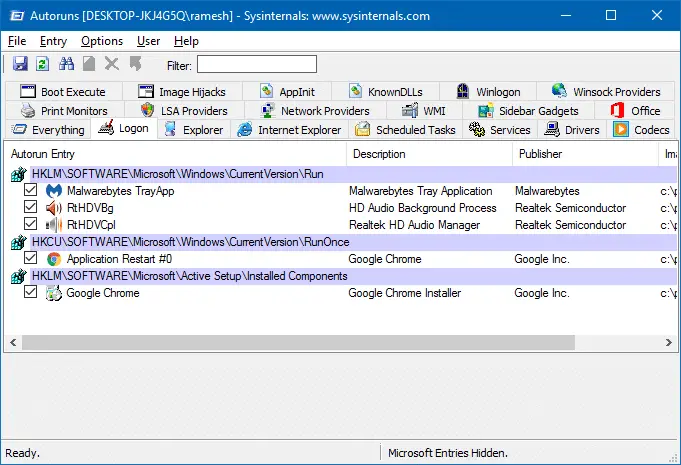
Tip: Autoruns lets you hide Microsoft and Windows entries in the Options menu so you don’t accidentally remove important auto-start programs that Windows needs. - After you’ve cleaned up the dead startup entries, proceed to delete the invalid shortcuts in the Startup folders. Follow the instructions in Step 2 (under Method 2) below.
Method 2: Using the Registry Editor
The auto-start programs listed in the Task Manager Startup tab can load from the registry or from the Startup folders. Follow these steps to manually clean invalid entries from the registry and the two Startup folders.
Step 1: Clean up the “Run” keys in the registry
- Create a System Restore Point or take a complete registry backup first.
- Start the Registry Editor (regedit.exe) and go to the following location:
HKEY_CURRENT_USER\SOFTWARE\Microsoft\Windows\CurrentVersion\Run
- Each value in the right pane is an auto-start entry. Right-click on an unwanted entry in the right pane, and choose Delete.
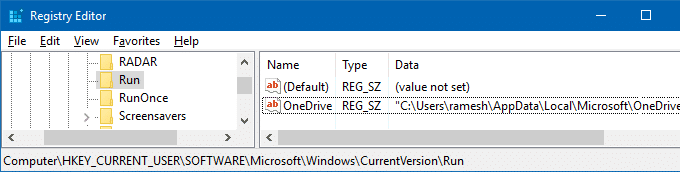
- Repeat the same in the Run key under
HKEY_LOCAL_MACHINEroot key (applies to all users) mentioned below.
Hint: While you’re in the previous registry location, you can right-click on the “Run” key and chooseGo to HKEY_LOCAL_MACHINEoption in the right-click menu, which automatically gets you to the following path:HKEY_LOCAL_MACHINE\SOFTWARE\Microsoft\Windows\CurrentVersion\Run
- 32-bit programs on a 64-bit Windows computer use the following
WOW6432Node\...\Runregistry locations. You need to follow the same procedure here, as well:HKEY_CURRENT_USER\SOFTWARE\WOW6432Node\Microsoft\Windows\CurrentVersion\Run HKEY_LOCAL_MACHINE\SOFTWARE\WOW6432Node\Microsoft\Windows\CurrentVersion\Run
- Additionally, clean up the corresponding entries (for each item removed from the above locations) under the following keys.
HKEY_CURRENT_USER\SOFTWARE\Microsoft\Windows\CurrentVersion\Explorer\StartupApproved\Run

HKEY_LOCAL_MACHINE\SOFTWARE\Microsoft\Windows\CurrentVersion\Explorer\StartupApproved\Run

HKEY_LOCAL_MACHINE\SOFTWARE\Microsoft\Windows\CurrentVersion\Explorer\StartupApproved\Run32
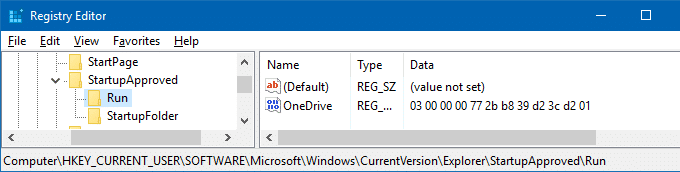
(Note: The disabled items in the Task Manager startup tab are stored in the
StartupApprovedregistry locations.) - Exit the Registry Editor.
Step 2: Clean up the items in the Startup folders (per-user & common startup)
- Open this folder by typing the path in the File Explorer address bar:
%ProgramData%\Microsoft\Windows\Start Menu\Programs\Startup
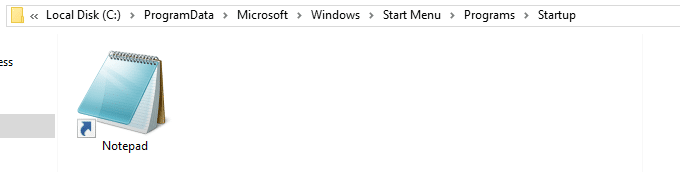
- Delete the unwanted shortcuts there.
- Open this folder by typing the path in the File Explorer address bar. This opens the per-user Startup folder (shell:startup)
%Appdata%\Microsoft\Windows\Start Menu\Programs\Startup
- Delete the unwanted shortcuts from the above folder.
Hope you were able to remove dead or invalid entries in the Task Manager Startup tab using one of the two methods above!
What about startup entries of Store apps?
Note that the above methods are to remove only the classic desktop (Win32) apps from Startup. The modern Universal Web Apps (Store app) startup entries can’t be removed using the registry or Autoruns.
For classic desktop apps, you’ll either see the words Registry or Folder in the “Startup type” column, denoting whether the entry originates from the Startup folder or from one of the Run keys in the registry.
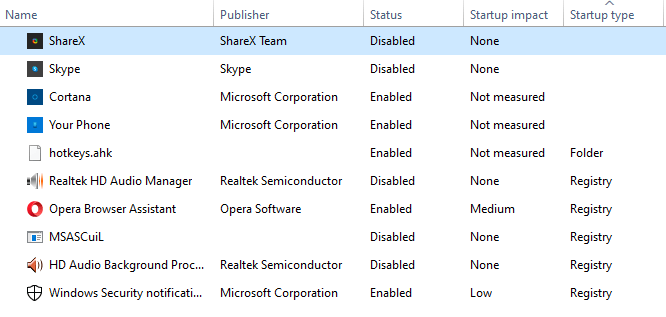
For Store apps (e.g., ShareX, Skype, Cortana, Your Phone apps) the Startup Type column would be blank. That’s because for UWP apps, the startup entries come from the manifest file included at the time of compilation. The only way to remove the Store app startup entry is to uninstall the software.
Last reviewed on 1-April-2026.
One small request: If you liked this post, please share this?
One "tiny" share from you would seriously help a lot with the growth of this blog. Some great suggestions:- Pin it!
- Share it to your favorite blog + Facebook, Reddit
- Tweet it!

I noticed that with iTunes there are installed some iTunesHelper.exe and AppleMobileDeviceProcess.exe (mobile iTunes Helper). These could not be found under any key noted and also Autoruns does not list them.
Would be really nice if you included some context for “Export the key to a REG file first.” “Keys” are not mentioned This is showing us how to remove old entries, so why are we exporting something before deleting it?
@DK: Exporting before deleting is a good habit anyway, just in case you’re sitting in a wrong registry branch and nuke something else accidentally.
Method 1 worked for me! Had a TEAMS service running under the name PROGRAM and removed it sucesfully! Thanks!
This was extremely helpful, damn. Thank you!
I just couldn’t stand the clutter on my Startup Tab.
Bless you!
Very helpful. I did reset my PC thinking it will delete the ‘programs’. Alas! Upon boot up the suckers are staring at me again. Thanks to you, now I know how to solve the issue, despite of losing many softs.
thank you, very helpful,
but unfortunatly it didn’t work for me:
I am unable to find my 2 dead entries neither in Autorun nor in regisrty
I try to delete Skype and Ear Trumpet entries from task manager’s startup tab after having disabled them.
in “startup type” there is nothing and in”command line” tab I have:
Skype\Skype.exe
EarTrumpet\EarTrumpet.exe
I will try to uninstall EarTrumpet as it was me who installed it but Skype I didn’t even use it at all; it started alone and create this entry; would prefer to not uninstall it but if nother way why not even if I’m not sur it will delete this entry in task manager
Any other help would be highly appreciated
thanks again
@Umair, The disabled entries are present in these registry keys. Checked there?
HKEY_CURRENT_USER\SOFTWARE\Microsoft\Windows\CurrentVersion\Explorer\StartupApproved\Run
HKEY_LOCAL_MACHINE\SOFTWARE\Microsoft\Windows\CurrentVersion\Explorer\StartupApproved\Run
just use autoruns it worked for me
Why not tell there is a program that does this at first? Making people read and do it manually and then oh, hey, there was this program that could do it all for you!
sad times.
@esat: Changed the order now. Thanks for the feedback.
the autoruns method worked for me noice helpful article have a noice day keep playing minecraft lolll
First method AutoRuns was very easier to solve my problem thanks.
Thank you very much for your help.
Thanks Man ….Helped !
Thanks it worked well!
HKEY_LOCAL_MACHINE\SOFTWARE\Microsoft\Windows\CurrentVersion\Explorer\StartupApproved\Run32
I also found the unwanted program entry in this key as well. Maybe you should update the blog.
Thank you for your help.
Thanks for the tip, @Nemesis. Will include that info.
Thanks a ton man. Autoruns is soooo good! it directly highlighted the 3 files I had to delete. i didn’t even had to search or do anything.
Thank you, this worked for me. I didn’t know that there were other locations were start-up programs were added. I thought they were only located where the .exe folder was based on shell:startup
Thank you so much it worked for me on step 2 of method 2. It was driving me insase!!
finally a solution that worked, many thanks
Thanks a lot bro. Method 2 helped me to remove an invalid startup program that came from a non-existent application. Good game and well played bro! ^_^
This is very usefull, my ocd can calm down now . However, Does removing items by using method 2 break the app or software or does it simply just stop it appearing in “startup” under taskmanager?
Thanks a lot!! I have managed to remove a startup path: C:\Program” Files (x86)\… which is not even existed lol. Method 1 was super useful!!
I done second method but the regestry entry revives again and again whenever I start task manager..
@Sid: Some program may be adding the entry again? Please post a screenshot of the Task Manager Startup tab as well as the Registry Editor window showing the Run key.
Thanks a lot for sharing how to remove the startup invalid entries. Autoruns worked for me too
Excellent helpful article. Thank you.
Very helpful, I got reed of spies and unwanted programs. Thanks
10/10
I Tried Registry one & it Totally solved my Issue, nice comprehensive, to the point article Ramesh
I was not able to delete “Send to OneNote.Ink” in C:\Program Files (x86)\Microsoft Office\root\Office16\ONENOTEM.exe.
I found OneNote in the following folder: HKEY_CURRENT_USER\SOFTWARE\Microsoft\Windows\CurrentVersion\Explorer\StartupApproved\StartupFolder
The last part of this tutorial is exactly what I was looking for