Delete Confirmation Dialog – Show Detailed Info About the File or Folder You Delete

The delete confirmation dialog that appears when you attempt to delete a file or folder displays the file/folder name and date-created information by default. For files, it also shows the file type and the “date modified” info. Windows allows you to customize this dialog such that you can include additional metadata or property value in that dialog. For example, you can add the property value System.FileOwner so that the owner name of the file or folder you’re trying to delete is shown.Read more

Windows 10 Settings has only 24 Color Choices for Background

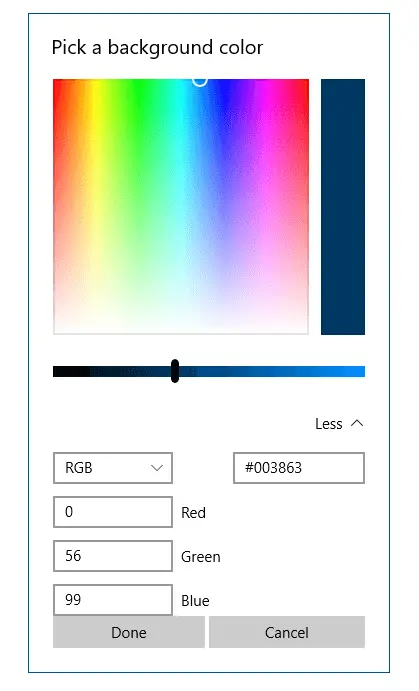
personalize solid color - color picker

Update 2021: Information in this article is now obsolete because the recent versions of Windows 10 come with a nice-looking color picker dialog. It also lets you input the RGB values manually. If you prefer solid color desktop background instead of desktop wallpaper, note that the new Personalization settings page in Windows 10 displays only … Read more

How to Restore Windows Photo Viewer in Windows 10 and 11

Windows Photo Viewer is one of the things that gets removed or hidden from access after upgrading to Windows 10. The new Photos app takes charge as the default handler for image files in Windows 10 and Windows 11.

The good news is Windows Photo Viewer application still exists in the same location in Windows 10 and Windows 11. But what is removed is only its registration.

windows photo viewer thumbnail image

Windows Photo Viewer is a lightweight app similar to the Office Picture Manager and Windows Live Photo Gallery, both of which are discontinued by Microsoft. But, Windows Photo Viewer remains an integral part of Windows 10/11.

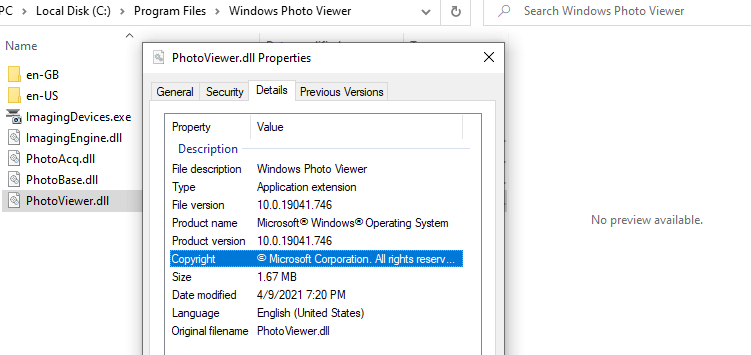
Windows Photo Viewer is powered by a single DLL file named photoviewer.dll located in the C:\Program Files\Windows Photo Viewer directory in Windows 11 and earlier OS.

photoviewer.dll file information
Windows Photo Viewer – photoviewer.dll in Windows 10 version 21H1.

For example, this command-line will open a file named D:\sample.png using Windows Photo Viewer:

rundll32.exe "%ProgramFiles%\Windows Photo Viewer\PhotoViewer.dll", ImageView_Fullscreen d:\sample.png

Now, all we need to do is add Windows Photo Viewer file association settings to the registry. If you’re not a fan of the new Photos app, you can restore the missing Windows Photo Viewer registration in Windows 10 and 11.
Read more

What is the Two Blue Arrows Icon on Folders in Windows 10 and How to Remove it?

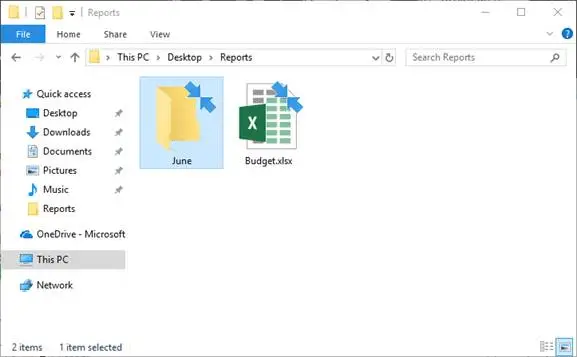
After installing Windows 10, you may notice that some of your files and folders show up with a double blue arrows icon at the top. This double blue arrows overlay icon is seen if the files and folders are compressed (NTFS compression), and there is nothing to worry about.

This post tells you how to hide or remove the double blue arrow icons on folders or files in Windows 10.Read more

How to Customize New Folder Name Template in Windows 10?

When you create a new folder in Windows, the default folder name is always “New Folder”. Windows 10 allows you to customize the new folder name template to any name you wish. In previous versions of Windows this could be done by hacking the Shell32.dll using Resource Hacker or similar tools. In Windows 10, this can be accomplished easily using a simple registry edit.Read more

How to Enable Balloon Tips (XP Style) in Windows 10

In Windows 10, application and system notifications are shown as toasts, instead of the balloon-tip style notification we’ve seen since Windows 2000/XP. Toast notifications disappear quickly whereas the balloon tip notifications appear on the screen as long as we have the mouse pointer hovering over the balloon. For some users, the balloon style notification suits well. Fortunately the Windows XP-style balloon tips can be activated in Windows 10 using a registry edit or via Group Policy.

Read more

“System Image Backup” Error 0x80070716 After Upgrading to Windows 10

When you click the System Image Backup option in the File History window, Error 0x80070716 may be shown and the System Image Backup page doesn’t open.

An internal error has occured

The specified resource name cannot be found in the
image file. (0x80070716)

This can be fixed by deleting a registry value which may have been carried over from the previous Windows installation. Use these steps:

(Thanks RArandes_91)

Read more