How to Find Which Program Is Making Sound in the Background

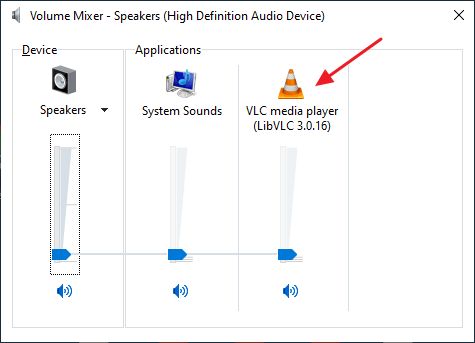
volume mixer - program name

Every now and then, my PC located in the bedroom emanated a sound at random intervals. This was caused by an application playing a short media file. And I noticed it twice when entering the bedroom, which I thought was a mere coincidence, but wasn’t. I couldn’t figure out what it was.

Control Panels → Sounds was the first place I checked. It was not the Sound Scheme as it was already set to “No Sounds”.

I then opened the Volume Mixer to find out the program responsible for playing the unidentified music on my computer. But when I looked through the Volume Mixer, the 3rd column said: “Name Not Available”. Randomly, the music just popped right up into the speakers. It lasted for a few seconds.

Find which program is playing random music in the background

With almost a dozen applications running and I didn’t want to disturb them, I fired up the excellent Process Monitor right away and configured the filters so that any entry with “.wav” in the Path is captured.

It may not necessarily be a .wav file (it could be .mp3 or any audio file type, as well), but I had a suspicion that it could be, in this case. So I included “.wav“, to start with.Read more
How to Determine the Parent Process of a Running Process in Windows?

You may have come across situations where a continuous hard disk activity taking place although your system being in an idle state. If you open Task Manager out of curiosity, you may find several processes starting and exiting of their own without you doing anything. It could be a scheduled backup task, third-party system maintenance program or anything that could be churning your hard disk. It could be even a Malware. But which application or process launches them?Read more

RegFileExport Helps you Export Data from Offline Registry Hives

RegFileExport is a useful console application from NirSoft, which helps you extract data from offline Registry hives that are not currently in use by the Operating System. RegFileExport reads the registry hive and then exports the specified branch or the entire branch to a .reg file.

Regedit.exe can do this too. What’s different?

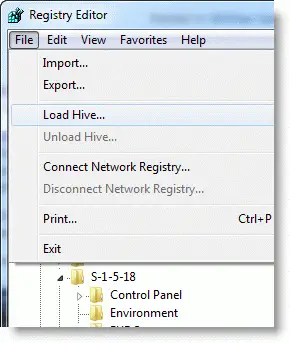
We know that the Registry Editor in Windows lets you load a registry hive via the File menu – “Load Hive…” command, and extract data offline from the registry hive.

The advantage of RegFileExport over Regedit.exe is that RegFileExport can export data quickly using a single command-line, without needing to load the hive, export the branch, update the paths in the REG file using a text editor, and unload the hive manually… which you would otherwise do if you use Regedit.exe or Reg.exe.Read more

NirCmd Elevate Switch Added – Some Useful Uses

We’ve covered the excellent multi-purpose command-line tool NirCmd from Nirsoft earlier. This post talks about the new command-line switches added in the current version of NirCmd. Earlier this month, I sent a NirCmd feature request to Nir Sofer, asking to include an “elevate” switch, which should launch an application elevated (Windows Vista, Windows 7 & 2008.) Nir was kind enough to incorporate this feature in the immediate version update (v2.40). Later another update, to fix a bug I reported, v2.41 was released.Read more

How to Find the Codec of a Video or Audio File

mediainfo - identify codecs used in video

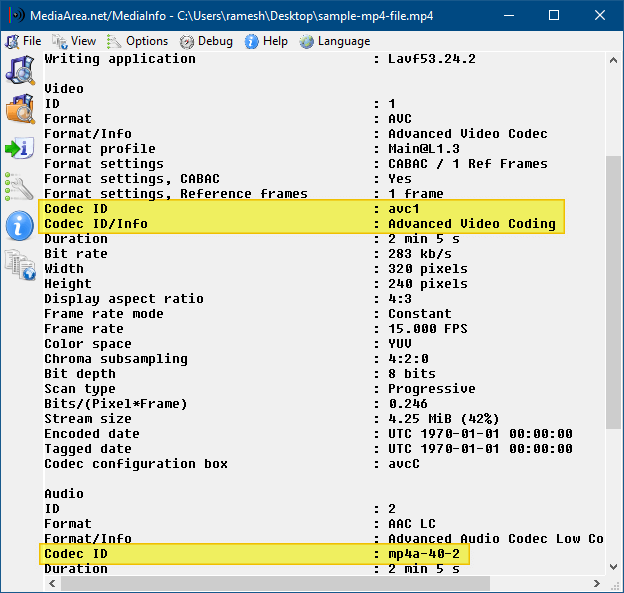
Did you download a movie video recently and found that the movie’s audio or video part does not play? This could be due to missing audio or video codec. To know which codec your system needs, to play your favorite video files correctly, you may use one of these tools discussed in this article.

Even if you have a good codec pack installed on the computer, you sometimes get only audio and no video (often on .avi files). The following programs will help you to identify the missing codec.
Read more

Fun Tip: Add “Speak” Option to the Context Menu for Text Files

The amazing NirCmd utility now has a new “speak” command that allows you to easily cause your computer to speak the text that you wish. In this command, NirCmd uses the Speech library (SAPI) that is installed in Windows. Here is a fun tip on how to add the Speak command to the context menu for Text Documents (.txt).Read more

How to Change the Icon for a File Type in Windows

change file type icon - icon picker dialog

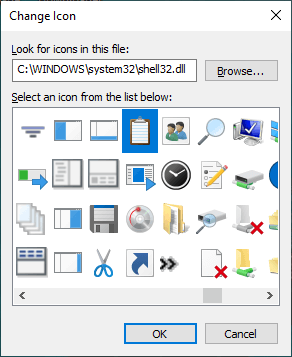
Surprisingly, Windows doesn’t have a built-in option to allow users to set custom icons for file types. If you have a custom file type and the corresponding program doesn’t have a nice-looking icon in its .exe or .dll resource, you can manually change or customize the default icon for that file type.

This article explains how to change the default icon for a file type using different methods in Windows. Instructions apply to all versions of Windows, including Windows 10Read more