The Games pack bundled with Windows Vista and Windows 7 included some some nice piece of software like Chess Titans, Mahjong Titans and Purble Place and some card games. Microsoft decided not to include the Games pack in Windows 10, as it now offers Modern or UWP version of some of those games from the Windows Store, which are ads supported.Read more
Microsoft Edge – Prevent Download of Unsafe Files Blocked by SmartScreen Filter
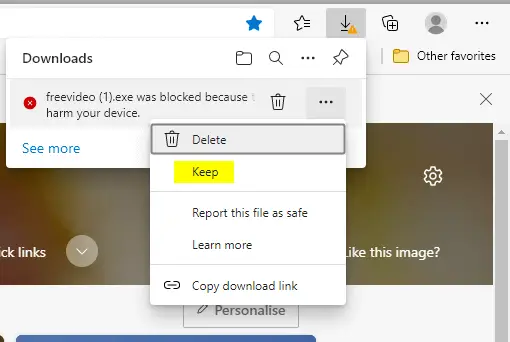
The SmartScreen Filter warns the user when running unrecognized programs or files downloaded from the internet. When you download files using Microsoft Edge, the file download is blocked if the source URL is blacklisted or the downloaded program fails the application reputation check by Microsoft SmartScreen filter.
However, Edge Chromium allows users to download the unsafe file regardless of the warning, by clicking on the “Keep” option in the Downloads flyout.
This article explains how to prevent users from downloading the ‘unsafe’ file on Microsoft Edge Chromium.Read more
How to Disable Automatic Maintenance in Windows 10
Windows automatically runs scheduled maintenance on a daily basis when you’re not using your computer. This feature is called Automatic Maintenance, which takes care of updating Windows Store apps and other software, running Windows Defender scans, system diagnostics, Disk Cleanup, etc.Read more
2 Ways to Set Desktop Background Wallpaper Without Activation
The Personalization options such as Background, Colors, Lock Screen, Themes, Start, and Taskbar are grayed out if Windows is not activated. This post discusses two ways to change the desktop wallpaper in an unactivated Windows installation.Read more
Access the Advanced Security Permissions Page via Right-click Menu in Windows 10
The Advanced Security Settings dialog allows you to configure NTFS special permissions for a file or folder along with the sub-folders (recursively), enable or disable inheritance, change ownership of an object etc. To quickly access the Advanced Security settings dialog, you can add it to the right-click menu for files and folders.Read more
How to Restart Explorer Cleanly Using Shortcut or Command-line
When you make changes to the Windows registry using the Registry Editor, script or any other automation tool, you may have to logoff and login back for the changes to take effect.
That’s especially true if you’re altering the UI element metrics or changing the shell namespace folder icons etc. — as Explorer caches these settings when you log in.Read more
Happy New Year 2017. Best Wishes from WinHelpOnline
First, thank you very much for reading my articles. I’ve been posting tips, fixes and customization ideas online for Windows, since 2003 when I was given free hosting by the generous folks at MVPS.org, as I was a Microsoft MVP then (2003 to 2012).Read more
Show or Hide Selected Files from the Right-click menu
In File Explorer, you can hide or show selected files using the “Hide selected files” toggle button in the Ribbon interface. This command can be added to the context menu using the method described in article Add any Ribbon Command to the Right-click Menu in Windows 10.Read more
How to Add a Ribbon Command to Right-click Menu in Windows 10
Ribbon UI consists of a command bar with a series of tabs. Each tab contains a set of commands such as Cut, Copy, Paste, etc. Ribbon UI was first introduced in Office 2007. Then it was included in File Explorer in Windows 8 and Windows 10.
This article explains how to add any Ribbon command from File Explorer to the right-click menu for files or folders.Read more
How to Find Windows version, build and edition from ISO or DVD
Windows 10 or Windows 11 ISO files downloaded from Microsoft will have descriptive names, such as en_windows_10_pro_10586_x64_dvd.iso and en_windows_10_pro_14393_x86_dvd.iso, depending upon the variant you downloaded. The file name depicts the language, version, build edition, and the bitness of the Operating System contained in the ISO.Read more