If you’re struck by the awesomeness of a Windows Spotlight (lock screen) image that recently appeared on your screen and need to find the geographical location where the image was actually shot, here are some options.Read more
Windows 10
This category contains posts about Microsoft’s latest Operating System – Windows 10.Windows 10’s always been interesting, as every new major update will usually include additional features.
[Fix] Win+X Menu Shortcuts Not Working
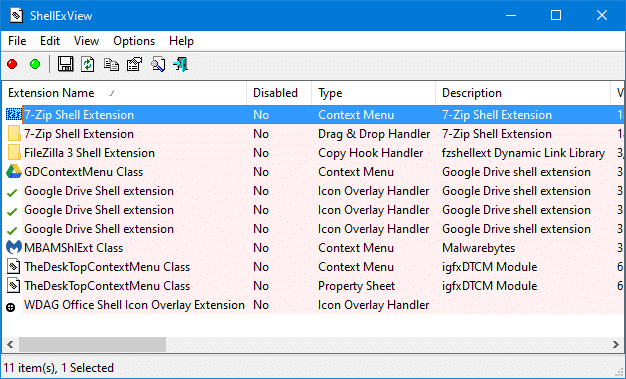
When you right-click Start, none of the shortcuts in the Win+X (Power User) menu work except the Run command. However, the shortcuts may work fine when launched from the Win+X Shortcuts folder, which is located at:Read more
How to Restore Missing “Pin to Start” in Windows 10
Summary: “Pin to Start” Option missing and “Show more tiles” Option Locked in Personalize window, due to Policy settings. In Windows 10, when you right-click on a folder, .exe file, or a shortcut to a .exe file, the option Pin to Start may be missing. Also, when you right-click an item in the Start menu, … Read more
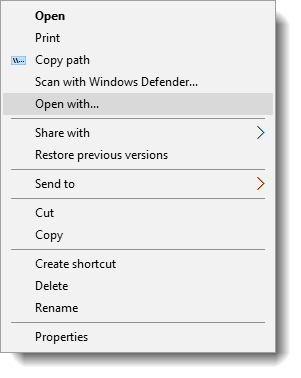
[Fix] Music, Pictures, Videos or Downloads Folders Merged Accidentally and Point to the Same Location
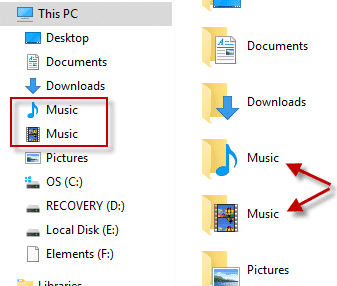
This post talks about a problem where two special folders such as Music, Pictures, Videos, or Documents get merged or combined and point to the same folder. Because the special or shell folders are merged, they show up with the same name but different icons.
Additionally, restoring the default location via the Location tab for one of the folders would show a similar warning as below:
Do you want to redirect folder "Music" into another system folder "Videos" located at "c:\users\{username}\videos"?

If you proceed with redirection you will not be able to separate them or restore default location. Do you still want to proceed with redirection?
Or, the following error may occur:
Can’t move the folder because there is a folder in the same location that can’t be redirected
Since the special folders have merged, using the Restore Default or Move option does not help.
This post tells you how to fix the user shell folder paths in the registry, if you’ve accidentally merged them.Read more
Windows 10/11 User Shell Folders Restore Default Paths
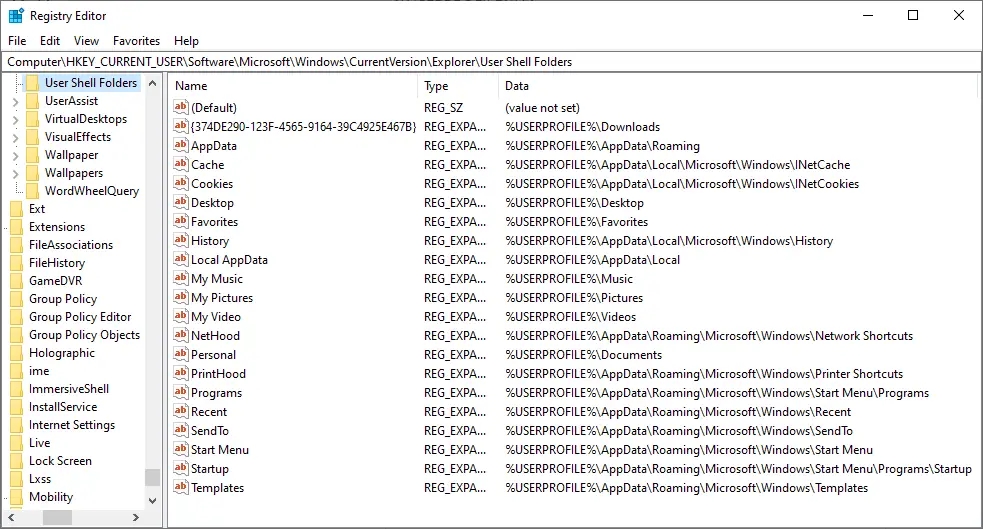
This post provides you with the list of User Shell Folders in Windows 10/11 and their default paths. If you’ve moved a shell folder earlier, you can restore it to the default location via the folder properties Location tab in most cases.
However, there are situations where the Location tab option can’t be used — i.e. when two special folders such as Music and Videos become merged and point to the same location. In that case, clicking Restore Default in the folder properties Location tab causes an error.
In such cases, resetting the respective shell folder path(s) in the registry is the only possible solution. This article provides the .reg files needed to revert to the default shell folder paths quickly and also includes the list of shell folders and their default path for your reference. This article applies to Windows 10 and Windows 11.
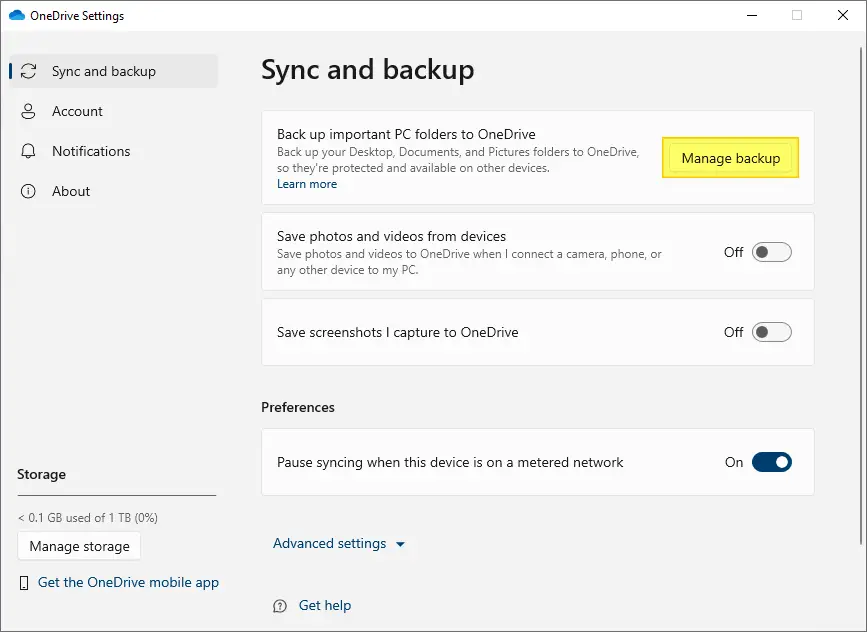
NOTE: Before proceeding, please stop OneDrive sync/backup option for the corresponding shell folder — e.g., Documents, Desktop, Pictures Folders.
How to Delete Windows.old folder [Previous versions of Windows]
Windows Operating System upgrades and version updates would leave plenty of files behind in the system drive. This is because Windows keeps the files from the previous versions of Windows in a separate folder in case the user wants to roll back the major update (or OS upgrade).Read more