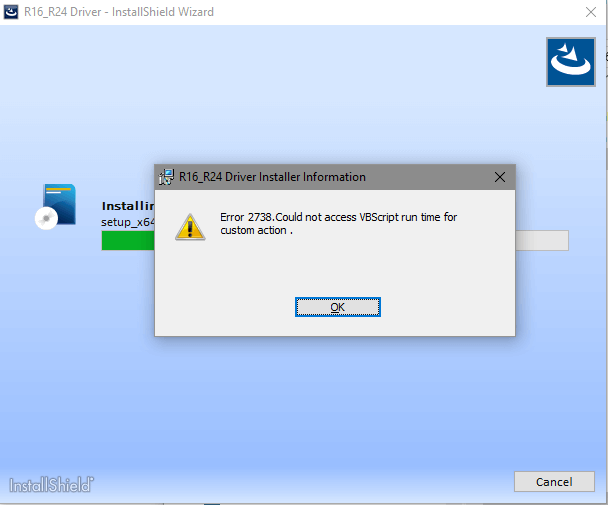
When you try to install a program using Windows Installer (.msi) Setup package, you may encounter error 2738 or 2739 and the setup fails.Read more
Windows
You’re browsing the “Windows” parent category, which lists articles on every Windows Operating System.
Add Select All option to the context menu in Windows
To select all files in a folder or the Desktop, you use the CTRL + A keyboard shortcut. If you’re an avid mouse user and need the select all functionality in the right-click menu in Windows, here is a registry tweak. This tweak adds the “Select All” option in the context menu for folder background and desktop. Read more
Enable and Disable Windows Firewall Quickly using Command-line
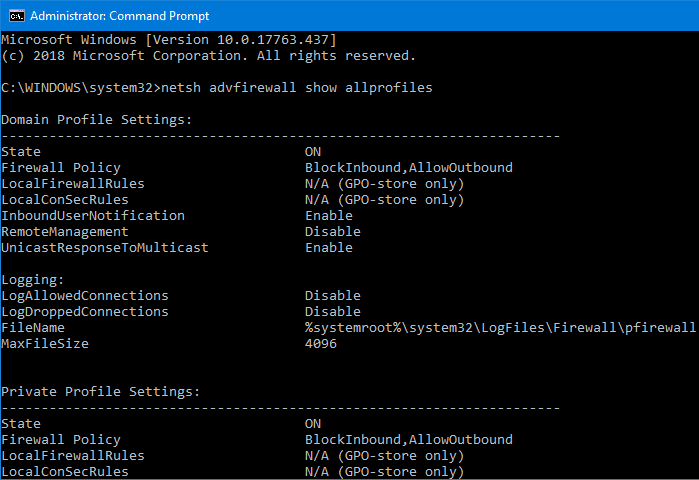
When testing network connectivity or when performing other troubleshooting tasks, you may need to turn off the Windows Firewall temporarily. To quickly disable or enable the Windows Firewall, you may use the Netsh.exe command-line in Windows 10 and Windows 8.Read more
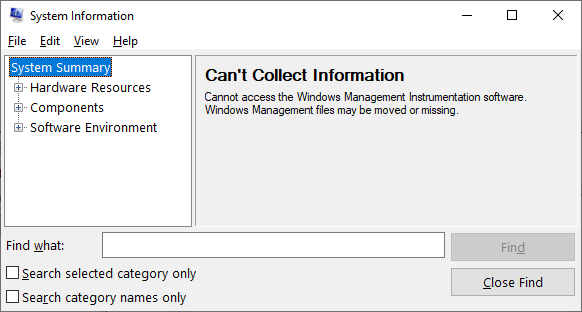
How to Run Programs as Administrator (Elevated) without UAC Prompt
Recently, I came across a brilliant tip on how to run programs elevated without getting the User Account Control (UAC) prompt. This can be done without turning off the UAC and hence it does not compromise system security.Read more
Launching a Scheduled Task manually using Schtasks.exe
Schtasks.exe console tool helps you create, delete, query, change, run, and end scheduled tasks on a local or remote computer. Running Schtasks.exe without arguments displays the list of each registered task, the Next Run Time, and the Status for each task.
For example, you may want to run the RegIdleBackup task manually using Schtasks.exe.
How to Enable Write Protection for USB Drives in Windows
By default, users can insert a USB disk in the system and read from, or write to it without limitation. There is a policy setting that helps system administrators to restrict the ability of users to write to USB storage devices.Read more
How to Change the Default Folder Icon in Windows
Customizing and hacking the user interface (“Shell”) in Windows is fun. If you want to change the default folder icon with your custom .ico file, this article tells you how. Instructions apply to all versions of Windows, including Windows 10. Change the Default Folder icon in Explorer Launch Regedit.exe and navigate to the following location: … Read more
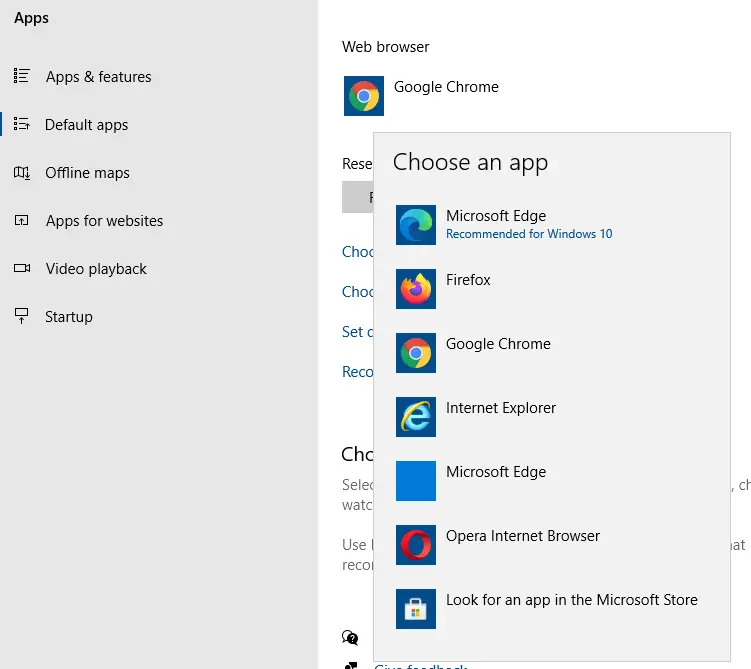
[Fix] PDF Thumbnail and Preview Not Showing Up in File Explorer
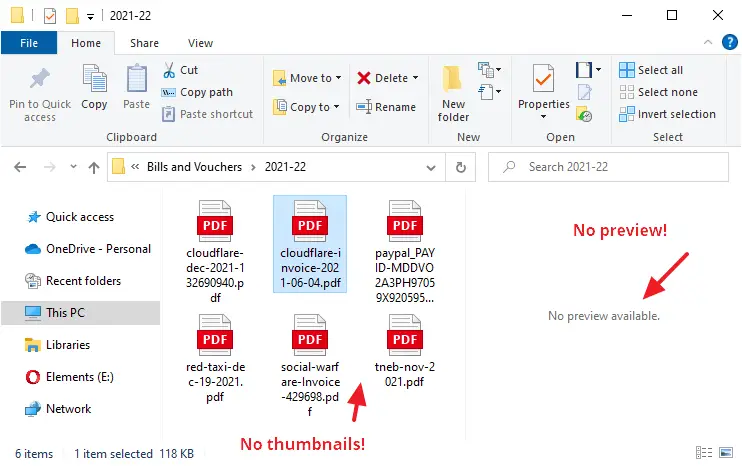
In your Windows computer, File Explorer may not display PDF thumbnails, and instead, show only the default icon assigned for PDF files. This might happen even if you have the option Always show icons, never thumbnails unchecked in the View tab of the Folder Options dialog.
Also, in Microsoft Outlook you’ll see the error when viewing emails that contain PDF file attachments:
The file cannot be previewed because there is no previewer installed for it
This article tells you how to enable PDF thumbnails as well as the PDF preview capability (for the Preview pane) in File Explorer and Microsoft Outlook. The first method (PowerToys) works whether or not you’re using a third-party PDF viewer (e.g., Adobe PDF Reader or Foxit Reader).