Many users have reported that the Capability Access Manager service in Windows 11 continuously writes to CapabilityAccessManager.db and CapabilityAccessManager.db-wal, and that the file sizes are very large.
Microsoft has fixed this issue in the June 23, 2026—KB5095093 (OS Builds 26200.8737 and 26100.8737) Preview update.
[Storage] This update improves disk space usage for the CapabilityAccessManager.db-wal file.
The Capability Access Manager Service (camsvc) provides facilities for managing UWP apps’ access to app capabilities and for checking an app’s access to specific capabilities. The database may contain the location and usage history. It tracks the last time each application accessed or requested access to a user’s camera, microphone, or location, as well as other information.
Here’s a TreeSize screenshot from a user who encountered this issue. Capability Access Manager databases occupy 97 GB on the system. In some cases, the db-wal file size may exceed 300 GB.
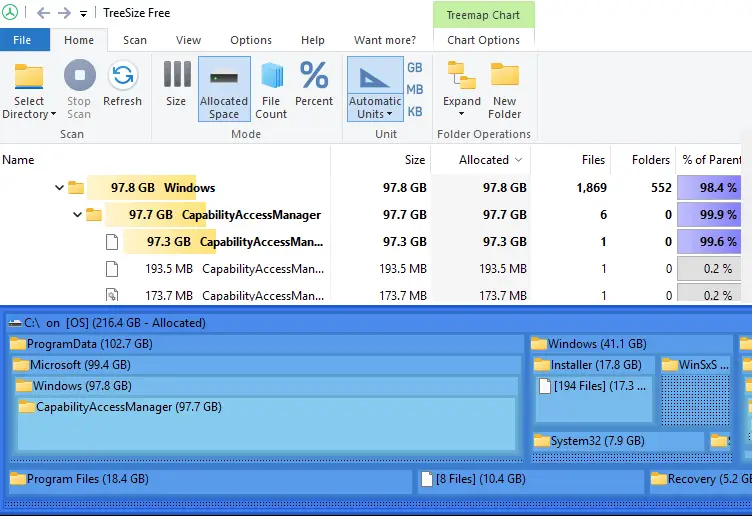
Third-party apps, such as Rainmeter and Dell SmartByte, may repeatedly write to the Capability Access Manager Service database, thereby inflating the file size. Likewise, other apps may cause the issue.
Reference: [Bug] Rainmeter’s WiFiStatus queries cause huge 30GB+ CapabilityAccessManager.db-wal file – Rainmeter Forums.
Resolution
Step 1: Clear the CapabilityAccessManager.db-wal file
 Important: A few users have mentioned that after following the procedure below, the Settings page crashed when opening Settings > System > Power, and Wi-Fi stopped working. They had to repair install Windows 11 using the ISO. So, please take a system image backup using Macrium Reflect, Hasleo, or a similar app before proceeding further.
Start Windows in Safe mode. See How to Start Windows 10 or 11 in Safe Mode.
In Safe mode, open Command Prompt (admin) and run the following commands:
net stop camsvc

takeown /f "C:\ProgramData\Microsoft\Windows\CapabilityAccessManager\CapabilityAccessManager.db-wal" /a

icacls "C:\ProgramData\Microsoft\Windows\CapabilityAccessManager\CapabilityAccessManager.db-wal" /grant administrators:F

del /a "C:\ProgramData\Microsoft\Windows\CapabilityAccessManager\CapabilityAccessManager.db-wal"

exit
That should delete the db-wal file and free up the disk space.
If the database continues to grow rapidly, please follow the steps below.
Step 2: Turn off Location Services
Open Settings → Privacy & security → Location. Turn off Location services
(This also turns off the options “Let desktop apps access your location” and “Let desktop apps access your location”.)
After doing that, the CapabilityAccessManager.db-wal file should stop growing rapidly. If the problem persists, follow Step 3 below.
Step 3: Identify the offending process
Uninstall Rainmeter and Dell SmartByte if you have them installed. If you don’t have those apps and yet the problem occurs, perform a clean boot of Windows using msconfig.exe. A clean boot is the process of starting Windows without loading any third-party applications or services.
- Launch `msconfig.exe` and select the `Services` tab.
- Enable the `Hide all Microsoft services` checkbox. This is an important step. Now, the list will contain only 3rd-party services.
- Click Disable all.
- Click OK.
- Open Task Manager (Ctrl + Shift + Esc) and click on the Startup tab. Disable all startup apps.
- Restart Windows.
For more information about the clean boot procedure, please refer to the Microsoft article How to perform a clean boot in Windows. Step 3 in that article is crucial. You need to first enable “Hide all Microsoft Services” before clicking “Disable all”.
Note:
If the problem doesn’t occur in clean boot mode, follow the steps in the “Detailed steps to isolate the problematic service or app” section of the article above to identify the exact app or service causing the problem.
Related links
CapabilityAccessManager is devouring my hard drive – Microsoft Q&A
Fix for CapabilityAccessManager.db-wal Growing Huge in Windows 11 | Microsoft Community Hub
CapabilityAccessManager.db Deep Dive, Part 1 | by Cyber Sundae DFIR | Medium
Out of Control Capability Access Manager.db-Wal File Size – Azure to the Max
One small request: If you liked this post, please share this?
One "tiny" share from you would seriously help a lot with the growth of this blog. Some great suggestions:- Pin it!
- Share it to your favorite blog + Facebook, Reddit
- Tweet it!
