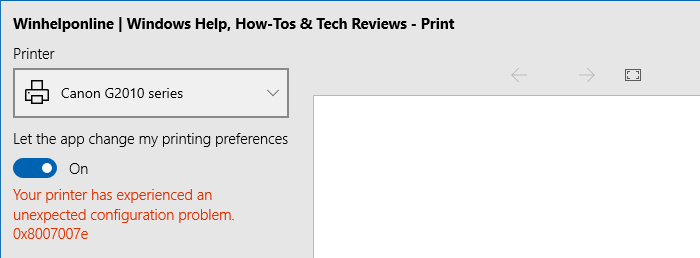
When you try to print a mail from the built-in Mail app or use the print function in any Store app, error 0x8007007e may occur. However, the classic desktop programs print correctly. The problem is restricted to modern or Universal Web Apps (UWP) like Mail, OneNote, etc.
Here is the full error message verbatim:
Your printer has experienced an unexpected configuration problem. 0x8007007e
Resolution
The error 0x8007007e occurs if the module PrintConfig.dll is missing under the printer’s spool folder. Error 0x8007007e — ERROR_MOD_NOT_FOUND – (0x7E) — translates to The specified module could not be found.
You can download the PrintConfig.dll from Microsoft (via WinBIndex), or extract it from the Windows 10 ISO or DVD. Let’s start with the former method — downloading from Microsoft via the WinBIndex.
Method 1: Download PrintConfig.dll from Microsoft via WinBIndex
The Windows Binaries Index (Winbindex), a non-Microsoft site, allows us to quickly view information about files and download some directly from Microsoft servers.
- Visit the following URL:
https://winbindex.m417z.com/?file=printconfig.dll
- Select your Windows version from the list.
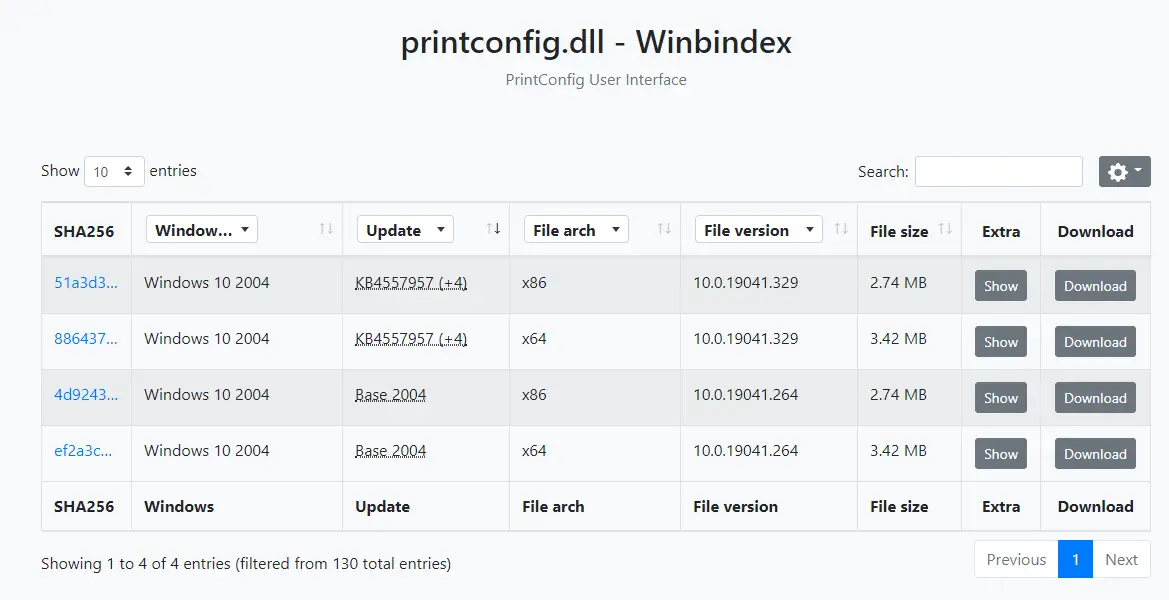
- Download both x86 and x64 versions of the DLL. The links point directly to the Microsoft servers for the DLL files.
- Move the x64 (64-bit) version of the file to
C:\Windows\System32\Spool\Drivers\x64\3folder. - Move the x86 (32-bit) version of the file to
C:\Windows\System32\Spool\Drivers\W32X86\3folder.
See if you can print now.
Method 2: Copy the file from WinSxS or the Drivers folder
- Open the
C:\Windows\System32\Spool\Drivers\x64\3folder. - In the above folder, a file named
PrintConfig.dllmust exist. If it’s missing, that causes the error 0x8007007e when printing from modern apps. See if you have the folderSpool\Drivers\x64.old\3. If the folder exists, copyPrintConfig.dllto theSpool\Drivers\x64\3folder. - If the
x64.oldfolder is missing in step 2, you can find the .dll file in other locations. Open theWindows\System32folder and do a search forPrintConfig.dlland you’ll see the search results as below: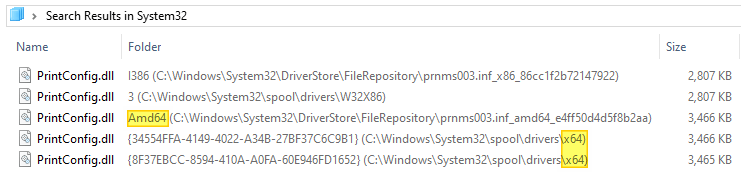
- The search results may show some older version(s) of the file. Be sure to pick the most recent version of
PrintConfig.dll(x64 version) from search results and copy the file toC:\Windows\System32\Spool\Drivers\x64\3 - Likewise, if the 32-bit version of the file is missing from
\spool\drivers\W32X86\3, search for the file and copy it from the other location.
Method 3: Extract the file from Windows 10 ISO or DVD
Alternatively, you can get a fresh copy of the file from the Windows 10 ISO. Mount the ISO and open the sources\install.wim using 7-Zip and extract the PrintConfig.dll. Make sure you enable Flat View from the View menu in 7-Zip to locate the DLL file inside the WIM easily.
In case the file install.esd is present in place of install.wim, first, you need to convert it to the .wim format and then open it using 7-Zip.
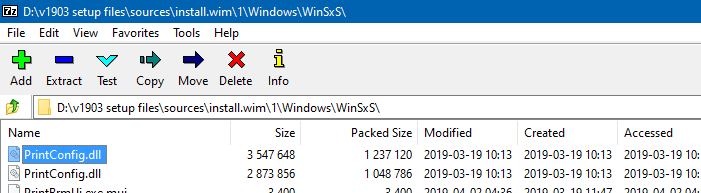
You must, however, make sure that you’re using the latest Windows 10 ISO slipstreamed with the newest quality update to get the latest version of the file. In the above image, you can see that it has an older version (0.3.18362.145) of the DLL file compiled on 3-19-2019. That’s because I haven’t updated my USB setup disk as of recent.
How did the file go missing?
It’s possible that you may have earlier renamed the x64 folder to x64.old (as advised by your printer support team) in order to fix other printing related issue(s) — e.g., stuck print jobs. As a result, the PrintConfig.dll will be under Spool\Drivers\x64.old\3. Copying it back to Spool\Drivers\x64\3 fixes the problem.
One small request: If you liked this post, please share this?
One "tiny" share from you would seriously help a lot with the growth of this blog. Some great suggestions:- Pin it!
- Share it to your favorite blog + Facebook, Reddit
- Tweet it!

It has solved the problem. Thanks for the effort!!
Great job. This method fixed my problem printing Outlook Windows 10 emails, which gave this same error message: 0x8007007e with a message about a configuration error.
(Printing from gmail, there was no problem.) The error came up no matter which printer was selected, so it’s a waste of time to try to mess with updating printer drivers, or following other instructions about stopping all start-up services, etc.
Microsoft prefers to call this Windows 10 Mail, by the way, even though it’s called Outlook Mail (an app in Windows 10). Go figure.
The error seems to be something with Windows 10 or a Windows 10 update, which isn’t properly putting this printconfig.dll file where it belongs (in the two folders mentioned in the solution here). It’s their OS and their email app, no matter what they call it, and they should fix this when they get a chance. Or people can just forward the emails to gmail and then print them, as a workaround…
Oh, my gosh. THANK YOU! You are a Godsend. I will definitely share! I cannot thank you enough.
That worked perfectly and simply. Thank you so much.
Worked! Wish I found you sooner.
thanks!
Thank you so much! I have tried all of the Microsoft Community fixes and none of them told I could find the missing file in the system32 folder. You’re a rock star!