Have you come across a situation where uninstalling software leaves its Service or driver entries in the registry, and Windows tries to load them at every boot, fails, and logs the error to the System Event log at every startup?
This article tells you how to delete an orphaned service in Windows 10 (and earlier) using the registry, SC.exe command-line, PowerShell, or Autoruns. Before proceeding further, create a System Restore Point and take a complete Registry backup.
If you find that no dependents exist for a service, you can delete the leftover or unwanted Service in Windows using one of the following methods.
Contents
How to Delete a Service in Windows?
You can delete a service using the built-in SC.exe command-line, the Registry Editor, PowerShell, or a utility like Autoruns. Follow one of these methods:
Using the SC command
The SC.EXE command-line tool in Windows can be used to create, edit, or delete Services. To delete a service in Windows, use the following command-line syntax from admin Command Prompt:
sc delete service_name
Where service_name refers to the short name of the service, instead of its display name. To find the short name, open Services MMC and double-click a service.
- Example 1: Google Update Service (
gupdate) is the display name, andgupdateis the short name. - Example 2: Dell SupportAssist (
SupportAssistAgent) is the display name, andSupportAssistAgentis the short name.
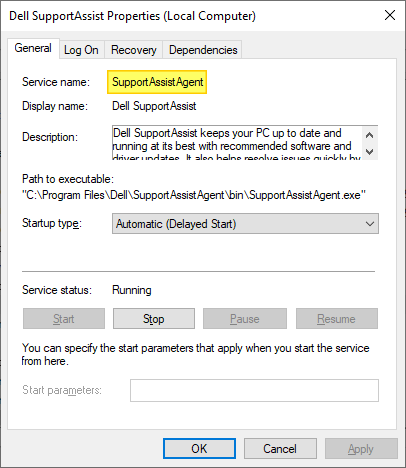
Another way to find the short name of a service is by using this command-line:
sc query type= service | more
The above command lists all the services along with the service (short) name and the display name.
Or, if you know the display name, you can find the service name using this command:
sc getkeyname "service display name"
which in this example is:
sc getkeyname "Google Update Service (gupdate)"
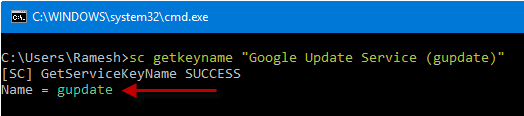
Once the service short name is obtained using any of the above methods, use this command to delete the Service:
sc delete test
You’ll see the output: [SC] DeleteService SUCCESS

This deletes the specified service (“test” service in this example) from the computer.
If the service is running or another process has an open handle to the service, it will be marked for deletion and removed on the next reboot.
Can’t delete a service?
If you receive the following error when deleting the service, it could also be possible that you’re trying to delete a service from a normal Command Prompt instead of an admin Command Prompt.
Should the same error occur in an admin Command Prompt, then it means that the currently logged on user account doesn’t have full control permissions for that service.
[SC] OpenService FAILED 5:
Access is denied.
To resolve this error when deleting a service, you need to modify the Service permissions first. Alternatively, you can use the SYSTEM or TrustedInstaller account to delete the service.
Using Autoruns from Windows Sysinternals
Autoruns, from Microsoft Windows Sysinternals, is a must-have tool that helps you manage Windows startup, services, drivers, Winsock providers, Internet Explorer add-ons, Shell extensions, etc.
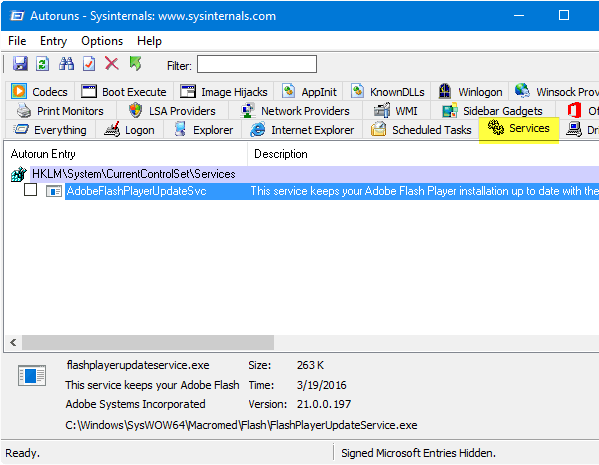
- Download Autoruns and run it
- From the Options tab, tick Hide Microsoft Entries so that only the third-party entries are listed.
- Press F5 to refresh the listing.
- Click the Services tab to delete the service(s) that are unwanted or leftover.
- Close Autoruns.
Using the Registry Editor
To manually delete a service directly via the Windows Registry, use these steps:
- Start
Regedit.exeand navigate to the following branch:HKEY_LOCAL_MACHINE\SYSTEM\CurrentControlSet\Services
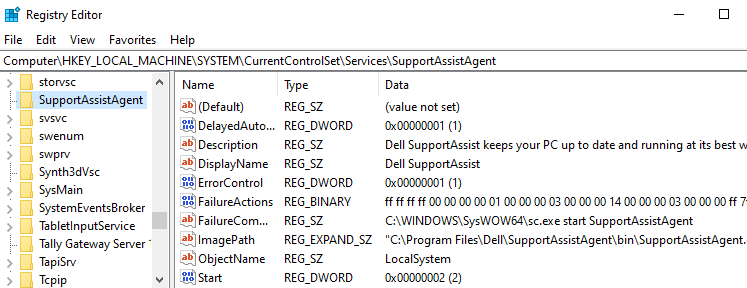
Dell SupportAssist service registry key Each sub-key under the above registry key represents a driver or a Service. The key name is the same as the short name of the service. Also, you should be able to identify the entry easily by looking at the DisplayName and ImagePath values in the right pane in the Registry Editor.
- Find the entry you want to delete.
- Backup the appropriate key by exporting it to a .reg file.
- Once exported, right-click the key, and choose Delete.
- Exit the Registry Editor.
Using PowerShell
From the PowerShell administrator window, you can use the following commands to delete a service.
$service = Get-WmiObject -Class Win32_Service -Filter "Name='servicename'"
$service.delete()
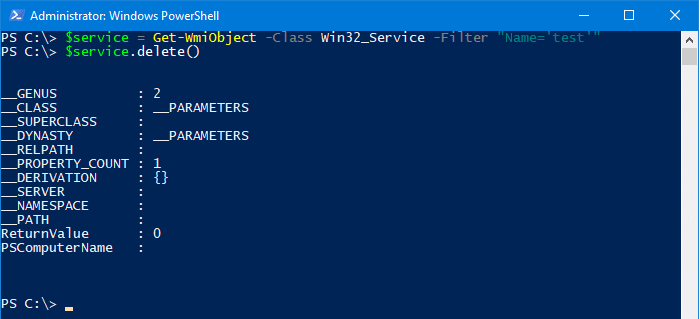
ReturnValue of 0 indicates that the operation was successful. The service is deleted and will no longer show up in the Services MMC.
To know the meaning of a return value, check out the Microsoft article Delete method of the Win32_Service class
 Or you can run the sc.exe command in PowerShell. That would work too. But you need to specify the extension (
sc.exe) when running it in PowerShell. This is because the command SC (without mentioning the extension .exe) will be interpreted as Set-Content which is a built-in cmdlet in PowerShell.It’s even easier if you have PowerShell 6.0 installed. In PowerShell 6 and higher, you can use this syntax to remove a service:
Remove-Service -Name ServiceName
Running the Remove-Service command in older versions of PowerShell (<6.0) shows the error: The term ‘Remove-Service’ is not recognized as the name of a cmdlet, function, script file, or operable program.
Using Process Hacker
Process Hacker is a good process management utility that is similar in appearance to Microsoft’s Process Explorer. With Process Hacker, you can easily delete a service via the right-click menu.
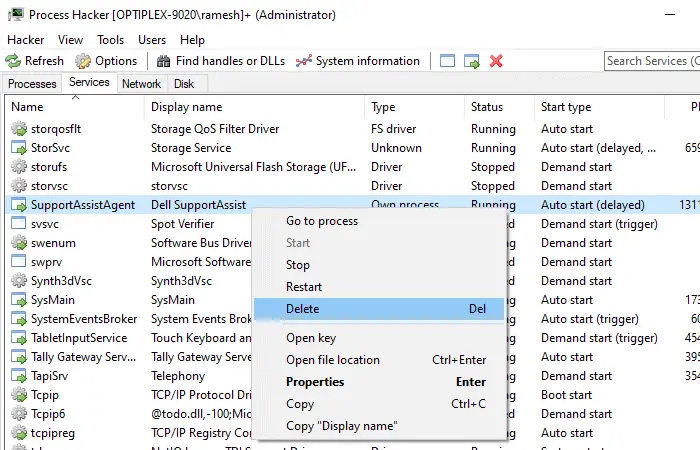
Start Process Hacker as administrator. Switch to the Services tab, right-click on the service you want to remove, and click Delete.
(As a side note, you can also configure service permissions using Process Hacker.)
Download Process Hacker from https://processhacker.sourceforge.io/
View Dependents of a Service
When you remove a service, others that depend upon the service will fail to start, returning the error “System error 1075 has occurred. The dependency service does not exist or has been marked for deletion.”. When a driver or service entry is leftover in the registry, but the corresponding files are missing, the Event Log would record an entry with ID:7000 at every start.
Log Name: System
Source: Service Control Manager
Date:
Event ID: 7000
Level: Error
Description:
The DgiVecp service failed to start due to the following error:
The system cannot find the file specified.
So, it’s advisable first to check if there are any dependents. You can check that in Services MMC by double-clicking on the item you’re going to delete and clicking the Dependencies tab. The list of components that depend on that service is shown below. Here is an example where “Fax” depends on “Print Spooler” to start.
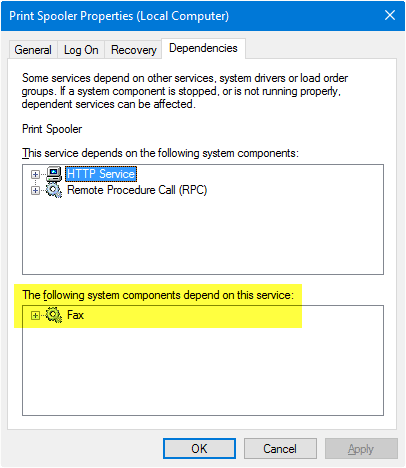
While most third-party services don’t have any dependents, some do. It’s always advisable to take a look at this tab before clearing the item.
Another way to verify the dependents is to run this command from a Command Prompt window. (example, Print Spooler)
sc enumdepend spooler
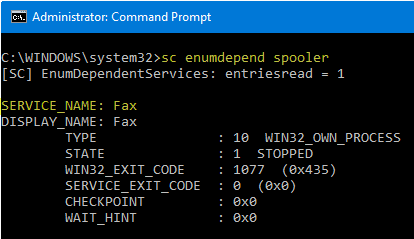
The information in this article applies to all versions of Windows, including Windows 11.
One small request: If you liked this post, please share this?
One "tiny" share from you would seriously help a lot with the growth of this blog. Some great suggestions:- Pin it!
- Share it to your favorite blog + Facebook, Reddit
- Tweet it!

Worked great! Thanks much for the information!