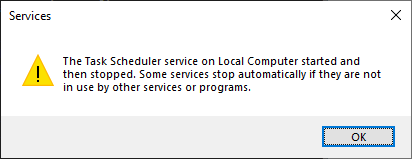
The Task Scheduler service may fail to start, and the following error may occur when you try to start it manually using the Services MMC in Windows 10 or 11.
The Task Scheduler service on Local Computer started and then stopped. Some services stop automatically if they are not in use by other services or programs.
When you launch the Task Scheduler MMC console (taskschd.msc), the following error occurs:
The remote computer was not found.
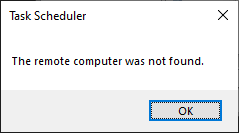
And none of the tasks are shown in the Task Scheduler MMC console. Instead, the error “Reading Data Failed” is displayed.

When you run the SchTasks.exe console tool to query the scheduled tasks registered on the computer, the following error occurs:
ERROR: The network address is invalid.
Cause
The Task Scheduler service may fail to start if the Time Broker service is turned off. However, Time Broker is not listed in the Task Scheduler service dependencies.
Resolution
Please open the Registry Editor (regedit.exe) and go to the following location:
HKEY_LOCAL_MACHINE\SYSTEM\CurrentControlSet\Services\TimeBrokerSvc
In the right pane, double-click the value named Start and set its data to “3“. The value data “3” implies Manual start.
Exit the Registry Editor and restart Windows.
net start TimeBrokerSvc

net start Schedule

sc.exe query TimeBrokerSvc

sc.exe query Schedule
That should fix the issue.
One small request: If you liked this post, please share this?
One "tiny" share from you would seriously help a lot with the growth of this blog. Some great suggestions:- Pin it!
- Share it to your favorite blog + Facebook, Reddit
- Tweet it!
