Prevent Internet Explorer Toolbar Layout from being Reset

Every once in a while, Internet Explorer resets the toolbar layout and I need to customize them the way I want, every time this happens. I have Google Toolbar and the default Links toolbar enabled, which I have docked to the extreme right, showing only the chevron.

Occasionally Internet Explorer (or probably one of the browser add-ons) resets the toolbar positions, pushing the Links toolbar to a separate line and thus occupying additional screen real estate. This happens even though the toolbars are in a locked state.Read more

Fix: Accidentally Moved Videos or other Shell folders to D:\ root

accidentally moved special folder to the root drive

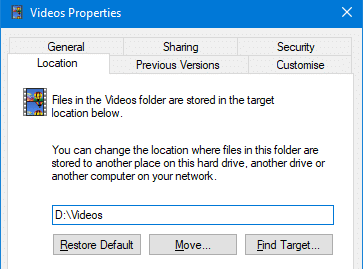
When you relocate a special folder: Music, Pictures, Videos, Downloads, or Documents to a different drive using the Location tab in the Property sheet, make sure you mention the complete target path where you want to relocate the folder.

For example, to move the Videos folder of your user profile to the D:\ drive, type D:\Videos, instead of just D:\. This is because Windows does not automatically append the folder name. In case you don’t mention the complete path, the shell folder will be moved to the root of the drive.

accidentally moved special folder to the root drive

Read more

Mapped drives not seen from elevated Command Prompt and Task Scheduler

mapped network drive not seen from admin command prompt and task scheduler

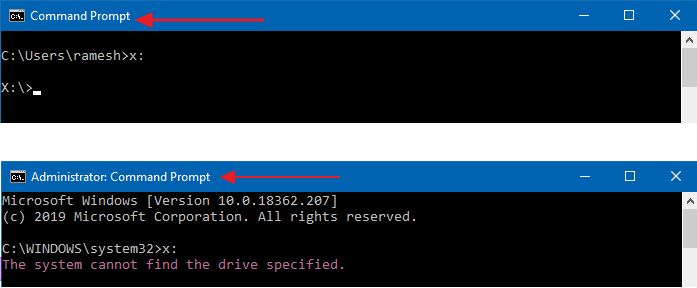
When you attempt to access a mapped network drive from an elevated or admin Command Prompt or Task Scheduler (with the highest privileges), the mapped drive won’t be available. Attempting to use the mapped network drives causes the error The system cannot find the path specified (Error code: 0x80070003).

Here are the screenshots from a computer running Windows 10.

mapped network drive not seen from admin command prompt and task scheduler

However, the mapped network drive is accessible from File Explorer and regular (non-elevated) Command Prompt.Read more

How to Add “Open File Location” Right-Click Option in Windows XP

Windows Vista and Windows 7 include the Open file location context menu item for Shortcuts, which helps you quickly open the target folder of a shortcut. In Windows XP, it takes four mouse clicks to accomplish the task.

To open the target folder of a shortcut in Windows XP, you need to right-click on the shortcut file, click Properties and click the Find Target button to open the parent folder of the target file or folder. And an additional mouse click is needed to close the Shortcut Properties dialog.Read more

Calendar Gadget in Windows Sidebar is Blank with Orange Background

The Calendar gadget in the Windows Sidebar may display blank content, showing only the plain orange background. Also, the Stocks Gadget may not show up when you add it to the Sidebar. A missing scripting run-time registration usually causes this problem. Registering VBScript.DLL Registering the vbscript.dll file from an admin Command Prompt fixes the problem. … Read more

File Explorer “Working on it” Showing Green Progress Bar

Summary: Windows 10’s File Explorer stalls saying “Working on it…” during the folder type automatic discovery process. And in earlier versions of Windows, Windows may sometimes assign incorrect template for folders if the content discovery or sniffing goes wrong or the folder view settings in the registry are messed up.Read more

[Fix] VBScript Files Open With Notepad

When you try to run a VBScript by double-clicking it, the script may open in Notepad. This happens if the user has set Notepad as the default (instead of wscript.exe) program for .vbs files, using Open with or through any other methods.. [Fix] VBScript Files Open With Notepad Running VBScript manually To run the script, … Read more

Show Hidden Files and Folders Missing or Does Not Work

show hidden files and folder does not work

The Folder Options dialog’s View tab allows you to show or hide hidden and system (protected) files in Explorer. The hidden files have the HIDDEN attribute. Protected files (aka, “super-hidden ” files) have the SYSTEM attribute.

There have been many support incidents lately where the File Explorer does not show hidden files and folders even though you enable the Show hidden files, folders and drives option in the Folder Options dialog. However, the files and folders can be viewed when using Windows Search or using the DIR /A command from a Command Prompt window.

Also, when you go to open the Folder Options and click the View tab, both the radio buttons Do not show hidden files and folders and Show hidden files, folders and drives may be enabled.

Read more