On Windows 10, after taking a screenshot using the Win + Shift + S keyboard sequence, you need to click on the notification to open the snip in the Snipping Tool and then save it manually. You wonder if an option exists to auto-save Win + Shift + S screenshots in Windows 10.
Workaround
Unfortunately, the option to auto-save Win + Shift + S snips to the Screenshots folder is unavailable in Windows 10. The “Automatically save to Screenshots” option is only available in Windows 11.
However, when you take a snip using the Snipping Tool in Windows 10, it saves the snip to a PNG file in the temporary location below:
%LOCALAPPDATA%\Packages\MicrosoftWindows.Client.CBS_cw5n1h2txyewy\TempState\ScreenClip
(To access that folder quickly, press Win + R, type the above path, and click OK.)
Reference: Screenshot a Portion of the Screen in Windows [Winkey+Shift+S]
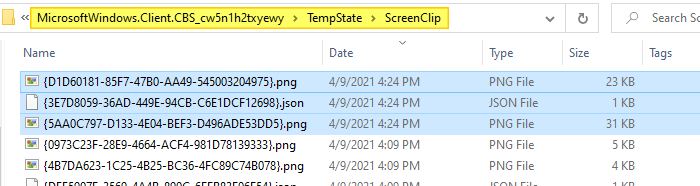
Each snip taken using Print Screen (or Win + Shift + S) creates two PNG files (and a JSON file) in that folder. One is the actual screenshot, and the other PNG is the miniature/thumbnail version.
One small request: If you liked this post, please share this?
One "tiny" share from you would seriously help a lot with the growth of this blog. Some great suggestions:- Pin it!
- Share it to your favorite blog + Facebook, Reddit
- Tweet it!

Broo you can just use win+ print sceen that takes whole screen screenshot and saves it automatically….