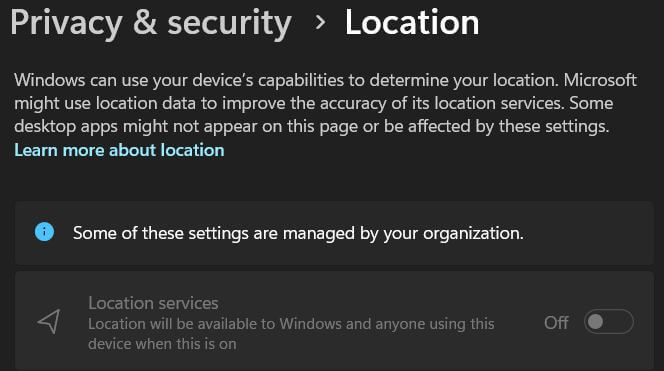
When you open Settings → Privacy → Location, the location settings may be grayed out. You may also see the following message at the top of the page.
Some of these settings are managed by your organization.
Cause
This is caused by some policies that are in effect.
Resolution
1) Disconnect from School or Work account
If you are logged into a school or work account, the policies may have been pushed via Azure AD. Please disconnect from the school or work network to see if that resolves the issue.
To do so:
- Open Settings → Accounts → Access work or school.
- Select your work or school account if it’s listed, and select Disconnect.
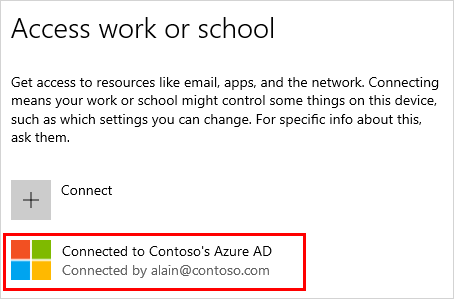
Image source: Microsoft.com - Click Yes to confirm.
Related Microsoft links
2) Remove the location policies from the registry
One of the two registry-based policies, “DisableLocation” or “DisableLocationScripting” under the “LocationAndSensors” branch, which when enabled, grays out the setting in the Location tab. To remove those policies, please follow the steps below.
Please create a System Restore Point. Then, open the admin Command Prompt and run these commands:
reg delete "HKLM\SOFTWARE\Policies\Microsoft\Windows\LocationAndSensors" /f

reg delete "HKLM\SOFTWARE\Policies\Microsoft\Windows\AppPrivacy" /f
(If you get the error “ERROR: The system was unable to find the specified registry key or value.”, ignore and run the next command.)
3) Do you use SpyBot Antibeacon? Turn off location policies in SpyBot Antibeacon
If you’re using SpyBot AntiBeacon, unchecking the sensors settings, and rebooting might help. The following video tutorial can help.
See also:
Spybot Anti-Beacon | disables windows location | Spybot Forums
https://forums.spybot.info/threads/spybot-anti-beacon-disables-windows-location.77399/
See if that restores the Location options in Settings.
One small request: If you liked this post, please share this?
One "tiny" share from you would seriously help a lot with the growth of this blog. Some great suggestions:- Pin it!
- Share it to your favorite blog + Facebook, Reddit
- Tweet it!

Thank you!!