The Recovery partition stores Winre.wim, an image needed to boot into the Windows Recovery Environment (WinRE). If the recovery partition is small, the system might fail when servicing the Winre.wim image.
For instance, you may encounter error 0x80070643 when installing WinRE security updates if the recovery partition is not big enough. The official documentation mentions that the recovery partition should have at least 250 MB of free space.
Resizing the recovery partition can be done using the built-in Diskpart tool or PowerShell. However, the Diskpart/PowerShell procedure can be tedious, involving the steps to disable WinRE, delete the partition, shrink the C drive, create a bigger recovery partition, set the correct partition ID, and finally re-enable WinRE.
The task can be accomplished easily using third-party partitioning software like AOMEI or EaseUS.
Let’s see how to extend the Recovery partition using AOMEI Partition Assistant Standard (free).
Resizing the Recovery Partition
(This article assumes that your OS disk has the default UEFI layout — i.e., EFI, MSR, OS partition, and the Recovery partition.)
In this example, the recovery partition’s capacity is 642 MB.
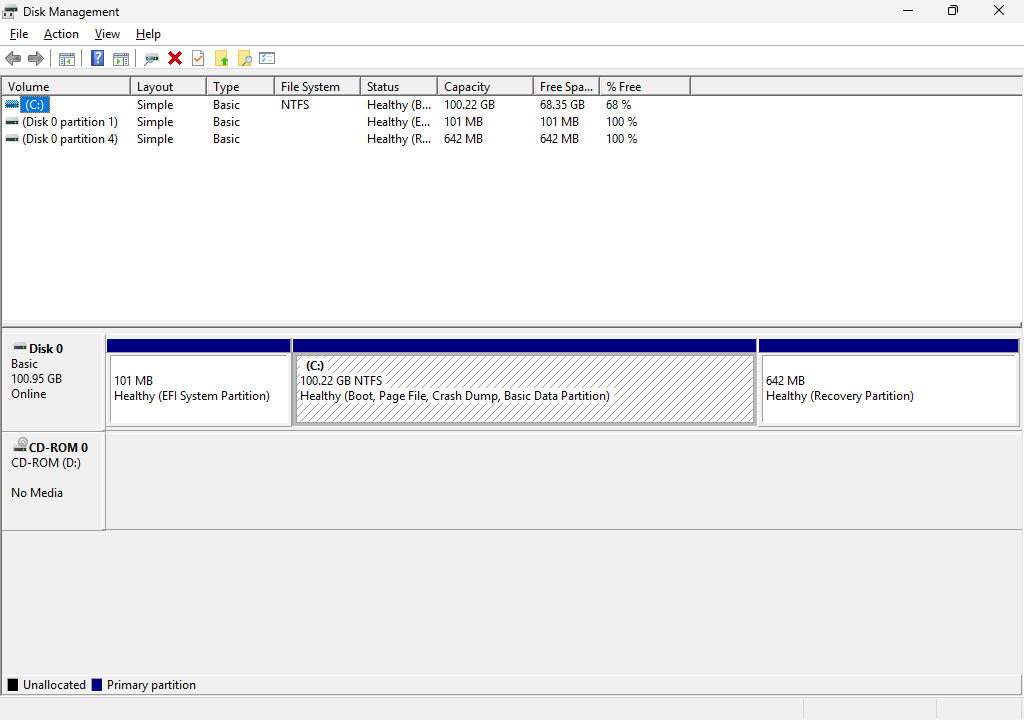
Let’s extend the partition by 100 MB. To do so we need to shrink the nearby partition (i.e., volume C) by 100 MB or so and create an unallocated space.
 Important: Before proceeding, please backup your data to an external drive. Although the following procedure shouldn’t erase your data, backing the disk before modifying its layout is highly advisable.
Download AOMEI Partition Assistant Standard and install it.
https://www.aomeitech.com/pa/standard.html
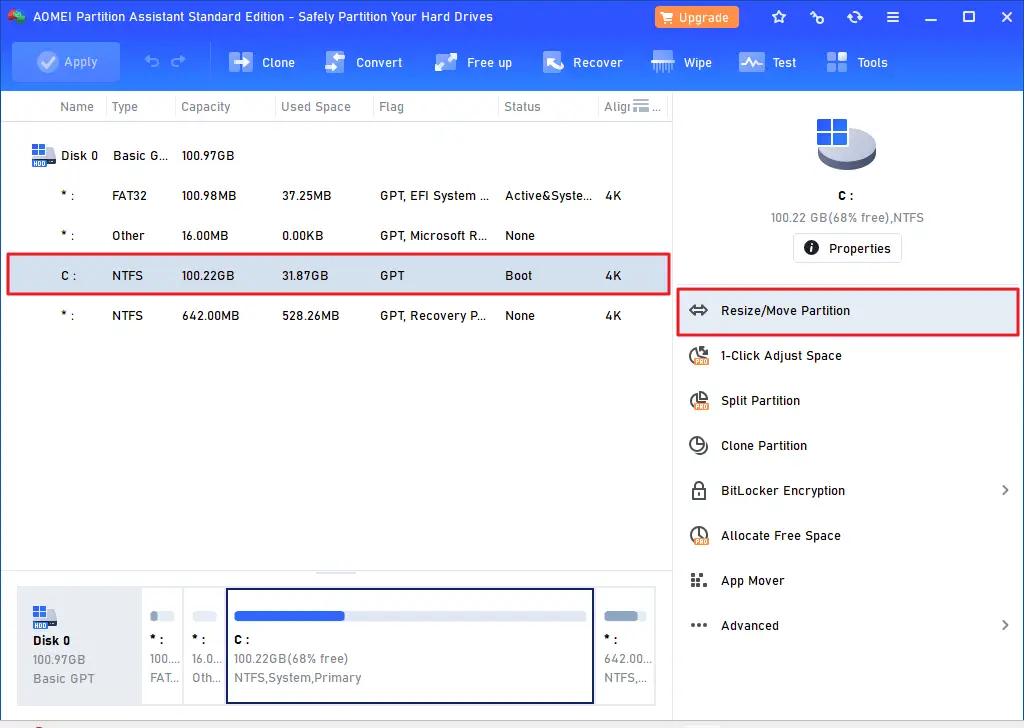
In AOMEI, select the C drive and click “Resize/Move Partition.”
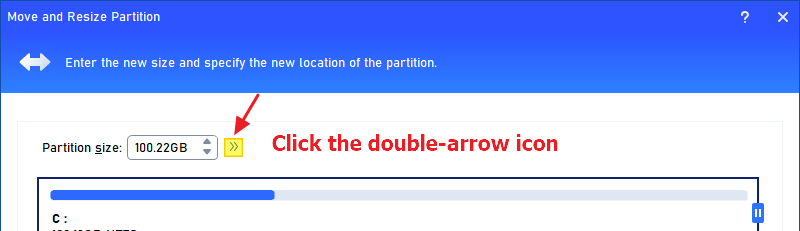
Click on the chevron (double right arrows) next to the “Partition size” text box.
This shows the “Unallocated space before” and “Unallocated space after” text boxes.
Reduce the “Partition size” value by approximately 100 MB so the unallocated space is created after that partition.
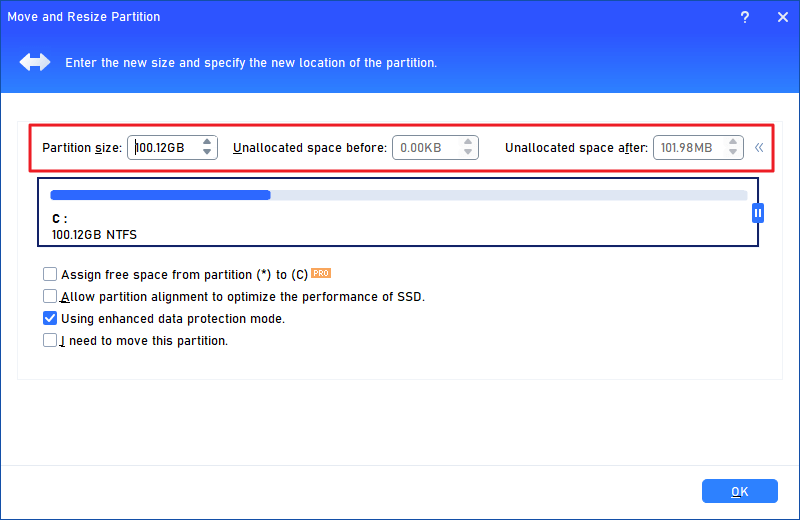
Click OK.
The dashboard should now show that the unallocated space, which falls between the C drive and the recovery partition, has been created by shrinking the C drive.
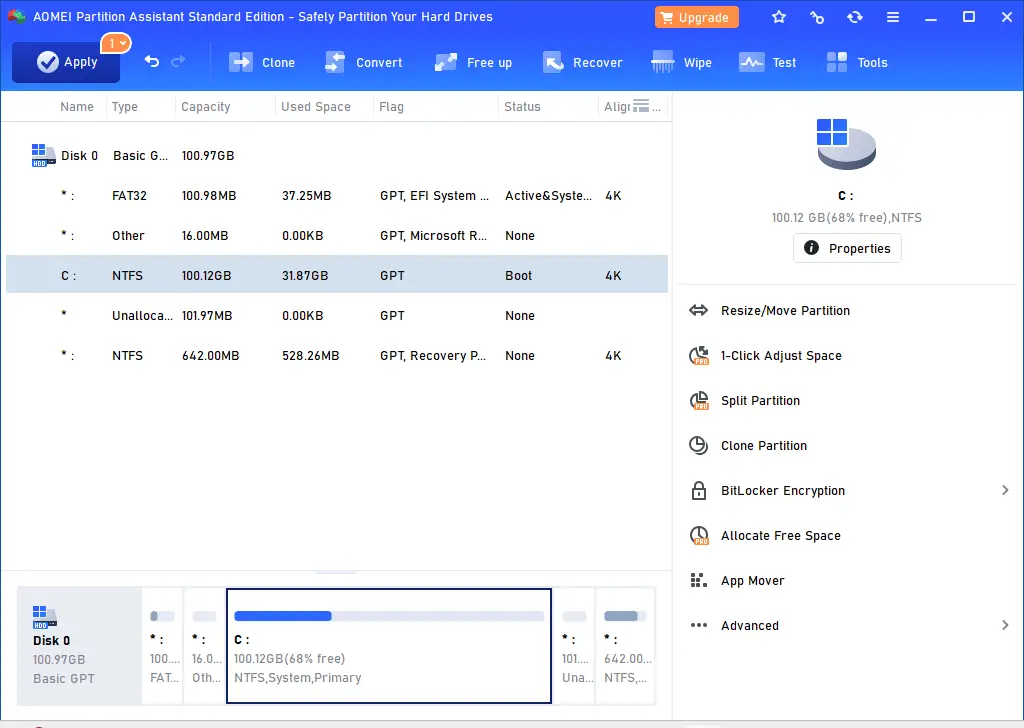
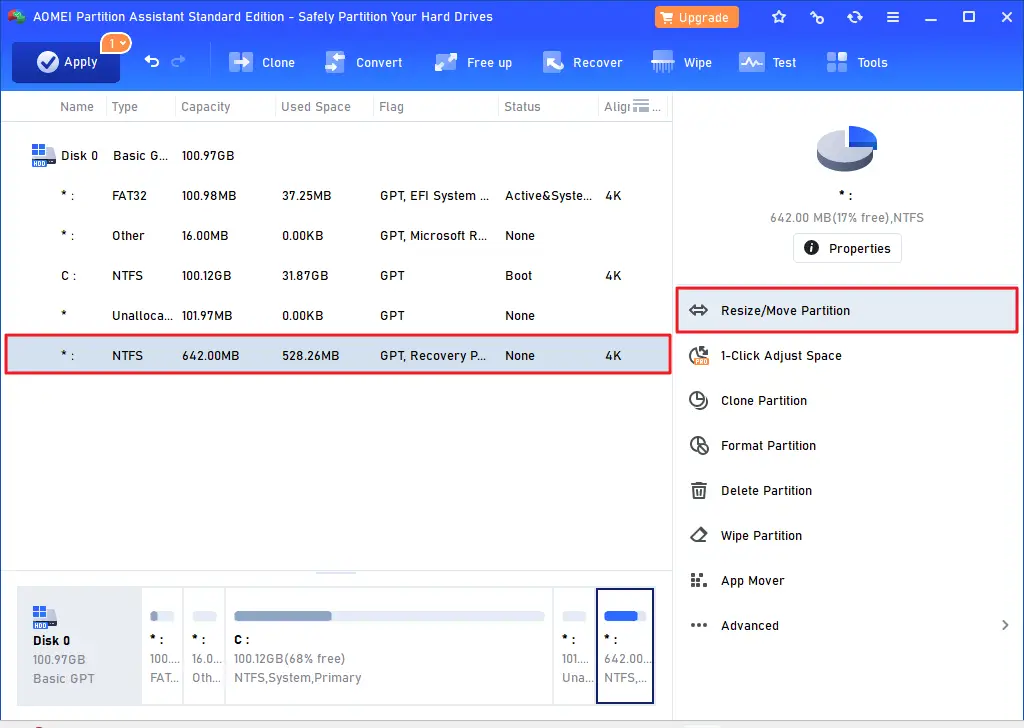
Select the recovery partition, and click “Resize/Move Partition”.
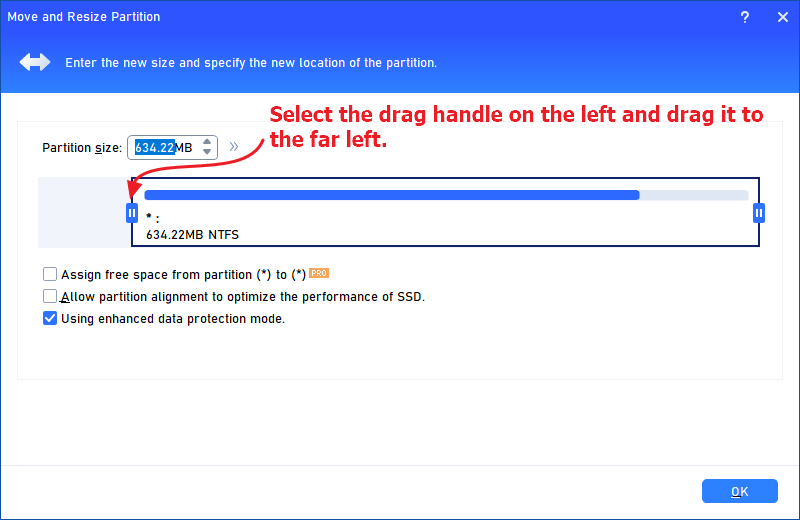
Select the drag handle on the left side of the partition and drag it to the far left.
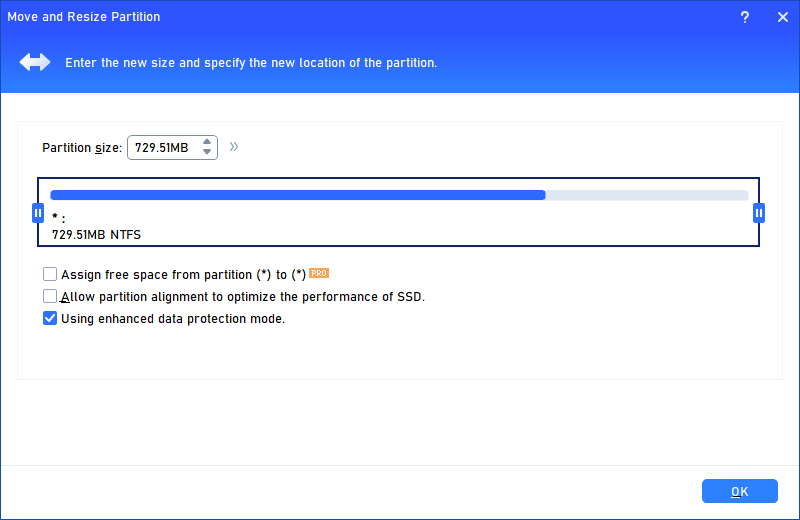
This extends the recovery partition, occupying the entire unallocated space on the left of the partition.
Once done, click OK.
In the AOMEI dashboard, click “Apply.” The changes you made are pending and will be applied during the reboot.

AOMEI shows the summary of changes that will be performed during the reboot in WinPE mode.
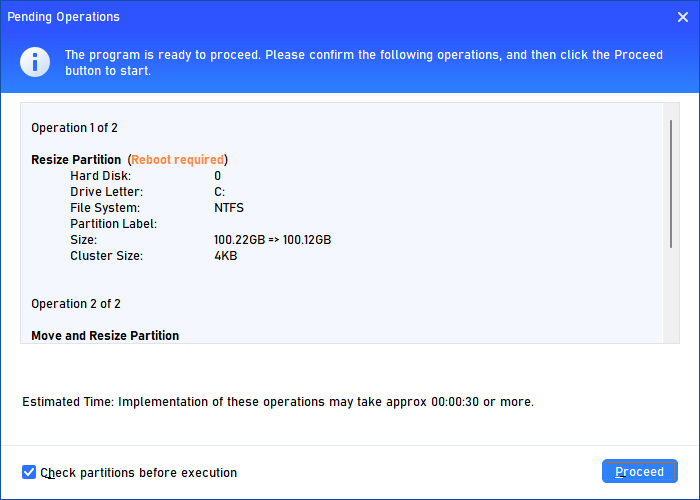
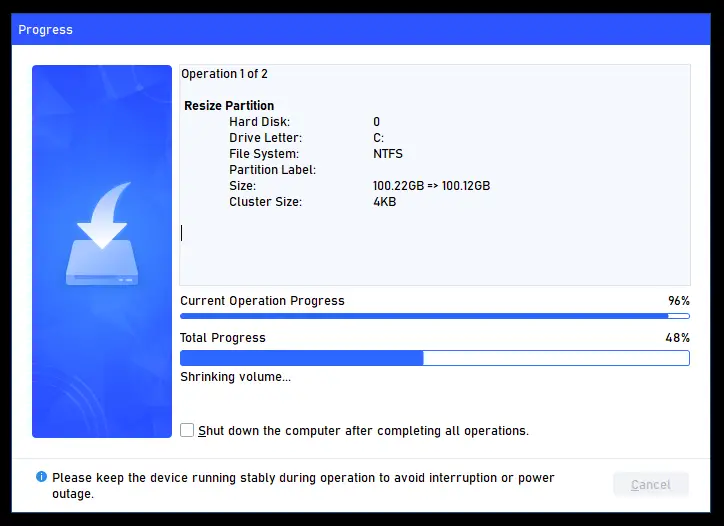
Click “Restart Now” when prompted.

After launching Windows, open Disk Management.
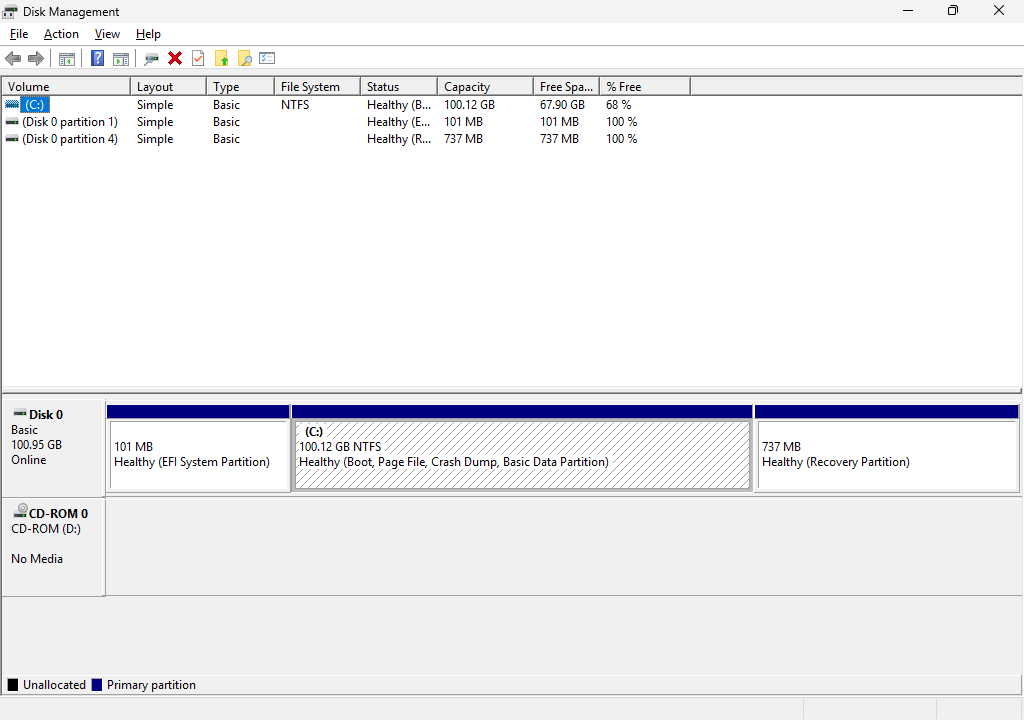
That’s it. You’ve extended the recovery partition.
Related articles
KB5034441 Update error 0x80070643
How to Backup your WinRE Image (Winre.wim)
How to Find if KB5034441 has been installed on your PC
How to Extend the Windows RE Partition Using PowerShell
How to Determine WinRE Partition’s Capacity and Free Disk Space
How to Extract Winre.wim from the Windows 10 or 11 ISO
One small request: If you liked this post, please share this?
One "tiny" share from you would seriously help a lot with the growth of this blog. Some great suggestions:- Pin it!
- Share it to your favorite blog + Facebook, Reddit
- Tweet it!

Hello,
I have tried your protocol but I cannot alter the size of the C drive as the up/down arrows for the ‘unallocated space before’ and ‘after’ are greyed out. I entered a value of 150MB manually but it ignored this upon moving to the next screen. I also appear to have a Dell recovery partition in addition to a microsoft recover partition. Are there too many partitions? Thanks. Ken
@Ken: Please post the Disk Management screenshot.