Certain registry keys are protected by NTFS permissions and are writable only by TrustedInstaller. In an earlier article, we saw how to launch a program under the TrustedInstaller privileges. Let’s see step by step how to import a REG file as TrustedInstaller.
The benefit of using the TrustedInstaller privileges to modify protected registry keys is that you don’t have to modify the registry ownership and permissions.
Import a .REG file as TrustedInstaller
Let’s assume the REG file you want to import is located at C:\Fixes\UsoSvc.reg. Please follow the steps to import the file.
Note: Before modifying the registry, please create a System Restore Point or backup the registry.
- Download Advanced Run and run it.
- Using Advanced Run, launch c:\windows\regedit.exe as TrustedInstaller.
Reference: How to Run a Program as TrustedInstaller.
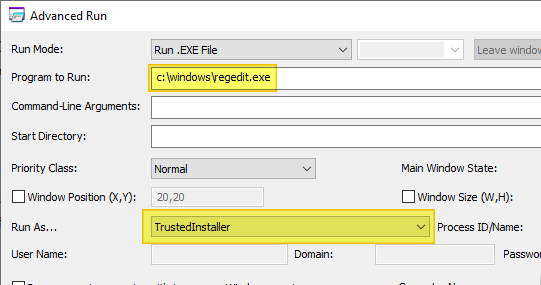
This opens the Registry Editor as TrustedInstaller. You can now close Advanced Run.
- In the Registry Editor, click File, and click Import….
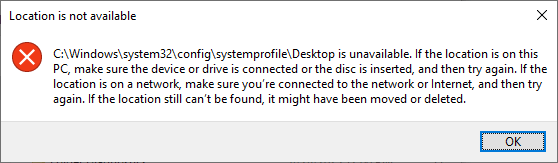
- Dismiss the following message box by clicking OK.
Location is not available

C:\Windows\system32\config\systemprofile\Desktop is unavailable. If the location is on this PC, make sure the device or drive is connected or the disc is inserted, and then try again. If the location is on a network, make sure you’re connected to the network or Internet, and then try again. If the location still can’t be found, it might have been moved or deleted.
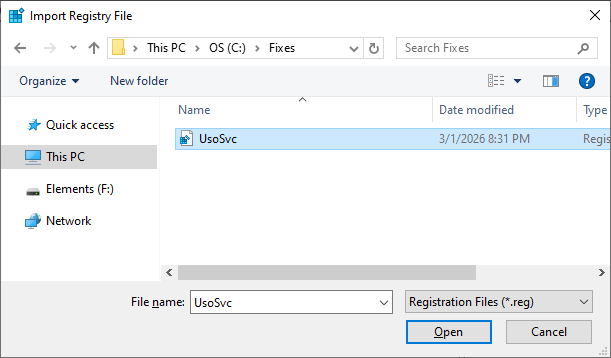
- Browse to the folder that contains the REG file you want to import.
- Select the REG file and click Open.
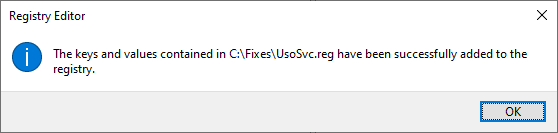
- You should see the following message:
The keys and values contained in C:\Fixes\UsoSvc.reg have been successfully added to the registry.
That’s it. Restart Windows for the changes to take effect.
One small request: If you liked this post, please share this?
One "tiny" share from you would seriously help a lot with the growth of this blog. Some great suggestions:- Pin it!
- Share it to your favorite blog + Facebook, Reddit
- Tweet it!
